
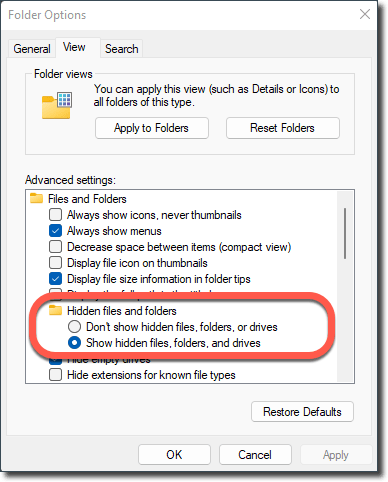
Visualizing Hidden Folders on Various Operating Systems
If you’re like most computer users, you’ve probably encountered hidden folders on your device at some point. These folders are concealed by default to prevent accidental modifications or deletions that could cause system malfunctions. However, there may be instances where you need to access these hidden files for various reasons.
In this article, we’ll explore how to visualize hidden folders on different operating systems, including Windows 10, Windows 11, Windows 7, macOS, Android devices, and even Microsoft Outlook and Excel.
Why Visualize Hidden Folders?
Before we dive into the procedures, it’s essential to understand why you might need to visualize hidden folders. Here are a few scenarios:
- You’re trying to troubleshoot an issue with your system or a specific application.
- You’ve accidentally hidden a crucial file and need to access it.
- You want to organize your files more efficiently by accessing all directories, including hidden ones.
Visualizing Hidden Folders on Windows 10
To visualize hidden folders on Windows 10:
- Open the File Explorer (also known as “This PC” or “Computer”).
- Click on the “View” tab in the top menu bar.
- Select the “Show” dropdown menu and choose “Hidden items.”
Visualizing Hidden Folders on Windows 11
The process is slightly different for Windows 11:
- Open the File Explorer (also known as “This PC” or “Computer”).
- Click on the three-dot menu icon in the top-right corner.
- Select “Settings” and then click on “View”.
- Under “Show,” select “Hidden items.”
Visualizing Hidden Folders on Windows 7
If you’re using Windows 7, follow these steps:
- Open the File Explorer (also known as “My Computer”).
- Click on the “Organize” button in the top menu bar.
- Select “Folder and search options.”
- In the “View” tab, select the checkbox next to “Show hidden files, folders, and drives.”
Visualizing Hidden Folders on Macos
To visualize hidden folders on a Mac:
- Open Finder.
- Click on “Go” in the top menu bar.
- Select “Home.”
- Hold down the Option (⌥) key while clicking on the “Go” menu again.
- Choose “Library.”
Visualizing Hidden Folders on Android Devices
The process varies depending on your device and file manager app:
- On a Google Pixel phone, open the Files app and go to the three-dot menu icon in the top-right corner. Select “Settings,” then toggle on “Show hidden files.”
- If you’re using an Samsung Galaxy phone, open the File Manager app and select the “Menu” button. Choose “Settings,” then enable “Show hidden files.”
Visualizing Hidden Folders in Microsoft Outlook
To visualize hidden folders in Microsoft Outlook:
- Click on the three-dot menu icon in the top-right corner.
- Select “Options.”
- Go to the “Preferences” tab.
- Under “View,” select “Normal view” instead of “Ribbon and Folder view.”
Visualizing Hidden Folders in Microsoft Excel
To visualize hidden folders in Microsoft Excel:
- Click on the “View” button in the top menu bar.
- Select “Window” from the dropdown menu.
- Choose “Hide” to unhide a specific worksheet.
We hope this guide has helped you visualize hidden folders on various operating systems and applications. Remember to always be cautious when accessing hidden files, as they may contain sensitive information or system-critical data.


