
How to Visualize IP Addresses: A Comprehensive Guide
As we navigate the vast digital landscape, it’s essential to understand how to visualize IP addresses. In this article, we’ll delve into the world of numerical addresses, exploring what they are, how they’re assigned, and how to access them on various devices.
What is an IP Address?
An IP address, or Internet Protocol address, is a unique numerical identifier assigned to each device connected to the internet. It serves as a digital fingerprint, allowing devices to communicate with one another and exchange data. IP addresses can be dynamic, changing with each connection, or static, remaining constant.
Types of IP Addresses
There are two primary types of IP addresses: Public and local.
- Public IP Address: This is the address visible to the world, used for communication between devices on the internet.
- Local IP Address: This address is assigned within a private network, such as a home or office network.
Visualizing Public IP Addresses
To visualize your public IP address, follow these steps:
- Visit the website What Is My IP Address.
- Wait for the page to load.
- Your public IP address will be displayed under the “My IP Address” section.
You may also use other services like IP Checker or IP Address to get your public IP address.
Visualizing Local IP Addresses
The process for visualizing local IP addresses varies depending on the device and operating system you’re using:
Windows
- Press the Windows key + R to open the Run dialog box.
- Type “cmd” and press Enter to open Command Prompt.
- Type “ipconfig” and press Enter.
- Look for the “IPv4 Address” or “IP Address” section, which will display your local IP address.
Mac
- Click on the Apple menu and select System Preferences.
- Click on Network.
- Select the network interface (e.G., Wi-Fi) from the left-hand menu.
- Look for the “IPv4 Address” or “IP Address” section, which will display your local IP address.
Android
- Open the Settings app.
- Scroll down and select Network & internet.
- Select Wi-Fi.
- Tap on the gear icon next to your network name.
- Look for the “IP address” section, which will display your local IP address.
Visualizing Router IP Addresses
To visualize your router’s IP address, follow these steps:
- Access your router using a web browser (usually by typing its IP address in the URL bar).
- Log in to your router using your username and password.
- Look for the “IP Address” or “LAN Settings” section, which will display your local IP address.
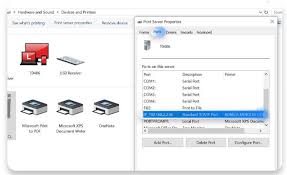
Visualizing Printer IP Addresses
To visualize your printer’s IP address:
- Access your printer’s control panel or settings menu.
- Look for the “Network Settings” or “IP Address” section.
- Your printer’s IP address will be displayed in this section.
Conclusion
Visualizing IP addresses is a straightforward process, and understanding how to access them on various devices can greatly enhance your online experience. Whether you’re configuring networks, troubleshooting connectivity issues, or simply curious about the digital world, knowing how to visualize IP addresses can provide valuable insights and help you navigate the vast expanse of the internet.
Frequently Asked Questions (FAQs)
-
What is an IP Address?
An IP address, or Internet Protocol address, is a unique numerical identifier assigned to each device connected to the internet.
2. How do I Visualize my Public IP Address?Visit the website What Is My IP Address, wait for the page to load, and your public IP address will be displayed under the “My IP Address” section.
3. How do I Visualize my Local IP Address on Windows?Press the Windows key + R to open the Run dialog box, type “cmd,” press Enter, type “ipconfig,” and press Enter. Look for the “IPv4 Address” or “IP Address” section, which will display your local IP address.
4. How do I Visualize my Local IP Address on Mac?Click on the Apple menu and select System Preferences, click on Network, select the network interface (e.G., Wi-Fi) from the left-hand menu, and look for the “IPv4 Address” or “IP Address” section, which will display your local IP address.
5. How do I Visualize my Local IP Address on Android?Open the Settings app, scroll down and select Network & internet, select Wi-Fi, tap on the gear icon next to your network name, and look for the “IP address” section, which will display your local IP address.
6. How do I Visualize my Router’s IP Address?Access your router using a web browser (usually by typing its IP address in the URL bar), log in to your router using your username and password, and look for the “IP Address” or “LAN Settings” section, which will display your local IP address.
7. How do I Visualize my Printer’s IP Address?Access your printer’s control panel or settings menu, look for the “Network Settings” or “IP Address” section, and your printer’s IP address will be displayed in this section.
I hope you found these questions helpful!


