
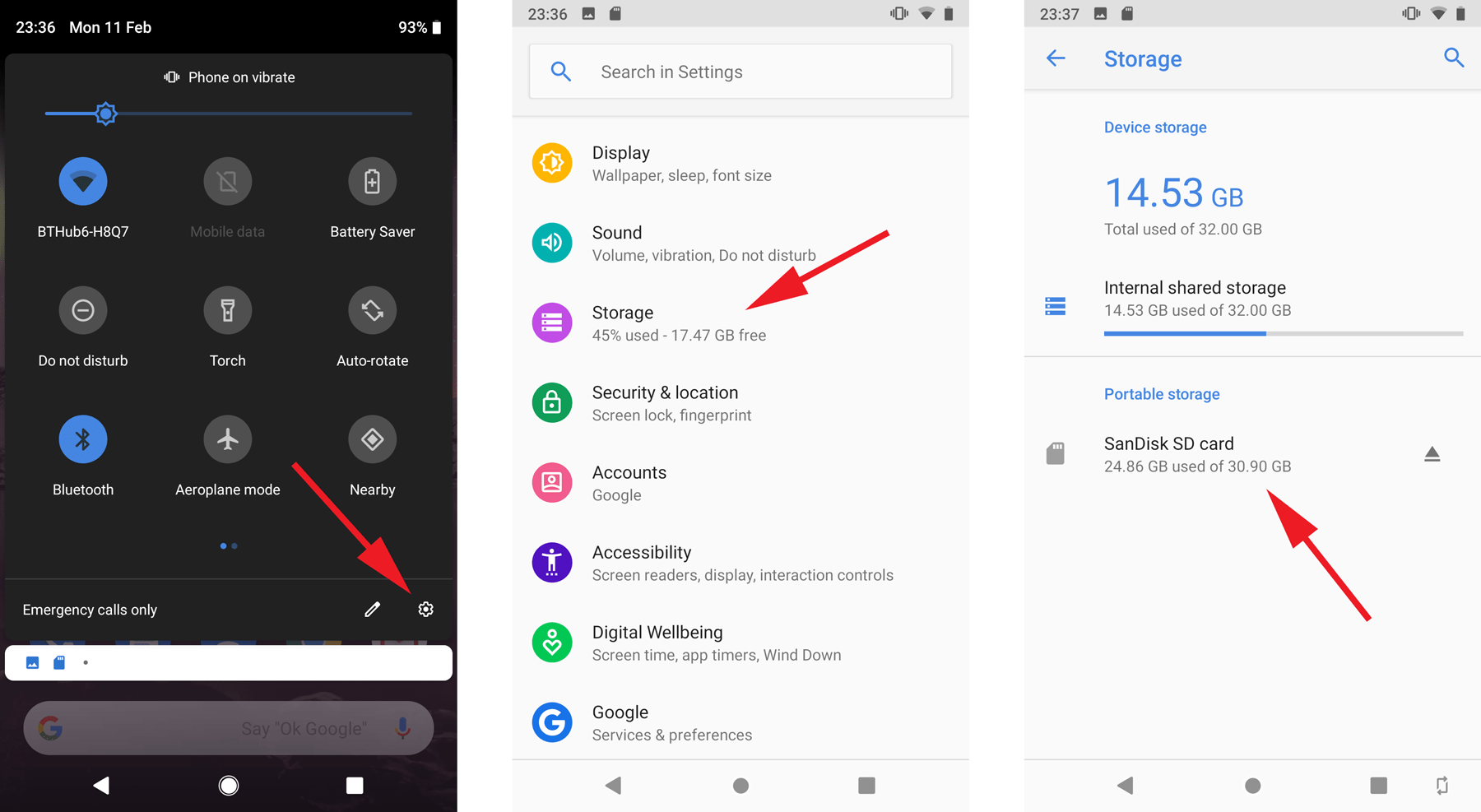
How to See The SD Card on Android: A Step-by-step Guide
Are you wondering how to see the files on your microSD card on your Android smartphone? Do you want to know how to check the available storage space or transfer files from the SD card to your device? Look no further! In this article, we’ll show you how to access and manage your microSD card on your Android phone.
Understanding Your Microsd Card
Before we dive into the steps, let’s understand what a microSD card is and what it can do. A microSD card is an external memory storage device that can be inserted into your smartphone or tablet. It allows you to expand your device’s internal storage capacity, giving you more space to store files like photos, videos, documents, and music.
How to See The SD Card on Android
To see the files on your microSD card on your Android phone, follow these steps:
Step 1: Accessing The File Manager App
The first step is to access the File Manager app on your Android device. This app allows you to view and manage the files stored on your device’s internal storage, as well as any external memory devices like microSD cards.
- On most Android devices, you can find the File Manager app in the drawer or by searching for it in the app drawer.
- Once you’ve opened the File Manager app, tap on the “Internal Storage” tab to view your device’s internal storage.
- You should see a list of folders and files stored on your device.
Step 2: Viewing The SD Card
To view the microSD card, follow these steps:
- Tap on the “Storage Devices” or “External Storage” tab in the File Manager app.
- Look for the microSD card icon or label. It might be listed as “External Storage,” “MicroSD,” or something similar.
- Select the microSD card to view its contents.
Step 3: Checking Available Storage Space
If you want to check how much free space is available on your microSD card, follow these steps:
- Open the File Manager app and select the microSD card from the list of storage devices.
- Tap on the “Details” or “Storage Info” button to view information about the microSD card’s capacity and usage.
Step 4: Transferring Files
To transfer files from your microSD card to your device, follow these steps:
- Select the file(s) you want to transfer using the File Manager app.
- Tap on the “Copy” or “Move” button to copy the selected file(s) to a location of your choice.
Additional Tips And Tricks
Here are some additional tips and tricks for managing your microSD card:
- To format your microSD card, open the Settings app, go to Storage > Internal Storage (or External Storage), and select “Format” or “Wipe.”
- If you’re using a device with a recent version of Android, you might see an option to move apps to the microSD card. Be aware that this can lead to performance issues.
- Consider using a file manager app like MiXplorer or Solid Explorer for more advanced features and customization options.
Conclusion
Managing your microSD card on Android is relatively straightforward once you know where to look. By following these steps, you should be able to access your files, check available storage space, and transfer files between devices. Remember to format your microSD card periodically to maintain performance and security.
Frequently Asked Questions (FAQs)
- Q: How do I insert a microSD card into my Android device?
-
A: To insert a microSD card into your Android device, follow these steps:
- Locate the SIM card tray on the side of your device.
- Remove the SIM card tray using a paper clip or the SIM ejector tool provided with your device.
- Insert the microSD card into the tray and push it gently until it clicks into place.
-
Q: Can I use my microSD card as internal storage?
-
A: No, you cannot use your microSD card as internal storage. The microSD card is an external memory device that can be used to expand your device’s storage capacity.
-
Q: How do I format my microSD card on Android?
-
A: To format your microSD card on Android, follow these steps:
- Open the Settings app and go to Storage > Internal Storage (or External Storage).
- Select “Format” or “Wipe” from the menu.
-
Q: Can I transfer apps to my microSD card?
- A: Yes, you can transfer apps to your microSD card on some Android devices. However, be aware that this might lead to performance issues and is not recommended for most users.
Recommended Reading
- For more information on using the File Manager app, refer to our article: “How to Use the File Manager App on Android.”
- To learn about the benefits of formatting your microSD card periodically, check out our article: “Why You Should Format Your MicroSD Card Regularly.”
We hope this guide has been helpful in answering your questions about managing your microSD card on Android. If you have any further queries or need assistance with any other device-related topics, feel free to ask!


