
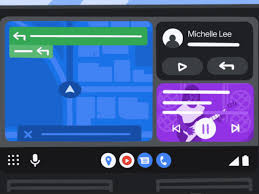
How to Add Whatsapp on Android Car: A Step-by-step Guide
Are you one of those tech-savvy individuals who love staying connected with friends and family while on the go? Do you have an Android car system in your vehicle, but struggle to figure out how to add WhatsApp to it? You’re not alone! Many users face this challenge, but fear not, dear reader, as we’re about to dive into a step-by-step guide on how to add WhatsApp on Android Car.
Understanding The Basics
Before we begin, let’s quickly understand the basics. Android Car is an infotainment system that allows you to connect your smartphone to your car’s display. This system enables you to access various apps, including Google Maps, Google Assistant, and more. Now, if you’re wondering how to add WhatsApp on Android Car, the answer lies in understanding how to navigate this system.
Step 1: Accessing The Settings
To start, open the settings menu on your smartphone. This is usually denoted by an icon resembling a gear or cogwheel. From here, look for the “Android Car” option and select it. You may need to search for it using the search bar at the top of the screen.
Step 2: Activating Android Car
Once you’ve accessed the settings menu, ensure that Android Car is activated on your smartphone. If not, toggle the switch next to “Android Car” to turn it on.
Step 3: Adding Whatsapp to Android Car
Now that Android Car is active, let’s focus on adding WhatsApp to your system. Scroll down and look for the “Personalize start apps” option. Tap on this, then select the app you want to add, which in this case is WhatsApp.
Step 4: Selecting Whatsapp
Once you’ve selected WhatsApp, it will be added to your Android Car system. You may need to restart your car’s infotainment system for the changes to take effect.
Using Whatsapp on Android Car
Now that WhatsApp is installed on your Android Car system, let’s explore how to use it. To access WhatsApp, press and hold the “Hey Google” button (usually located on the steering wheel or dashboard) and say, “Forward a message to WhatsApp.” You can also tap on the WhatsApp icon on the screen to access your messages.
Tips For Using Whatsapp on Android Car
When using WhatsApp on Android Car, keep in mind that notifications will only appear when the car is stationary. If you’re driving, you won’t receive notifications on your infotainment system. Additionally, consider setting up a voice command to forward messages or read them aloud while driving.
Troubleshooting Issues
If you encounter any issues while trying to add WhatsApp to Android Car, don’t worry! There are several troubleshooting steps you can take:
- Ensure that your smartphone is connected to the car’s infotainment system.
- Check if WhatsApp is installed on your smartphone and not just the Android Car system.
- Restart both your smartphone and car’s infotainment system.
Conclusion
Adding WhatsApp to Android Car may seem daunting at first, but with this step-by-step guide, you should be able to navigate the process with ease. Remember to follow these tips for using WhatsApp on Android Car and troubleshoot any issues that may arise. Happy driving and chatting!
Frequently Asked Questions (FAQs)
Q: What is Android Car?
A: Android Car is an infotainment system that allows you to connect your smartphone to your car’s display.
Q: How do I add WhatsApp on Android Car?
A: To add WhatsApp, open the settings menu on your smartphone and select the “Personalize start apps” option. Then, choose WhatsApp from the list of available apps.
Q: Can I use WhatsApp on Android Car while driving?
A: Yes, but be aware that notifications will only appear when the car is stationary.
Q: How do I forward messages using voice command on Android Car?
A: Press and hold the “Hey Google” button and say, “Forward a message to WhatsApp.”
Q: What if I encounter issues while trying to add WhatsApp on Android Car?
A: Try restarting both your smartphone and car’s infotainment system. If issues persist, consult the manufacturer’s support resources or contact their customer service.
Q: Can I use WhatsApp on Android Car with other apps simultaneously?
A: Yes, but be aware that some apps may not work seamlessly together.
Q: How do I troubleshoot issues related to WhatsApp on Android Car?
A: Check if your smartphone is connected to the car’s infotainment system, ensure that WhatsApp is installed on both devices, and restart both systems.
Q: Can I access my WhatsApp messages on Android Car when the car is stationary?
A: Yes, notifications will appear on your infotainment screen when the car is stopped.
Q: Are there any specific settings or requirements for using WhatsApp on Android Car?
A: Yes, ensure that your smartphone and car’s infotainment system are compatible with WhatsApp. Additionally, consider setting up a voice command to forward messages or read them aloud while driving.


