
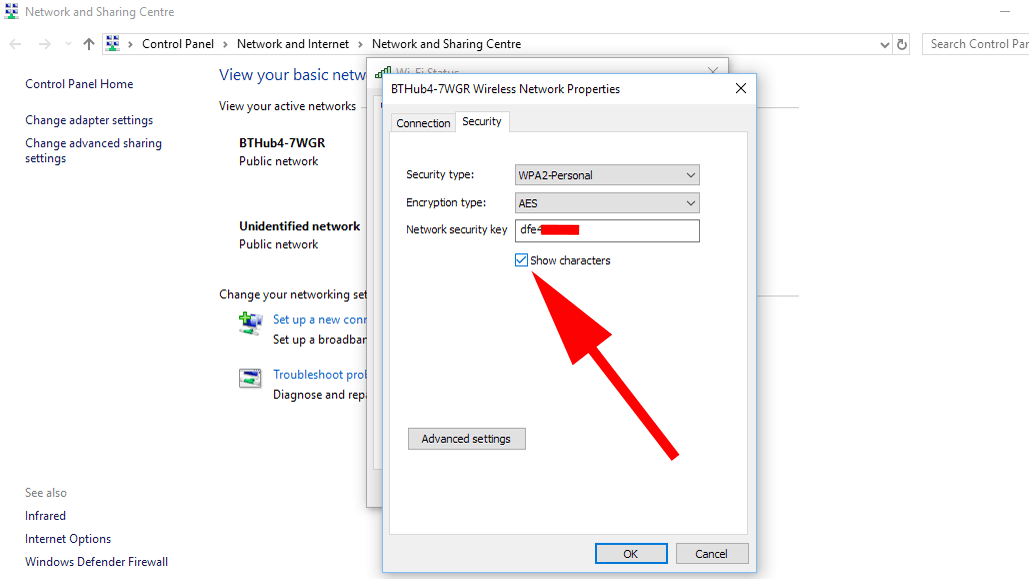
Visualizing Wifi Password: A Step-by-step Guide
Are you tired of forgetting your WiFi password or struggling to recover it? Look no further! In this comprehensive guide, we will walk you through the steps to visualize your WiFi password on various devices and platforms.
Introduction
Visualizing your WiFi password can be a daunting task, but with the right guidance, it’s easier than you think. Whether you’re using a computer, smartphone, or tablet, we’ve got you covered. In this article, we’ll explore how to access and view your WiFi password on Windows, macOS, Linux, Android, iOS, and even on your router.
Preliminary Information
Before diving into the tutorial, it’s essential to understand that accessing someone else’s WiFi password without permission is illegal and a breach of their privacy. This guide is for personal use only, and we encourage you to use our instructions responsibly.
Visualizing Password on PC
If you’ve used your computer to connect to the WiFi network, chances are the operating system has stored the password. Here’s how to access it:
- On Windows 10 and above, press the Windows key + R to open the Run dialog box.
- Type “cmd” and press Enter to open the Command Prompt.
- Type “netsh wlan show profile” and press Enter to list all WiFi profiles on your computer.
- Look for the network name (SSID) you want to access, and note the Profile Name. The password will be listed under the Security Settings.
Visualizing Password on Mac
If you’re using a Mac, follow these steps:
- Click the Apple menu and select System Preferences.
- Click Network, then Advanced, and finally WEP/WPA Tab.
- Look for the network name (SSID) you want to access, and note the Password field.
Visualizing Password on Ubuntu
If you’re using an Ubuntu Linux distribution, follow these steps:
- Open the Network Manager by clicking on the network icon in the top-right corner of the screen.
- Click Edit Connections.
- Select the WiFi connection you want to access, then click Edit.
- Look for the Password field.
Visualizing Password on Smartphone And Tablet
If you’re using an Android device:
- Download and install the WiFi Password app from the Google Play Store.
- Open the app, and select the network name (SSID) you want to access.
- The password will be displayed on the screen.
On iOS devices:
- Go to Settings > Wi-Fi.
- Select the network name (SSID) you want to access.
- Tap the “i” icon next to the network name.
- Look for the Password field.
Visualizing Password on Router
To access your WiFi password on the router, follow these steps:
- Open a web browser and type the IP address of your router (usually 192.168.1.1 Or 192.168.0.1).
- Log in to the router using the default admin username and password.
- Look for the Wireless Settings section.
- The WiFi password will be listed under the WEP/WPA Tab.
Conclusion
Visualizing your WiFi password is a straightforward process, regardless of your device or platform. By following these step-by-step guides, you’ll be able to access and view your WiFi password with ease. Remember to use our instructions responsibly and only for personal use.
Frequently Asked Questions (FAQs)
- Q: What if I Forget my Wifi Password?
A: If you’ve forgotten your WiFi password, try visualizing it on the device or platform you last used. - Q: Can I Change my Wifi Password?
A: Yes, you can change your WiFi password by accessing the router settings and updating the WEP/WPA Tab. - Q: How do I Protect my Wifi Network From Unauthorized Access?
A: Use a strong and unique password, enable WPA2 encryption, and consider setting up a guest network for visitors.
Feel free to reach out if you have any questions or need further clarification on these points.


