
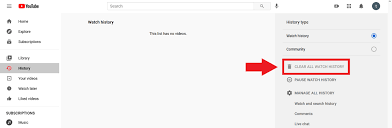
Unlocking Youtube’s Hidden Feature: How to See Your Watch History
Are you tired of watching videos on YouTube without knowing the order in which you watched them? Do you want to recall the videos you’ve seen recently, but can’t remember their names or dates? Look no further! In this article, we’ll guide you through the process of accessing your YouTube watch history, also known as your chronology.
Understanding Your Youtube Chronology
Your YouTube chronology is a feature that allows you to view a list of all the videos you’ve watched on the platform, organized by date. This can be a helpful tool for remembering what you’ve seen recently or revisiting old favorites. However, accessing this feature requires some knowledge of how to navigate your YouTube settings.
How to See Your Watch History on Computer
To access your YouTube chronology on a computer, follow these steps:
- Open your preferred web browser and log in to your Google account.
- Go to the YouTube homepage and click on the menu icon (three horizontal lines) at the top left corner of the screen.
- Select “Settings” from the dropdown menu.
- Click on the “Account” tab and select “Chronology” from the menu.
- You will be taken to a page displaying your watch history, organized by date.
How to See Your Watch History on Android
To access your YouTube chronology on an Android device:
- Open the YouTube app and log in to your Google account (if you haven’t already).
- Tap on the menu icon (three horizontal lines) at the top left corner of the screen.
- Select “Settings” from the dropdown menu.
- Scroll down and tap on “Chronology”.
- You will be taken to a page displaying your watch history, organized by date.
How to See Your Watch History on Iphone
To access your YouTube chronology on an iPhone:
- Open the YouTube app and log in to your Google account (if you haven’t already).
- Tap on the menu icon (three horizontal lines) at the top left corner of the screen.
- Select “Settings” from the dropdown menu.
- Scroll down and tap on “Chronology”.
- You will be taken to a page displaying your watch history, organized by date.
How to See Your Watch History Without an Account
Unfortunately, it is not possible to access your YouTube chronology without logging in to your Google account. However, if you’ve been watching videos incognito (using private browsing mode), your browser may retain some record of your watch history.
Tips And Tricks For Using Your Youtube Chronology
Here are a few additional tips for using your YouTube chronology:
- You can use the search bar at the top of the page to search for specific videos in your watch history.
- You can filter your watch history by date or keyword.
- You can click on individual videos in your watch history to view them again.
Conclusion
Accessing your YouTube chronology is a simple process that can be completed on any device with an internet connection. By following the steps outlined above, you’ll be able to see a list of all the videos you’ve watched on YouTube, organized by date. Whether you’re trying to remember what you’ve seen recently or simply want to revisit old favorites, your YouTube chronology is a valuable tool that’s waiting to be discovered.
Frequently Asked Questions
- Q: Can I Delete Videos From my Watch History?
A: Yes, you can delete individual videos from your watch history by clicking on the “Delete” button next to each video. - Q: How Far Back Does my Youtube Chronology Go?
A: Your YouTube chronology will display videos you’ve watched within the past 30 days. - Q: Can I Share my Watch History With Others?
A: No, your YouTube chronology is private and can only be accessed by you. - Q: How do I Enable Incognito Mode on Youtube?
A: To use incognito mode on YouTube, open the app or website in a private browsing window. - Q: Can I Access my Watch History on Multiple Devices?
A: Yes, you can access your watch history from any device where you’re logged in to your Google account. - Q: How do I Clear my Youtube Cache And Cookies?
A: To clear your YouTube cache and cookies, go to your browser settings and select “Clear browsing data”. - Q: Can I View Videos in my Watch History on a TV or Streaming Device?
A: Yes, you can access your YouTube chronology on a TV or streaming device by logging in to your Google account. - Q: How do I Report a Problem With my Youtube Chronology?
A: To report a problem with your YouTube chronology, go to the YouTube help center and select “Report an issue”.


