
The Power of Virtualization: A Guide to Creating Virtual Machines on Your PC
Are you tired of dealing with slow and outdated software installations on your computer? Do you wish there was a way to create a virtual machine that allows you to run multiple operating systems and programs in parallel, without compromising the performance of your primary system? Look no further! In this article, we will explore the world of virtualization and provide you with a comprehensive guide on how to create virtual machines on your PC using various software tools.
What is Virtualization?
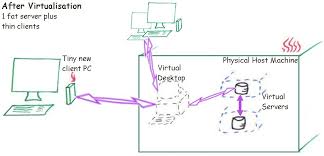
Virtualization is the process of creating a virtual machine that can run an operating system and its applications independently of the physical host machine. This allows you to run multiple virtual machines, each with its own operating system and programs, on a single physical computer. Virtualization offers numerous benefits, including improved efficiency, flexibility, and scalability.
Why Use Virtualization?
There are several reasons why you should consider using virtualization on your PC:
- Improved Performance: By creating separate virtual machines for different tasks, you can improve the overall performance of your primary system.
- Flexibility: Virtualization allows you to run multiple operating systems and programs in parallel, without the need for multiple physical computers.
- Scalability: Virtualization makes it easy to add or remove virtual machines as needed, allowing you to scale your computing resources with ease.
Software Tools For Virtualization
There are several software tools available that can help you create virtual machines on your PC. Some of the most popular options include:
Vmware Vcenter Converter Standalone
- Windows: If you’re using Windows 10 or earlier, you can use VMware vCenter Converter Standalone to create a virtual machine from your physical computer.
Vmware Workstation Player
- Windows: VMware Workstation Player is another popular option for creating virtual machines on Windows.
Vmware Fusion Player
- Macos: If you’re using macOS, you can use VMware Fusion Player to create virtual machines and run them in parallel with your primary system.
Disk2vhd
- Windows: Disk2vhd is a free tool that allows you to create virtual machines from physical disks on Windows.
Virtualbox
- Windows, Linux, Macos: VirtualBox is a popular open-source platform for creating and running virtual machines across multiple operating systems.
Step-by-step Guide to Creating a Virtual Machine With Vmware Vcenter Converter Standalone
- Download And Install Vmware Vcenter Converter Standalone
- Visit the official website of VMware vCenter Converter Standalone and download the software.
- Follow the installation instructions to install the software on your Windows computer.
- Launch Vmware Vcenter Converter Standalone
- Launch the software and select “Convert machine” from the main menu.
- Select The Physical Machine
- Select the physical machine you want to convert into a virtual machine.
- Choose The Output Format
- Choose the output format for your virtual machine (e.G., VMX, VMDK).
- Create The Virtual Machine
- Click “Finish” to create the virtual machine.
Step-by-step Guide to Creating a Virtual Machine With Vmware Workstation Player
- Download And Install Vmware Workstation Player
- Visit the official website of VMware Workstation Player and download the software.
- Follow the installation instructions to install the software on your Windows computer.
- Launch Vmware Workstation Player
- Launch the software and select “New virtual machine” from the main menu.
- Select The Output Format
- Choose the output format for your virtual machine (e.G., VMX, VMDK).
- Create The Virtual Machine
- Click “Finish” to create the virtual machine.
Step-by-step Guide to Creating a Virtual Machine With Vmware Fusion Player
- Download And Install Vmware Fusion Player
- Visit the official website of VMware Fusion Player and download the software.
- Follow the installation instructions to install the software on your macOS computer.
- Launch Vmware Fusion Player
- Launch the software and select “New virtual machine” from the main menu.
- Select The Output Format
- Choose the output format for your virtual machine (e.G., VMX, VMDK).
- Create The Virtual Machine
- Click “Finish” to create the virtual machine.
Step-by-step Guide to Creating a Virtual Machine With Disk2vhd
- Download And Install Disk2vhd
- Visit the official website of Disk2vhd and download the software.
- Follow the installation instructions to install the software on your Windows computer.
- Launch Disk2vhd
- Launch the software and select “Create a virtual machine” from the main menu.
- Select The Physical Disk
- Select the physical disk you want to convert into a virtual machine.
- Choose The Output Format
- Choose the output format for your virtual machine (e.G., VHDX, VHD).
- Create The Virtual Machine
- Click “Finish” to create the virtual machine.
Step-by-step Guide to Creating a Virtual Machine With Virtualbox
- Download And Install Virtualbox
- Visit the official website of VirtualBox and download the software.
- Follow the installation instructions to install the software on your Windows, Linux, or macOS computer.
- Launch Virtualbox
- Launch the software and select “New virtual machine” from the main menu.
- Select The Output Format
- Choose the output format for your virtual machine (e.G., VMDK, VHDX).
- Create The Virtual Machine
- Click “Finish” to create the virtual machine.
Conclusion
In this article, we have explored the world of virtualization and provided you with a comprehensive guide on how to create virtual machines on your PC using various software tools. Whether you’re looking to improve performance, flexibility, or scalability, virtualization is an excellent option to consider. We hope that this guide has been informative and helpful in your journey to creating virtual machines on your PC.


