
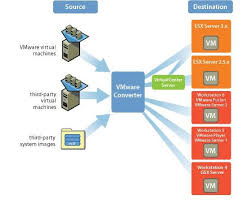
How to Virtualize a Physical Machine: A Step-by-step Guide
Are you tired of dealing with complex virtualization processes? Look no further! In this article, we will guide you through the process of virtualizing a physical machine using various tools and software.
Why Virtualize a Physical Machine?
Virtualizing a physical machine can be beneficial in several ways. First and foremost, it allows you to create an exact copy of your system without modifying the original. This is especially useful when testing new software or procedures that may potentially risk your system’s stability and safety. With virtualization, you can run these programs on a separate, isolated environment, eliminating any potential threats to your main system.
Tools For Virtualizing a Physical Machine
Several tools are available for virtualizing a physical machine, each with its own strengths and weaknesses. Here are some of the most popular ones:
- Vmware: A leading virtualization platform that offers various tools, including vCenter Converter Standalone, Fusion Player, and Workstation Player.
- Virtualbox: A free, open-source virtualization software that can be used on Windows, macOS, and Linux.
- Disk2vhd: A free tool developed by Microsoft for converting physical disks to VHD format.
Step-by-step Guide: Virtualizing a Physical Machine With Vmware
Here’s a step-by-step guide to virtualizing a physical machine using VMware:
1. Prepare Your System
Before initiating the virtualization process, ensure that your system meets the minimum requirements for running VMware. This includes having sufficient disk space and RAM.
2. Download And Install Vmware Vcenter Converter Standalone
Download the VMware vCenter Converter Standalone from the official website and install it on your system. Follow the instructions provided to complete the installation process.
3. Create a Virtual Machine
Launch the VMware vCenter Converter Standalone application and select the option to create a new virtual machine. Choose the physical machine you want to virtualize and follow the prompts to configure the virtual machine’s settings, such as RAM allocation and disk space.
4. Convert The Physical Machine
Once the virtual machine is created, start the conversion process by selecting the physical machine you want to convert and following the prompts to complete the procedure.
Step-by-step Guide: Virtualizing a Physical Machine With Disk2vhd
Here’s a step-by-step guide to virtualizing a physical machine using Disk2vhd:
1. Download And Install Disk2vhd
Download the Disk2vhd tool from the official website and install it on your system.
2. Select The Physical Machine
Launch the Disk2vhd application and select the physical machine you want to virtualize.
3. Configure The Virtual Machine Settings
Configure the virtual machine’s settings, such as RAM allocation and disk space, by selecting the appropriate options from the Disk2vhd interface.
4. Start The Conversion Process
Once the virtual machine is created, start the conversion process by following the prompts to complete the procedure.
Step-by-step Guide: Virtualizing a Physical Machine With Virtualbox
Here’s a step-by-step guide to virtualizing a physical machine using VirtualBox:
1. Download And Install Virtualbox
Download the VirtualBox software from the official website and install it on your system.
2. Create a New Virtual Machine
Launch the VirtualBox application and select the option to create a new virtual machine. Choose the physical machine you want to virtualize and follow the prompts to configure the virtual machine’s settings, such as RAM allocation and disk space.
3. Import The Vhd or Vmdk File
Import the VHD or VMDK file created using VMware or Disk2vhd into VirtualBox by selecting the option to add a new virtual hard disk.
Conclusion
Virtualizing a physical machine can be a complex process, but with the right tools and guidance, it’s achievable. In this article, we’ve provided step-by-step guides for virtualizing a physical machine using VMware, Disk2vhd, and VirtualBox. Whether you’re looking to test new software or procedures or simply want to create an exact copy of your system, these tools can help you achieve your goals.
Frequently Asked Questions (FAQs)
- Q: What is Virtualization?
A: Virtualization is the process of creating a virtual machine that runs on top of a physical machine. - Q: Why Should I Virtualize my Physical Machine?
A: Virtualizing your physical machine can help you create an exact copy of your system, which can be useful for testing new software or procedures without risking your main system’s stability and safety. - Q: What Tools Are Available For Virtualizing a Physical Machine?
A: Several tools are available for virtualizing a physical machine, including VMware, VirtualBox, and Disk2vhd. - Q: How do I Choose The Right Tool For my Needs?
A: Choose the tool that best fits your needs based on the type of system you want to virtualize and the level of complexity you’re comfortable with. - Q: Can I Use a Free Tool For Virtualizing a Physical Machine?
A: Yes, VirtualBox is a free tool that can be used for virtualizing a physical machine. - Q: What Are The Minimum System Requirements For Running Vmware or Other Virtualization Tools?
A: Check the official website of the tool you’re interested in to find out the minimum system requirements. - Q: How do I Configure The Virtual Machine Settings?
A: Follow the prompts provided by the tool to configure the virtual machine settings, such as RAM allocation and disk space.
Conclusion
Virtualizing a physical machine can be a complex process, but with the right tools and guidance, it’s achievable. Whether you’re looking to test new software or procedures or simply want to create an exact copy of your system, these tools can help you achieve your goals.


