
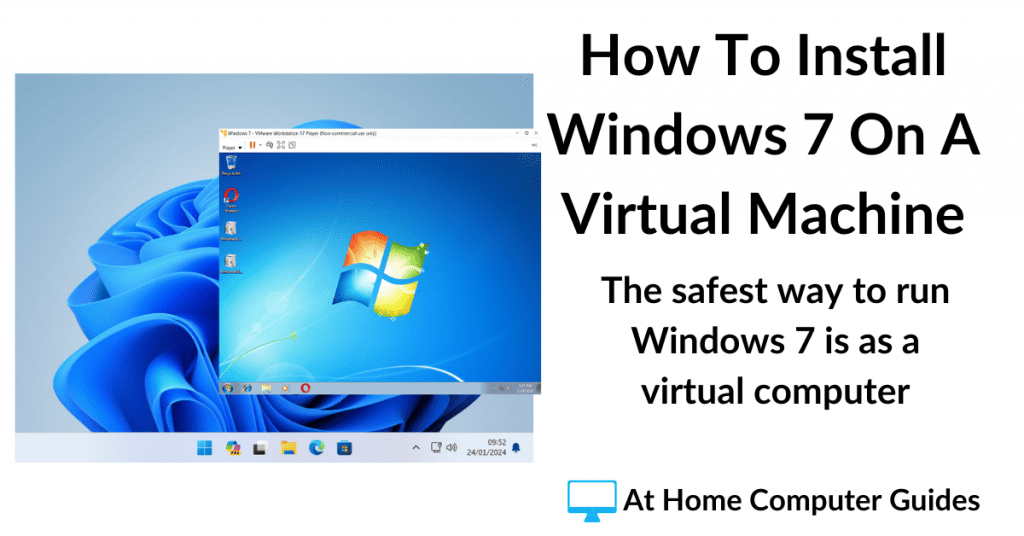
How to Virtualize Windows 7: A Step-by-step Guide
Are you tired of cluttering your main computer system with new programs but need to test them? Do you have a Mac but want to use Windows 7 for specific software execution? Look no further! In this article, we will guide you through the process of virtualizing Windows 7 using a virtual machine.
Virtual Machine: A Brief Introduction
A virtual machine is a self-contained environment that runs its own operating system on top of another OS. This allows you to install and run multiple OSes on the same physical machine without interfering with each other. Think of it as having a “guinea pig” computer for testing purposes.
Choosing The Right Software
There are several virtualization software options available, including VirtualBox, VMware Player, and Parallels Desktop. For this guide, we will focus on VirtualBox, which is free and widely compatible with all major operating systems.
Preparation: Downloading The Installation Disk
Before starting, you need to obtain a copy of the Windows 7 installation disk. Unfortunately, official copies are no longer available due to the OS being obsolete. You can:
- Use an ISO image from a reliable source.
- Create your own ISO using a CD/DVD burner and a computer with a master drive.
Step-by-step Guide: Installing Virtualbox on Windows
To virtualize Windows 7 on Windows, follow these steps:
- Download the VirtualBox software from their official website.
- Run the installer and click “Next” until you reach the installation menu.
- Choose to install for all users and select a location.
- Click “Install” to begin the setup process.
Creating a Virtual Machine in Virtualbox
To create a new virtual machine:
- Launch VirtualBox and click on the “New” button.
- Enter a name for your virtual machine (e.G., Windows 7).
- Choose Microsoft Windows as the operating system and select the appropriate version (32-bit or 64-bit).
- Assign a minimum of 512 MB of RAM, depending on your computer’s resources.
- Set up a hard disk with at least 20 GB of storage.
Installing Windows 7 on The Virtual Machine
- Launch the virtual machine by double-clicking its icon in VirtualBox.
- Insert the installation media (ISO or physical disk) and follow the setup wizard to install Windows 7.
Step-by-step Guide: Installing Virtualbox on Mac
To virtualize Windows 7 on a Mac:
- Download the VirtualBox software from their official website.
- Run the installer and click “Next” until you reach the installation menu.
- Choose to install for all users and select a location.
- Click “Install” to begin the setup process.
Alternative Solutions: Other Virtualization Software
If VirtualBox doesn’t meet your needs, consider these alternatives:
- Vmware Player: A free virtualization software for Windows and Linux that allows you to create and run virtual machines.
- Vmware Fusion: The macOS version of VMware Player, ideal for running Windows 7 and other operating systems.
- Parallels Desktop: A popular virtualization software for Mac that lets you use Windows 7 directly on your macOS system.
Conclusion
Virtualizing Windows 7 using a virtual machine is an efficient way to test new programs without cluttering your main computer system. Follow this guide, and you’ll be able to install and run Windows 7 on your preferred operating system in no time!
Frequently Asked Questions (FAQs)
- Q: What is The Minimum Ram Required For a Virtual Machine?
A: A minimum of 512 MB of RAM is recommended. - Q: Can I Use Virtualbox on Both Windows And Macos?
A: Yes, VirtualBox supports all major operating systems, including Windows and macOS. - Q: How do I Create an Iso Image For Windows 7?
A: You can create an ISO using a CD/DVD burner and a computer with a master drive or obtain one from a reliable source. - Q: Are There Any Alternatives to Virtualbox?
A: Yes, consider VMware Player, VMware Fusion, or Parallels Desktop for alternative virtualization options. - Q: Can I Share Files Between The Host And Guest Operating Systems?
A: Yes, you can install Guest Additions in VirtualBox to enable file sharing and other features. - Q: How do I Create a New Virtual Machine in Virtualbox?
A: Follow the steps outlined in this guide or refer to the official VirtualBox documentation for more information. - Q: Can I Use Windows 7 on my Mac Without Virtualization Software?
A: No, you need virtualization software like Parallels Desktop or VMware Fusion to run Windows 7 on a Mac. - Q: Are There Any Specific Requirements For Running Windows 7 in a Virtual Machine?
A: Yes, ensure your computer meets the minimum system requirements for Windows 7 and has sufficient RAM allocated for the virtual machine.


