
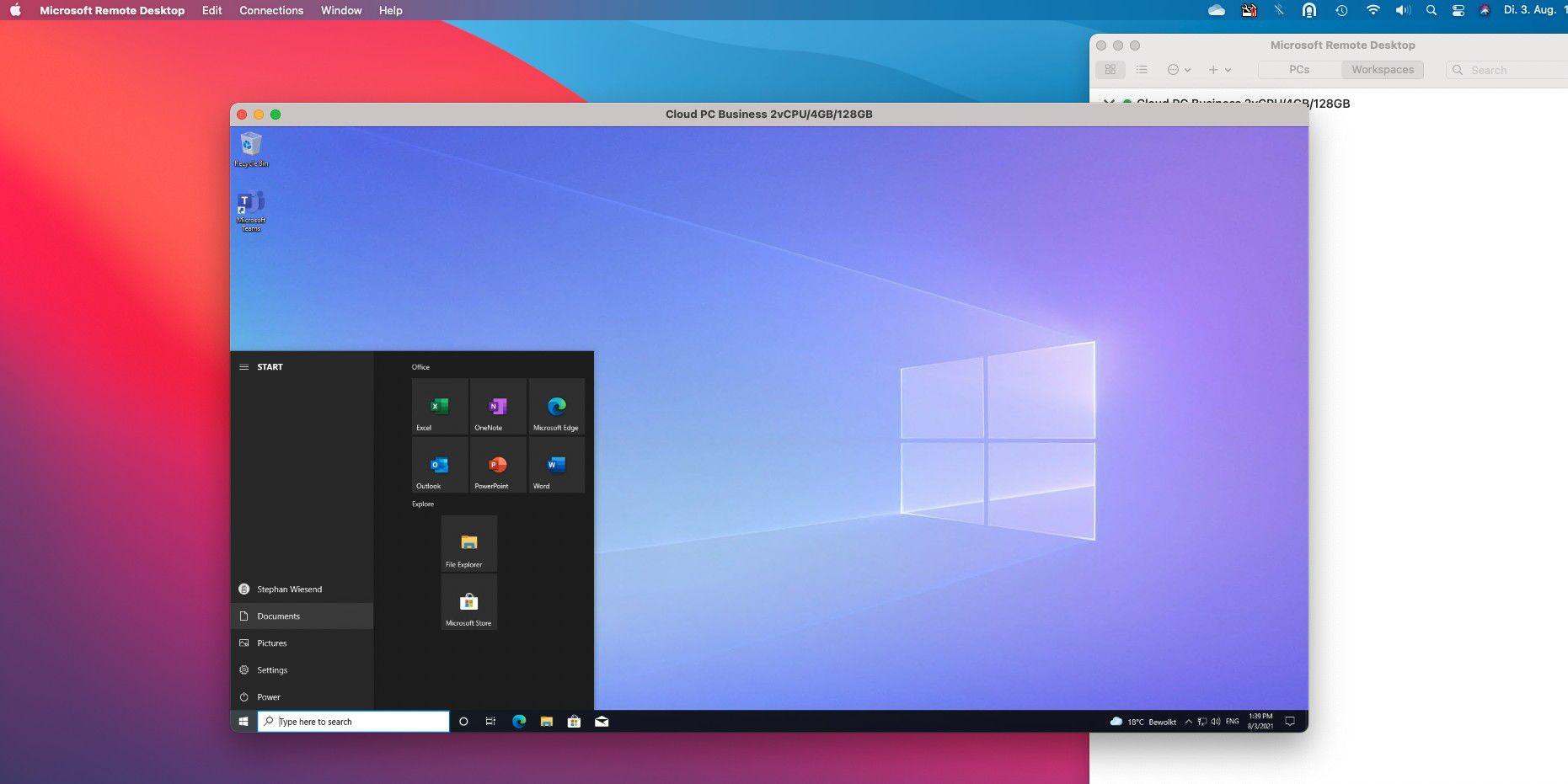
Virtualize Windows on Mac: Step by Step Guide
Introduction
If you are one of the many Mac users who need to use an application or game exclusively available for Windows, you may have thought that you need to “clean up” your old PC and replace it with a virtual machine. But don’t worry! There are easier and more convenient ways to virtualize windows on mac.
What is Virtualization?
Virtualization is a process that allows you to create a separate computing environment within your existing operating system. In this case, it involves creating a virtual machine (VM) that can run a different operating system than the host (your Mac).
Templates For Virtualizing Windows on Mac
There are two main ways to virtualize windows on mac:
1. Create a Windows Iso Image And Install it Manually in The Vm.
To do this, I will have to download the windows iso image from the official microsoft website and create a virtual machine with virtualbox or parallels desktop. Once the vm has been created, I will be able to install the windows iso image inside the vm.
2. Use an Existing Preconfigured Virtual Machine
Microsoft offers pre-configured virtualized versions of Windows that we can download and use directly inside our Mac. This method is even simpler and faster than creating a VM from scratch.
How to Virtualize Windows on Mac With Virtualbox
To virtualize windows on mac via virtualbox, follow these steps:
-
Download And Install Virtualbox: Visit the official virtualbox website and download the latest version available for mac.
-
Create a New Virtual Machine: Open virtualbox and create a new virtual device, choosing the version of windows you want to use.
-
Select Virtual Disk Type: Choose whether to create a new virtual disk file or use an existing one.
-
Connect The Windows Iso Image to The vm: Connect the windows iso image to the newly created virtual machine and start the installation procedure.
How to Virtualize Windows on Mac With Parallels Desktop
To virtualize windows on mac via parallels desktop, follow these steps:
-
Download And Install Parallels Desktop: Visit the official parallels desktop website and download the latest version available for mac.
-
Create a New Virtual Machine: Open parallels desktop and create a new virtual device, choosing the version of windows you want to use.
-
Connect The Windows Iso Image to The vm: Connect the windows iso image to the newly created virtual machine and start the installation procedure.
Preliminary Operations
Before you begin, it is important to make sure you have the following information available:
-
A Pre-configured Virtual Hard Disk: You can download an existing pre-configured virtual machine from Microsoft to avoid creating it from scratch.
-
The Productivity Keys And Password of The User Account on Mac: They are necessary for the installation and configuration of the virtual machine.
Useful Resources
1. Connect to The Official Microsoft Website
To download the existing pre-configured virtual machine, follow this link: Https://Www.Microsoft.Com/en-us/software-download/windows10
2. Create a Vdi Virtual Disk File in Zip Format With Virtualbox And Connect it to Download
To create a virtual machine using virtualbox, follow this link: Https://Www.Virtualbox.Org/wiki/downloads
3. Connect to The Official Parallels Desktop Website
To download and configure your existing pre-configured virtual machine with Parallels Desktop, follow this link: Https://Www.Parallels.Com/product/desktop/
Other Useful Solutions
Other options available for virtualizing windows on mac include:
-
Vmware Fusion: A commercial virtualization software known for its high performance and ease of use. However, it does not support m1 version of mac.
-
Playonmac: A free software that allows you to run Windows programs directly on a Mac without having to create a VM.
Faqs
1. What Are The Minimum Requirements to Virtualize Windows on Mac?
To perform the installation procedure of the existing pre-configured virtual machine, you only need the following information: A pre-configured virtual hard disk and the production keys of the user account on the Mac.
2. Can I Use The m1 Version of The Mac to Virtualize Windows on Mac?
With parallels desktop it is possible, but with virtualbox not.
3. Is There Any Specific Information Needed to Set up a Virtual Machine From Scratch?
Yes, the following information is required: A pre-configured virtual hard disk and productive user account keys on Mac.
4. Can I Run Windows on Mac Without Virtualizing The Os?
No, it’s not possible, because you need a vm to create the separate computing environment within your existing operating system.
5. What Are The Most Important Helpful Resources I Need to Consult Before Starting The Procedure?
To virtualize windows on mac, make sure you have the windows iso image and the existing pre-configured virtual machine from microsoft.
I hope this guide has helped you better understand how to virtualize windows on mac. If you have any other questions or are looking for more information, be sure to leave a comment!


