
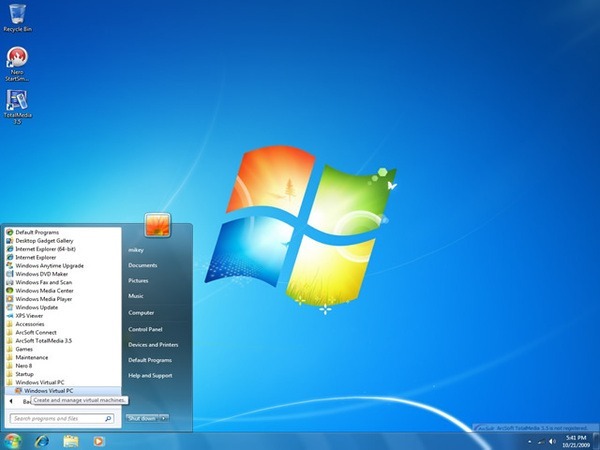
Virtualizing Windows XP on Windows 7: A Step-by-step Guide
Are you struggling to run an old program or game that’s only compatible with Windows XP on your Windows 7 computer? Don’t worry, I’ve got the solution for you! In this article, we’ll explore how to virtualize Windows XP on Windows 7 using two popular virtualization software: VirtualBox and VMware.
What is Virtualization?
Before we dive into the process, let’s quickly understand what virtualization is. Virtualization allows you to create a virtual machine (VM) that can run an operating system (OS) independently from your host OS. In this case, we’ll be creating a VM that runs Windows XP on top of your Windows 7 computer.
Why Virtualize Windows Xp?
There are several reasons why you might want to virtualize Windows XP on Windows 7:
- You need to run an old program or game that’s only compatible with Windows XP.
- You want to test an older version of a software without affecting your main OS.
- You’re trying to troubleshoot issues with an old program or game.
Hardware Requirements
Before we begin, make sure you have the following hardware requirements:
- A computer running Windows 7 (32-bit or 64-bit)
- Enough RAM and disk space to run multiple VMs
- A valid copy of Windows XP
Software Requirements
You’ll need to download and install one of the following virtualization software:
- Virtualbox: A free and open-source virtualization platform available for Windows, macOS, and Linux.
- Vmware Workstation Player: A paid virtualization platform that’s also available for Windows, macOS, and Linux.
Method 1: Virtualizing Windows XP With Virtualbox
To virtualize Windows XP on Windows 7 using VirtualBox:
- Download The Virtualbox Iso File: Go to the VirtualBox website and download the latest version of VirtualBox.
- Download The Windows XP Iso File: You can either purchase a copy of Windows XP or use an existing CD/DVD with the installation media.
- Install Virtualbox: Follow the instructions on the VirtualBox website to install the software.
- Create a New VM: Launch VirtualBox and click on “New” to create a new virtual machine.
- Configure The VM: Select Windows XP as the OS, choose the correct CPU settings, and allocate sufficient RAM (at least 512 MB).
- Attach The Windows XP Iso File: Mount the Windows XP ISO file to the VM using the “Add Hardware” option.
- Boot up The VM: Start the VM by clicking on the “Start” button.
- Install Windows XP: Follow the installation process to install Windows XP on the virtual machine.
Method 2: Virtualizing Windows XP With Vmware
To virtualize Windows XP on Windows 7 using VMware:
- Download The Vmware Workstation Player Iso File: Go to the VMware website and download the latest version of VMware Workstation Player.
- Download The Windows XP Iso File: You can either purchase a copy of Windows XP or use an existing CD/DVD with the installation media.
- Install Vmware: Follow the instructions on the VMware website to install the software.
- Create a New VM: Launch VMware and click on “New” to create a new virtual machine.
- Configure The VM: Select Windows XP as the OS, choose the correct CPU settings, and allocate sufficient RAM (at least 512 MB).
- Attach The Windows XP Iso File: Mount the Windows XP ISO file to the VM using the “Add Hardware” option.
- Boot up The VM: Start the VM by clicking on the “Start” button.
- Install Windows XP: Follow the installation process to install Windows XP on the virtual machine.
Tips And Tricks
- Make sure you have enough RAM and disk space to run multiple VMs.
- Use a valid copy of Windows XP to avoid any licensing issues.
- Be patient during the installation process, as it may take some time to complete.
- You can use VirtualBox or VMware to test an older version of a software without affecting your main OS.
Conclusion
Virtualizing Windows XP on Windows 7 is a straightforward process that requires minimal technical expertise. By using either VirtualBox or VMware, you can create a virtual machine that runs Windows XP independently from your host OS. This allows you to run old programs and games without affecting your main operating system.
Faqs
- Q: What’s The Difference Between Virtualbox And Vmware?
A: Both VirtualBox and VMware are virtualization software, but they have different features and pricing models. - Q: Can I Use a 64-bit Version of Windows XP on a 32-bit Host Os?
A: No, you cannot use a 64-bit version of Windows XP on a 32-bit host OS. - Q: How Much Ram do I Need to Allocate For The Vm?
A: Allocate at least 512 MB of RAM for the VM to ensure smooth performance. - Q: Can I Run Multiple Vms Simultaneously?
A: Yes, you can run multiple VMs simultaneously using VirtualBox or VMware. - Q: Is it Safe to Virtualize Windows XP on my Host Os?
A: Yes, it’s safe to virtualize Windows XP on your host OS using either VirtualBox or VMware. - Q: Can I Use a Pirated Copy of Windows XP For Virtualization?
A: No, you should not use a pirated copy of Windows XP for virtualization. Use a valid copy instead. - Q: How Long Does The Installation Process Take?
A: The installation process can take anywhere from 30 minutes to several hours, depending on your system configuration and network speed. - Q: Can I Use Virtualization Software to Run Other Operating Systems Besides Windows Xp?
A: Yes, you can use VirtualBox or VMware to run other operating systems besides Windows XP.
I hope this article has been helpful in understanding how to virtualize Windows XP on Windows 7 using either VirtualBox or VMware. If you have any further questions or need more guidance, please don’t hesitate to ask!


