
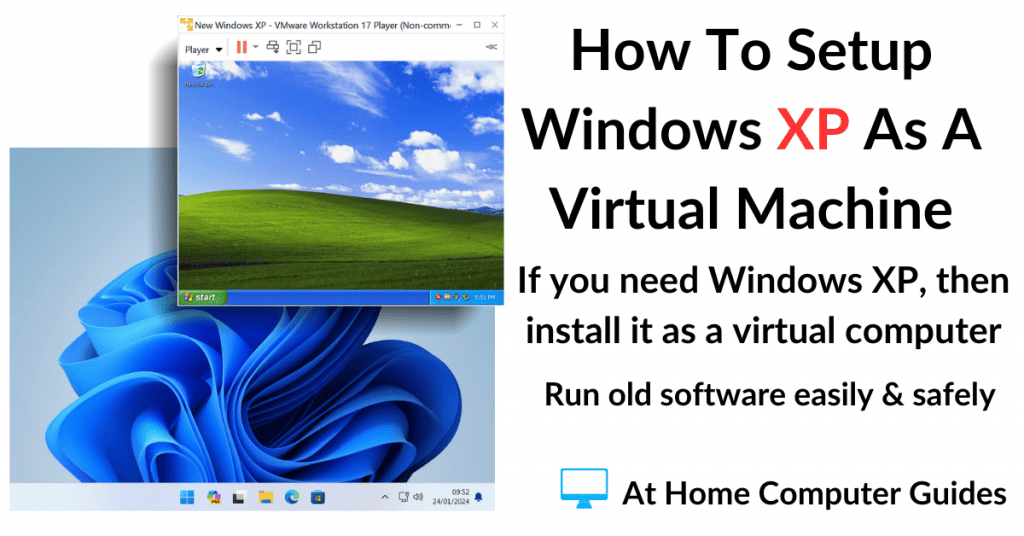
How to Virtualize Windows XP
Are you a developer or a system administrator who still needs to test compatible programs on the old Windows XP? Or perhaps, like me, you’re a tech enthusiast who wants to experience the nostalgia of using Windows XP on your Mac? Whatever your reason, I’m here to guide you through the process of virtualizing Windows XP.
What is Virtualization?
Virtualization is a technology that allows you to create a virtual machine (VM) on your computer. This VM can run its own operating system, just like your host computer, but without affecting it. You can install and run multiple OSes on a single physical machine, making it easier to test, develop, or simply reminisce about the past.
Why Virtualize Windows Xp?
Windows XP is an outdated operating system that’s no longer supported by Microsoft. However, there are still many developers and enthusiasts who rely on it for testing, development, or nostalgic purposes. By virtualizing Windows XP, you can create a sandboxed environment to test programs without affecting your host OS.
How to Virtualize Windows XP on Windows 10
If you’re running Windows 10 or another edition of the operating system, you can use the following solutions to virtualize Windows XP:
- Virtualbox: This is a free and open-source software that allows you to create VMs for various OSes, including Windows XP.
- Vmware Workstation Player: Another popular solution for virtualizing OSes on Windows. You’ll need to download and install the program from the official website.
How to Virtualize Windows XP on Mac
If you’re a Mac user, you can use the following solutions to virtualize Windows XP:
- Virtualbox: This is also available for Mac, allowing you to create VMs with ease.
- Vmware Fusion Player: Similar to the Windows version, this software enables you to create VMs on your Mac.
Other Programs For Virtualizing Windows XP
If the solutions above don’t meet your needs, here are some alternative options:
- Microsoft Hyper-v Manager: A built-in feature of Windows 10 that allows you to create and manage virtual machines.
- Parallels Desktop: A popular solution for virtualizing OSes on Mac. It offers an intuitive interface but has a limited free trial period.
- Winebottler: A free solution for Mac that enables you to open Windows XP programs without installing the full OS.
In conclusion, virtualizing Windows XP is a straightforward process with various solutions available for both Windows and Mac users. Whether you’re testing programs, developing software, or simply nostalgic about the past, I hope this guide has helped you find the perfect solution.
Faqs
- What Are The System Requirements For Virtualizing Windows Xp?
- The minimum requirements include a CPU with at least one core (2 GHz), 4 GB of RAM, and a disk space of around 20 GB.
- Can I Use my Existing Windows XP Installation to Virtualize It?
- Yes, you can use your existing installation as long as it’s not damaged or corrupted.
- Will Virtualizing Windows XP Affect my Host OS Performance?
- Generally, virtualization should have minimal impact on your host OS performance.
- Can I Transfer a Virtualized Windows XP to Another Machine?
- Yes, but you’ll need to export the VM and import it on the new machine.
Feel free to reach out if you have any further questions or need more detailed guidance. Happy virtualizing!


