
How to Virtualize a PC With Vmware: A Step-by-step Guide
Are you looking for a way to virtualize your PC using VMware? Look no further! In this article, we will guide you through the process of virtualizing a PC with VMware, step by step.
What is Vmware And Why Use It?
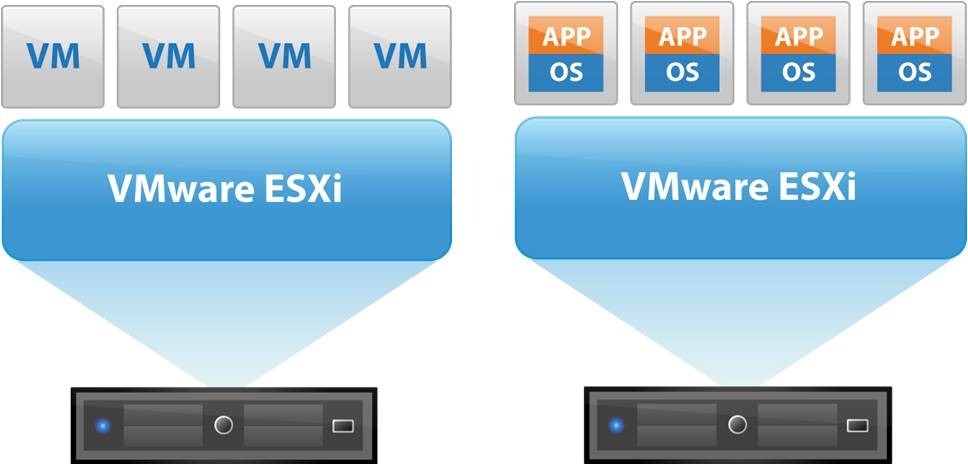
VMware is a software company that provides virtualization solutions for PCs. Virtualization allows you to create a virtual machine (VM) on your physical computer, which can run its own operating system and applications independently from the host machine. This means you can have multiple VMs running different OSes and apps on a single PC.
Benefits of Using Vmware
Using VMware offers several benefits, including:
- Increased Flexibility: With VMware, you can create a virtual machine for each project or task, allowing you to work on multiple projects simultaneously without affecting your host machine.
- Improved Security: Each VM is isolated from the host machine and other VMs, reducing the risk of malware spreading across the system.
- Better Resource Utilization: VMware allows you to allocate resources (CPU, RAM, disk space) to each VM separately, ensuring that each project or task gets the resources it needs without affecting others.
Prerequisites
Before you start virtualizing your PC with VMware, make sure:
- You have a valid version of VMware installed on your host machine.
- You have an image (ISO file) of the operating system you want to install in the VM.
- Your host machine meets the minimum hardware requirements for running VMware.
Step-by-step Guide
Here’s how to virtualize a PC with VMware:
Step 1: Download And Install Vmware
Download the free version of VMware (Workstation Player) from their official website. Follow the installation instructions to install it on your host machine.
Step 2: Create a New Virtual Machine
Launch VMware, click on “Create a new virtual machine,” and follow the prompts to create a new VM.
- Select the operating system you want to install (Windows or macOS) and choose the image (ISO file) of that OS.
- Allocate resources (CPU, RAM, disk space) to the VM as needed.
Step 3: Install The Operating System
VMware will now prompt you to install the operating system. Follow the on-screen instructions to complete the installation process.
Step 4: Configure Virtual Machine Settings
Once the OS is installed, you’ll need to configure some settings:
- Allocate resources (CPU, RAM, disk space) to the VM as needed.
- Set up networking options (e.G., Bridged, host-only, or NAT).
Step 5: Start Your Virtual Machine
Your virtual machine should now be ready to start. Launch it and enjoy your newly created virtual PC!
Troubleshooting Tips
If you encounter any issues during the process:
- Check VMware’s official documentation for troubleshooting guides.
- Contact VMware support for assistance.
Conclusion
Virtualizing a PC with VMware is a straightforward process that offers numerous benefits, including increased flexibility, improved security, and better resource utilization. By following these steps, you can create your own virtual machine using VMware and enjoy the advantages of virtualization on your host machine.
Here are 8 FAQs related to the topic:
-
What is Vmware?
VMware is a software company that provides virtualization solutions for PCs, allowing users to create virtual machines (VMs) with their own operating systems and applications.
-
Why Use Vmware?
Using VMware offers several benefits, including increased flexibility, improved security, and better resource utilization.
-
What Are The System Requirements For Running Vmware?
Your host machine should meet the minimum hardware requirements specified by VMware, which typically include a valid processor, sufficient RAM, and adequate disk space.
-
How do I Download And Install Vmware?
You can download the free version of VMware (Workstation Player) from their official website and follow the installation instructions to install it on your host machine.
-
What Are The Steps Involved in Virtualizing a PC With Vmware?
The process involves downloading and installing VMware, creating a new virtual machine, installing the operating system, configuring VM settings, and starting the virtual machine.
-
Can I Virtualize my Entire Infrastructure Using Vmware?
Yes, you can use VMware to virtualize your entire infrastructure by leveraging its features like vSphere, which allows for the creation of virtual machines from physical servers.
-
How do I Troubleshoot Issues With Vmware?
You can refer to VMware’s official documentation or contact their support team for assistance in resolving any issues you may encounter while using VMware.
-
Are There Any Free Versions of Vmware Available?
Yes, the free version of VMware (Workstation Player) is available for download from their official website and can be used for personal, non-commercial purposes.


