
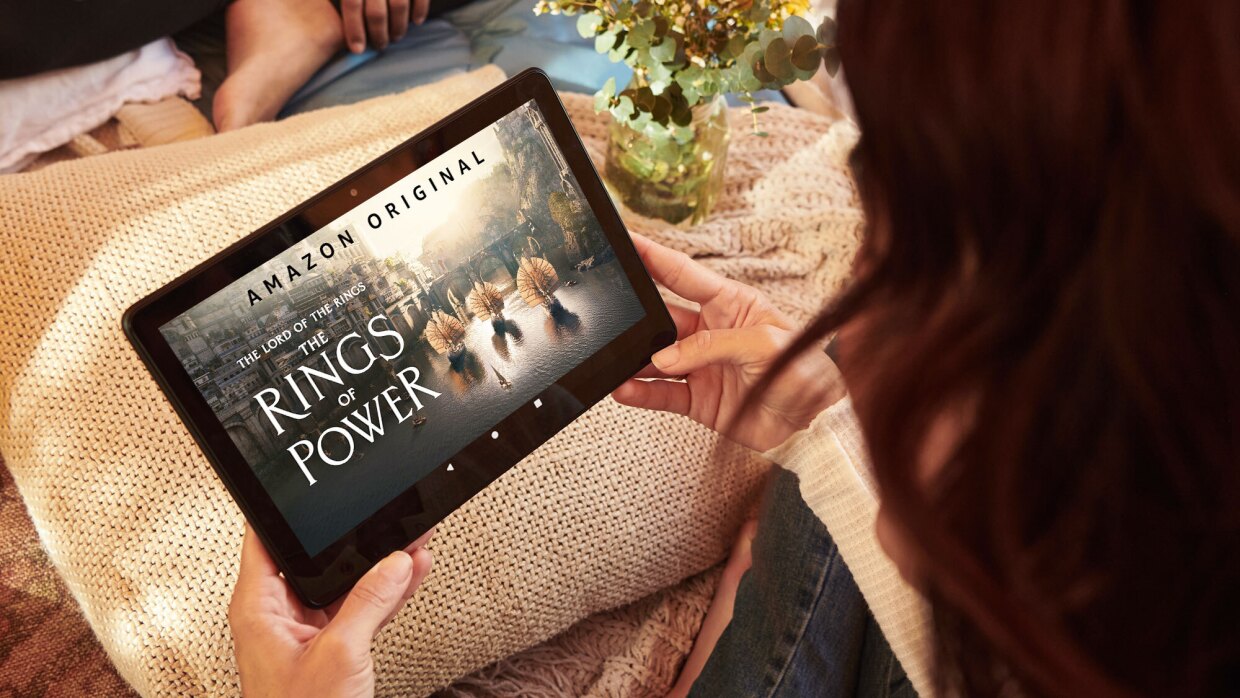
How to Use Amazon Prime Video: A Step-by-step Guide
Are you curious about Amazon Prime Video, but not sure where to start? Look no further! This comprehensive guide will walk you through everything you need to know to get the most out of this popular streaming service.
What is Amazon Prime Video?
Amazon Prime Video is a video streaming service offered by Amazon that provides access to a vast library of movies, TV shows, and original content. It’s included in the subscription to Amazon Prime, which also offers other benefits like free shipping on millions of products, photo storage, and more.
Who Can Use Amazon Prime Video?
Amazon Prime Video is available on various devices, including smartphones, tablets, PCs, smart TVs, and gaming consoles. You can access it from anywhere in the world with an internet connection.
How to Get Started With Amazon Prime Video
- Sign up For Amazon Prime: If you’re not already a member, sign up for Amazon Prime to get access to Prime Video.
- Download The App: Download the Prime Video app on your device of choice (smartphone, tablet, PC, etc.).
- Login With Your Account: Use your Amazon account to login to Prime Video and start browsing.
How to Watch Amazon Prime Video
- Find a Movie or Show: Browse through the vast library of content available on Prime Video.
- Select a Title: Choose a movie or show you’d like to watch by selecting it from the search results or by browsing through categories.
- Play: Start playing your selected title.
Devices Compatible With Amazon Prime Video
- Smartphones And Tablets: Watch Prime Video on your Android, iOS, iPadOS, or Kindle Fire device.
- Pcs: Access Prime Video on your Windows PC or macOS computer using a browser.
- Smart Tvs: Enjoy Prime Video on your LG, Sony, Samsung, or Vizio smart TV using the dedicated app.
- Gaming Consoles: Watch Prime Video on your PlayStation 3, PlayStation 4, PlayStation 5, Xbox, or Nintendo Switch console.
Streaming Devices For Amazon Prime Video
- Amazon Fire TV Stick: Use this dongle to stream Prime Video directly to your TV.
- Chromecast: Stream Prime Video from your device to your TV using Google’s Chromecast device.
- Apple TV: Access Prime Video on your Apple TV using the dedicated app.
- Sky Q: Watch Prime Video on your Sky Q decoder or Sky Glass smart TV.
How to Download And Watch Amazon Prime Video Offline
- Download The App: Get the Prime Video app on your mobile device, tablet, PC, or gaming console.
- Select a Title: Choose a movie or show you’d like to download.
- Tap Download: Start downloading the content for offline viewing.
Frequently Asked Questions (FAQs)
- Q: Do I Need an Amazon Prime Subscription to Use Prime Video?
A: Yes, Prime Video is included in the Amazon Prime subscription. - Q: What Devices Are Compatible With Prime Video?
A: See above list of compatible devices. - Q: Can I Watch Prime Video Offline?
A: Yes, you can download content for offline viewing using the mobile app or PC software. - Q: How do I Get Started With Amazon Prime Video?
A: Sign up for Amazon Prime, download the Prime Video app, and login to start browsing.
Conclusion
Amazon Prime Video offers a vast library of movies, TV shows, and original content that can be streamed directly to your device or watched offline. With its user-friendly interface and compatibility with various devices, it’s never been easier to enjoy high-quality entertainment from anywhere in the world.
Bonus: Tips For Using Amazon Prime Video
- Take Advantage of 4K Streaming: If you have a compatible device, take advantage of 4K streaming for an immersive viewing experience.
- Use The Parental Controls: Set up parental controls to restrict access to certain content based on age or rating.
- Explore Original Content: Discover new titles and series by exploring the Prime Video original content section.
Frequently Asked Questions (FAQs)
- Q: Can I Watch Amazon Prime Video Abroad?
A: Yes, you can access Prime Video from anywhere in the world with an internet connection. - Q: How do I Download Prime Video on my Gaming Console?
A: Download the Prime Video app on your PlayStation 3, PlayStation 4, PlayStation 5, Xbox, or Nintendo Switch console using the respective store.
I hope you found this guide helpful! Happy streaming!


