
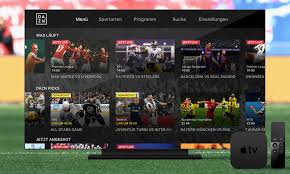
How to Watch Dazn on Your Tv: A Step-by-step Guide
Are you a sports enthusiast looking to catch the latest games and events on DAZN? Look no further! In this article, we’ll show you how to watch DAZN on your TV using various methods.
What is Dazn?
DAZN is a popular streaming service that offers live and on-demand sports content. With a vast library of sporting events, including football, basketball, tennis, and more, DAZN has become a go-to platform for sports fans worldwide.
Method 1: Watching Dazn on Your Smart TV
If you have a Smart TV, watching DAZN is as simple as downloading the app. Here’s how:
- Download The Dazn App: Go to your Smart TV’s app store and search for “DAZN”. Download and install the app.
- Launch The App: Open the DAZN app on your Smart TV and sign in with your credentials or create a new account.
- Browse Content: Browse through the available content, including live events and on-demand shows.
Compatible Smart Tvs
- Samsung Smart TV (2015 models and later)
- LG WebOS TV (2015 models and later)
- Panasonic Smart TV (2015 models and later)
- Hisense Smart TV (2018 models and later)
Method 2: Using Chromecast to Watch Dazn on Your TV
If you don’t have a Smart TV or prefer not to use the app, you can use Chromecast to stream DAZN content to your TV.
- Connect Your Device: Connect your phone, tablet, or computer to your TV using Chromecast.
- Launch The Dazn App: Open the DAZN app on your device and sign in with your credentials or create a new account.
- Stream Content: Select the content you want to watch and press the “Cast” button to stream it to your TV.
Method 3: Watching Dazn on Fire TV Stick
If you have a Fire TV Stick, you can download the DAZN app directly from the device.
- Download The App: Go to the Fire TV Stick’s app store and search for “DAZN”. Download and install the app.
- Launch The App: Open the DAZN app on your Fire TV Stick and sign in with your credentials or create a new account.
- Browse Content: Browse through the available content, including live events and on-demand shows.
Method 4: Watching Dazn on Apple TV
If you have an Apple TV (4th generation or later), you can download the DAZN app directly from the device.
- Download The App: Go to the Apple TV’s app store and search for “DAZN”. Download and install the app.
- Launch The App: Open the DAZN app on your Apple TV and sign in with your credentials or create a new account.
- Browse Content: Browse through the available content, including live events and on-demand shows.
Method 5: Watching Dazn on Console
If you have a gaming console (PS4, PS4 Pro, Xbox One, Xbox One S, or Xbox One X), you can download the DAZN app directly from the device.
- Download The App: Go to your console’s app store and search for “DAZN”. Download and install the app.
- Launch The App: Open the DAZN app on your console and sign in with your credentials or create a new account.
- Browse Content: Browse through the available content, including live events and on-demand shows.
Method 6: Watching Dazn on Dazn TV Box
The DAZN TV Box is a dedicated streaming device that allows you to watch DAZN content on your TV without an internet connection.
- Purchase The Device: Buy the DAZN TV Box from the official website.
- Set Up The Device: Connect the device to your TV and follow the setup instructions.
- Launch The App: Open the DAZN app on the device and sign in with your credentials or create a new account.
- Browse Content: Browse through the available content, including live events and on-demand shows.
Conclusion
Watching DAZN on your TV has never been easier. With these six methods, you can enjoy live sports and on-demand content from anywhere. Whether you have a Smart TV, Chromecast, Fire TV Stick, Apple TV, console, or dedicated streaming device, there’s an option for everyone.
Frequently Asked Questions
- What Devices Support Dazn?
DAZN is available on various devices, including Smart TVs (Samsung, LG, Panasonic, Hisense), Chromecast, Fire TV Stick, Apple TV, PlayStation 4, Xbox One, and the dedicated DAZN TV Box. - Can I Watch Dazn on my Old Tv?
If you don’t have a Smart TV or prefer not to use the app, you can use Chromecast or other streaming devices to watch DAZN content on your TV. - How do I Sign up For Dazn?
You can sign up for DAZN by visiting their website and following the registration process. You can also download the app directly from your device’s store. - What Sports Events Are Available on Dazn?
DAZN offers a vast library of sports content, including live and on-demand events in football, basketball, tennis, and more. - Can I Watch Dazn Without an Internet Connection?
Yes, you can watch DAZN without an internet connection using the dedicated DAZN TV Box or by purchasing individual events. - How do I Cancel my Dazn Subscription?
You can cancel your DAZN subscription at any time by visiting their website and following the cancellation process.
Recommended Reading
- “A Beginner’s Guide to Chromecast”
- “Using Fire TV Stick for Streaming Content”
- “How to Watch Apple TV on Your Device”
- “DAZN Review: A Sports Fan’s Paradise”
I hope this article has been helpful in answering your questions about watching DAZN on your TV. Happy streaming!


