
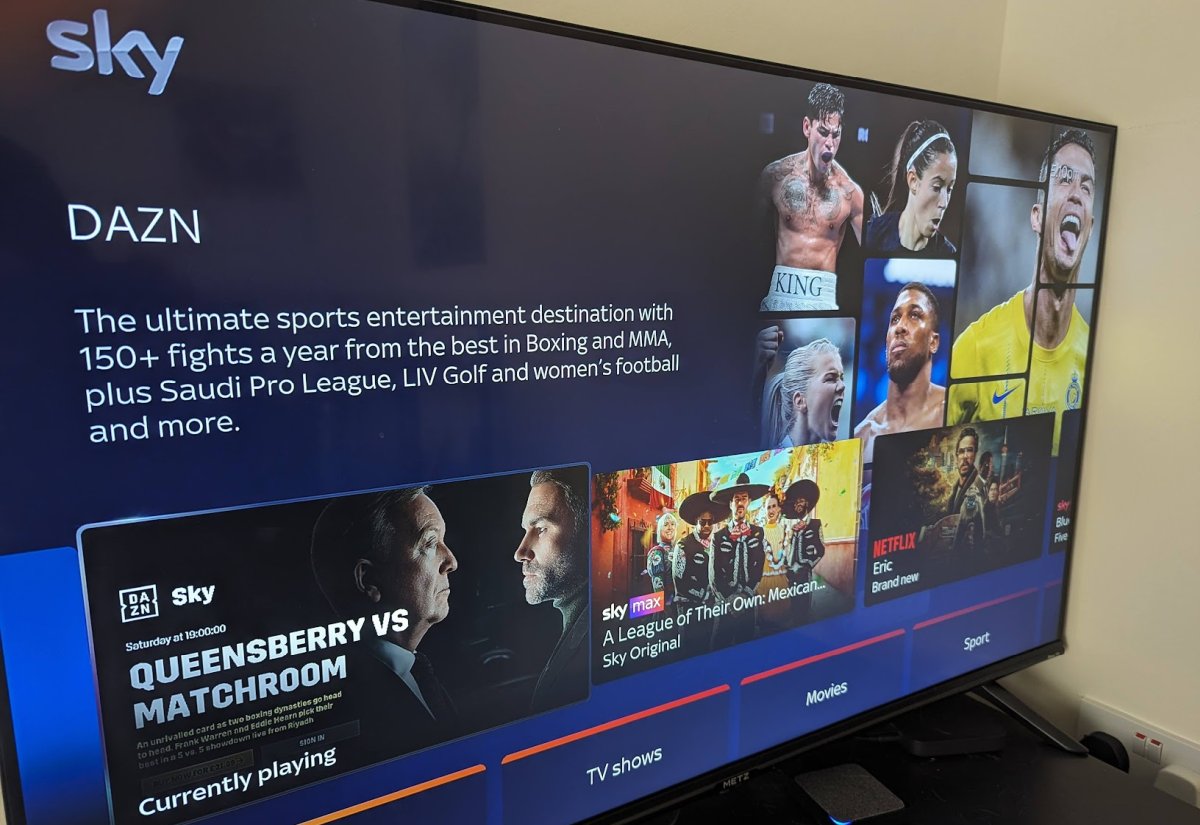
How to See Dazn in Tv: A Step-by-step Guide
Are you a sports enthusiast looking to catch your favorite matches on the big screen? Look no further than this comprehensive guide on how to see DAZN in TV.
What is Dazn?
DAZN is a popular streaming platform that offers live and on-demand sports content. With a subscription, users can access a vast library of sporting events, including football, basketball, baseball, and more.
Why Can’t I See Dazn on My Smart Tv?
If you’re having trouble accessing DAZN on your smart TV, don’t worry! This guide will walk you through the various solutions to get you up and running in no time.
Solution 1: Check Your Device Compatibility
Before we dive into the nitty-gritty, make sure that your device is compatible with DAZN. Currently, the app is available for download on a wide range of smart TVs, including:
- LG Smart TV (WebOS)
- Panasonic Smart TV
- Samsung Smart TV (Tizen)
- Hisense Smart TV (Android TV)
However, if you’re using an older model or a different brand, don’t worry! We’ve got alternative solutions for you.
Solution 2: Chromecast
Chromecast is a popular streaming device that allows users to cast content from their smartphones or tablets onto their TVs. To use DAZN with Chromecast:
- Connect your Chromecast device to your TV’s HDMI port.
- Download and install the Google Home app on your smartphone or tablet.
- Launch the DAZN app and select the Chromecast icon to cast content to your TV.
Solution 3: Fire TV Stick
The Fire TV Stick is another popular streaming device that offers a seamless viewing experience. To use DAZN with Fire TV Stick:
- Connect your Fire TV Stick to your TV’s HDMI port.
- Download and install the DAZN app from the Amazon Appstore.
- Launch the DAZN app and sign in with your credentials.
Solution 4: Apple Tv
If you’re an Apple fan, you can still enjoy DAZN on your Apple TV. To do so:
- Download and install the DAZN app from the App Store.
- Launch the DAZN app and sign in with your credentials.
What If I Don’t Have a Smart Tv?
Don’t worry, we’ve got you covered! You can still enjoy DAZN on your non-smart TV by using a streaming device like Chromecast, Fire TV Stick, or Apple TV.
Solution 1: Chromecast
To use DAZN with Chromecast:
- Connect your Chromecast device to your TV’s HDMI port.
- Download and install the Google Home app on your smartphone or tablet.
- Launch the DAZN app and select the Chromecast icon to cast content to your TV.
Solution 2: Fire TV Stick
To use DAZN with Fire TV Stick:
- Connect your Fire TV Stick to your TV’s HDMI port.
- Download and install the DAZN app from the Amazon Appstore.
- Launch the DAZN app and sign in with your credentials.
Solution 3: Apple Tv
To use DAZN on Apple TV:
- Download and install the DAZN app from the App Store.
- Launch the DAZN app and sign in with your credentials.
Conclusion
We hope this comprehensive guide has helped you understand how to see DAZN in TV, even if you don’t have a smart TV! Whether you’re using Chromecast, Fire TV Stick, Apple TV, or another streaming device, we’ve got the solutions for you. Happy viewing!
Frequently Asked Questions (FAQs)
-
Q: What is Dazn?
A: DAZN is a popular streaming platform that offers live and on-demand sports content. -
Q: Why Can’t I See Dazn on my Smart Tv?
A: Make sure your device is compatible with DAZN, or try using an alternative solution like Chromecast, Fire TV Stick, or Apple TV.
-
Q: How do I Use Dazn With Chromecast?
A: Connect your Chromecast device to your TV’s HDMI port, download and install the Google Home app on your smartphone or tablet, and launch the DAZN app to cast content to your TV.
-
Q: How do I Use Dazn With Fire TV Stick?
A: Connect your Fire TV Stick to your TV’s HDMI port, download and install the DAZN app from the Amazon Appstore, and launch the DAZN app to sign in with your credentials.
-
Q: How do I Use Dazn on Apple Tv?
A: Download and install the DAZN app from the App Store, and launch the DAZN app to sign in with your credentials.
-
Q: What if I Don’t Have a Smart Tv?
A: You can still enjoy DAZN using a streaming device like Chromecast, Fire TV Stick, or Apple TV.
-
Q: Can I Cancel my Subscription at Any Time?
A: Yes, you can cancel your subscription to DAZN at any time.


