
How to See Old Live on Twitch
Are you a fan of live streaming on Twitch? Do you want to relive your favorite moments from past streams, but they’re no longer available due to the 14-60 day retention period for most channels? Don’t worry, we’ve got you covered! In this article, we’ll show you how to see old live streams on Twitch, even if they’re not currently available.
What Happens to Old Live Streams on Twitch
Before we dive into the nitty-gritty of how to access old live streams, let’s quickly go over what happens to them. As a streamer, your old live streams are automatically saved on Twitch for a certain period of time, depending on your channel status. For most channels, this retention period is 14 days, but if you’re a Creator affiliated with Twitch or have a Prime subscription, it’s extended to 60 days.
How to See Old Live Streams on Twitch
Now that we’ve covered the basics, let’s get into how to access those old live streams. Here are some steps you can follow:
Step 1: Find The Channel
First things first, you need to find the channel that hosted the stream you’re looking for. You can do this by searching for the channel name in the Twitch search bar.
Step 2: Access The Video Section
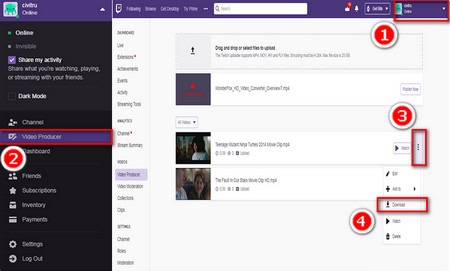
Once you’ve found the channel, click on the “Video” tab to access all of their past streams.
Step 3: Filter The Streams
In the video section, you’ll see a filter option that allows you to sort through the streams by date. Select the “Past Transmissions” option to view all of the streamer’s older streams.
Step 4: Access The Old Live Stream
From there, you can browse through the list of past streams and click on the one you’re interested in to access it.
How to See Old Live Streams on Twitch From a Smartphone or Tablet
If you prefer to watch old live streams on your smartphone or tablet, don’t worry – we’ve got you covered! Here’s how:
Step 1: Download And Install The Twitch App
First, download and install the Twitch app from the App Store (for iOS devices) or Google Play Store (for Android devices).
Step 2: Log In to Your Account
Once you’ve installed the app, log in to your Twitch account using your credentials.
Step 3: Search For The Channel
Search for the channel that hosted the stream you’re looking for. You can do this by typing the channel name in the search bar.
Step 4: Access The Video Section
Click on the video tab to access all of the channel’s past streams.
Step 5: Filter The Streams
Filter through the streams using the date option and select “Past Transmissions” to view all of the streamer’s older streams.
Step 6: Access The Old Live Stream
From there, you can browse through the list of past streams and click on the one you’re interested in to access it.
How to See Old Live Streams on Twitch From a Console
If you prefer to watch old live streams on your console, such as a PlayStation or Xbox, here’s how:
Step 1: Access The Channel’s Video Section
First, go to the channel’s video section on your console and select the option for past transmissions.
Step 2: Filter Through The Streams
Filter through the streams using the date option and select “Past Transmissions” to view all of the streamer’s older streams.
Step 3: Access The Old Live Stream
From there, you can browse through the list of past streams and click on the one you’re interested in to access it.
How to Save Old Live Streams on Twitch
If you want to save an old live stream for later viewing, here’s how:
Step 1: Record The Stream
First, record the stream using a software that can capture the monitor activity. This will save the stream as a video file on your computer.
Step 2: Save The Video File
Save the video file to a location where you can easily find it later.
How to See Vods (Video On Demand) Without Subscription
If you want to see VODs without a subscription, you’ll need to follow these steps:
Step 1: Search For The Channel
First, search for the channel that hosts the VOD you’re interested in. You can do this by typing the channel name in the Twitch search bar.
Step 2: Check if The Vod is Available
Check if the VOD is available to everyone or only subscribers. If it’s not available, skip to the next step.
Step 3: Look For Alternatives
Look for alternative platforms where the streamer may have uploaded their VODs. Sometimes, streamers will upload their VODs to YouTube or other video sharing platforms.
Conclusion
In conclusion, seeing old live streams on Twitch is a bit more complicated than it should be. However, with these steps and some patience, you can access your favorite old streams from any device – computer, smartphone, tablet, or console!
Faqs:
-
Q: What Happens to Old Live Streams on Twitch?
A: Old live streams are automatically saved on Twitch for a certain period of time, depending on the channel’s status. -
Q: How Can I Access Old Live Streams From my Smartphone or Tablet?
A: You can download and install the Twitch app, log in to your account, search for the channel, and filter through their past streams. -
Q: Can I Save Old Live Streams on Twitch?
A: Yes, you can record an old live stream using a software that captures monitor activity and save it as a video file on your computer. -
Q: How Can I See Vods Without a Subscription?
A: Look for alternative platforms where the streamer may have uploaded their VODs or try using browser extensions, but be cautious of privacy risks and potential copyright breaches! -
Q: What if The Old Live Stream is Not Available on Twitch?
A: You can try searching for the streamer’s VODs on other video sharing platforms like YouTube.
I hope this helps! Let me know in the comments below if you have any other questions or concerns.


