
How to See Wmv on Mac: A Step-by-step Guide
Are you tired of seeing a “WMV file not supported” error message when trying to open a video file on your Mac? Don’t worry, we’ve got the solution for you! In this article, we’ll show you how to see WMV files on Mac using various software and plugins.
What is Wmv?
Before we dive into the solutions, let’s first understand what WMV is. WMV stands for Windows Media Video, a video file format developed by Microsoft. While it was once widely used, it has largely been replaced by other formats like MP4 and MOV.
Software to See Wmv on Mac
There are several software programs that can help you play WMV files on your Mac. Here are some of the most popular ones:
1. Vlc Media Player
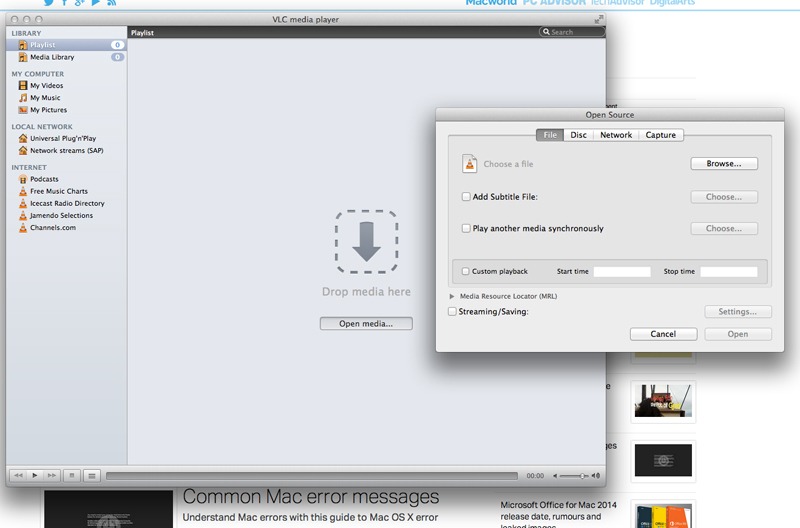
The first software we recommend is VLC Media Player, a free and open-source media player available for Mac. To see WMV on Mac with VLC, follow these steps:
Step 1: Download And Install Vlc
- Go to the VLC website and download the latest version of VLC.
- Once downloaded, click on the installer package to install VLC on your Mac.
Step 2: Open Wmv File in Vlc
- Locate the WMV file you want to play and drag it into the VLC window.
- Alternatively, you can open VLC and go to “File” > “Open Media” and select the WMV file from there.
Step 3: Play The Video
- Once the video is loaded in VLC, click on the “Play” button to start playing it.
2. Miro
Another software that can help you play WMV files on Mac is Miro. It’s a free and open-source media player available for Mac. To see WMV on Mac with Miro, follow these steps:
Step 1: Download And Install Miro
- Go to the Miro website and download the latest version of Miro.
- Once downloaded, click on the installer package to install Miro on your Mac.
Step 2: Open Wmv File in Miro
- Locate the WMV file you want to play and drag it into the Miro window.
- Alternatively, you can open Miro and go to “File” > “Open Media” and select the WMV file from there.
Step 3: Play The Video
- Once the video is loaded in Miro, click on the “Play” button to start playing it.
Alternative Solutions
If you’re not comfortable using VLC or Miro, there are other alternatives available. You can convert your WMV files to MP4 or another format that’s compatible with Mac. Some popular software for file conversion include:
- Handbrake
- FFmpeg
You can also use plugins like Flip4Mac to play WMV files in QuickTime Player.
Conclusion
Seeing WMV files on Mac is not a problem anymore! With VLC and Miro, you can easily play your favorite videos. If you’re not comfortable using these software programs, there are other alternatives available. Just remember to convert your WMV files to MP4 or another format that’s compatible with Mac.
Frequently Asked Questions
Here are some frequently asked questions related to seeing WMV on Mac:
-
What is the best software to see WMV on Mac?
- VLC and Miro are two popular media players available for Mac that can help you play WMV files.
-
How do I convert WMV files to MP4 or another format that’s compatible with Mac?
-
You can use software like Handbrake or FFmpeg to convert your WMV files.
-
Can I use plugins like Flip4Mac to play WMV files in QuickTime Player?
-
Yes, you can use Flip4Mac to play WMV files in QuickTime Player.
By following the steps outlined in this article, you should be able to see WMV files on your Mac with ease!


