
How to Type Fractions on Microsoft Word: A Comprehensive Guide
Are you tired of struggling to insert fractions into your documents on Microsoft Word? Look no further! In this article, we will guide you through the process of typing fractions on Microsoft Word, covering both desktop and online versions.
Why Do You Need to Know How to Type Fractions on Microsoft Word?
As a student or teacher, you often need to insert mathematical equations into your documents. Fractions are an essential part of mathematics, and being able to type them correctly is crucial for accuracy and professionalism.
Understanding The Basics of Typing Fractions on Microsoft Word
Before we dive into the step-by-step guide, it’s essential to understand the basics of typing fractions on Microsoft Word. There are two ways to insert fractions: Using symbols or equations.
Using Symbols to Insert Fractions on Microsoft Word Desktop
- Open Your Document: Open a new or existing document in Microsoft Word.
- Insert Symbols: Go to the “Insert” tab and click on the symbol dropdown menu. Select “Other symbols.”
- Choose Fractions: In the symbols dialog box, select the “Formed numerical” subset. You will see various fraction symbols.
- Select Your Fraction: Choose the desired fraction symbol and insert it into your document.
Using Equations to Insert Fractions on Microsoft Word Desktop
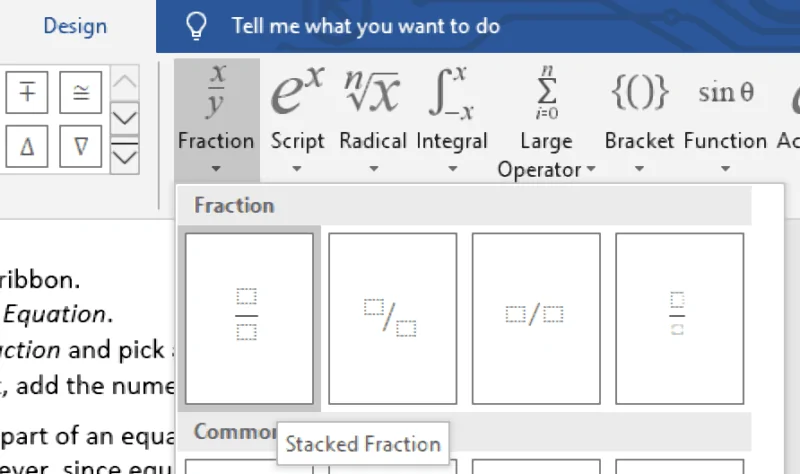
- Insert Equation Box: Go to the “Insert” tab and click on the “Equation” button. This will insert an equation box into your document.
- Type Your Fraction: Type your fraction, separating the numerator and denominator with a slash (/). For example: 1/2 Or (1+x)/(2+3x).
- Microsoft Word Will Convert it: Microsoft Word will automatically convert the equation into a formatted fraction.
Typing Fractions on Microsoft Word Online
The process is similar to typing fractions on Microsoft Word desktop, but with some slight variations:
- Open Your Document Online: Open a new or existing document in Microsoft Word online.
- Insert Equation Box: Click on the “Insert” tab and click on the “Equation” button.
- Choose Frames For Fractions: Select the “Frames” option and choose the desired fraction frame.
- Type Your Fraction: Type your fraction, separating the numerator and denominator with a slash (/).
Typing Fractions on Microsoft Word Mobile
If you prefer to work on-the-go using your smartphone or tablet, you can use the Microsoft 365 app:
- Open The App: Open the Microsoft 365 app on your device.
- Insert Equation Box: Tap on the “Insert” tab and click on the “Equation” button.
- Type Your Fraction: Type your fraction, separating the numerator and denominator with a slash (/).
Tips And Tricks
- Make sure to separate the numerator and denominator with a slash (/) for accurate formatting.
- Use the correct symbol or equation box to avoid formatting issues.
- You can modify equations by clicking on them and editing the content.
Conclusion
Typing fractions on Microsoft Word is a straightforward process, whether you’re using the desktop or online version. By following these steps, you’ll be able to insert accurate and professional-looking fractions into your documents.
Frequently Asked Questions (FAQs)
- What is The Difference Between Typing Fractions Using Symbols Vs. Equations?
Using symbols will give you a more straightforward insertion process, while using equations allows for more flexibility in formatting. - Can I Modify an Inserted Fraction on Microsoft Word?
Yes, you can modify an inserted fraction by clicking on it and editing the content. - Why Are Fractions Important in Mathematics?
Fractions are essential in mathematics as they represent part-whole relationships and are used extensively in various mathematical operations. - What is The Correct Way to Separate The Numerator And Denominator of a Fraction?
The correct way to separate the numerator and denominator is with a slash (/). - Can I Use Microsoft Word on my Smartphone or Tablet?
Yes, you can use Microsoft Word on your smartphone or tablet using the Microsoft 365 app.
We hope this comprehensive guide has helped you master typing fractions on Microsoft Word!


