
How to Type on a Pdf File: A Step-by-step Guide
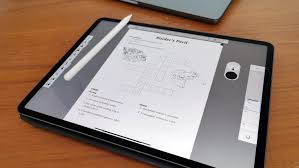
Are you looking for ways to annotate and edit your PDF files on the go? With the rise of mobile devices, it’s now possible to type on PDFs using various apps and software. In this article, we’ll guide you through the process of typing on a PDF file using both Android and iPhone devices.
Why Type on a Pdf File?
Before we dive into the step-by-step instructions, let’s quickly discuss why you might want to type on a PDF file in the first place. Here are some scenarios where typing on a PDF can be useful:
- Annotating documents with notes or comments
- Filling out forms and surveys online
- Editing contracts or agreements
- Creating and sharing educational materials
Android Devices: Typing on a Pdf File
If you’re using an Android device, you have several options to type on a PDF file. Here’s how:
Google Drive
The first option is to use Google Drive, which usually comes pre-installed on most Android devices. To get started, follow these steps:
- Open the Google Drive app and sign in with your Google account.
- Tap on the “+” button at the top-right corner of the screen to create a new file.
- Select “Scan” from the menu and choose the PDF file you want to edit.
- Once the file is loaded, tap on the pencil icon at the bottom of the screen to start typing.
Adobe Acrobat Reader
Another option is to use Adobe Acrobat Reader, which can be downloaded for free from the Play Store. Here’s how:
- Open the Adobe Acrobat Reader app and sign in with your Adobe account.
- Tap on the “Open” button at the top of the screen to select the PDF file you want to edit.
- Once the file is loaded, tap on the pencil icon at the bottom of the screen to start typing.
Other Apps
There are several other apps available for Android devices that allow you to type on a PDF file. Some popular options include:
- Foxit PDF Editor
- PDF Reader
- WPS Office
These apps offer a range of features and interfaces, but they all allow you to edit and annotate your PDF files.
Iphone Devices: Typing on a Pdf File
If you’re using an iPhone or iPad device, you can also type on a PDF file using various apps and software. Here’s how:
Native Functionality
The first option is to use the native functionality built into iOS devices. Here’s how:
- Open the Files app and select the PDF file you want to edit.
- Tap on the “Share” icon at the bottom of the screen and choose the “Markup” option.
- Once in Markup mode, tap on the pencil icon at the top-right corner of the screen to start typing.
Notability
Another option is to use the Notability app, which can be downloaded for free from the App Store. Here’s how:
- Open the Notability app and sign in with your Apple ID.
- Tap on the “New” button at the top-right corner of the screen to create a new file.
- Select the PDF file you want to edit and tap on the pencil icon at the bottom of the screen to start typing.
Other Apps
There are several other apps available for iPhone devices that allow you to type on a PDF file. Some popular options include:
- Adobe Acrobat Reader
- Xodo PDF Reader & Scan
- PDF Expert
These apps offer a range of features and interfaces, but they all allow you to edit and annotate your PDF files.
Typing on a Pdf File Online
If you don’t want to download any software or apps, you can also type on a PDF file online using services like DocHub. Here’s how:
- Open the DocHub website in your web browser.
- Tap on the “Select Document” button and choose the PDF file you want to edit.
- Once the file is loaded, tap on the pencil icon at the top of the screen to start typing.
Conclusion
Typing on a PDF file has never been easier with the various apps and software available for both Android and iPhone devices. Whether you’re annotating documents, filling out forms, or editing contracts, there’s an app or service that can help you achieve your goals. So next time you need to type on a PDF file, remember these step-by-step guides to get started!
Frequently Asked Questions
Here are some frequently asked questions about typing on a PDF file:
- Q: What is the best app for typing on a PDF file?
A: The best app for typing on a PDF file depends on your device and personal preferences. Some popular options include Google Drive, Adobe Acrobat Reader, Notability, and DocHub. - Q: Can I edit a PDF file online?
A: Yes, you can edit a PDF file online using services like DocHub or smallPDF. - Q: How do I save my edits to a PDF file?
A: To save your edits to a PDF file, tap on the “Save” button at the top of the screen. You can also choose to share your edited file with others. - Q: Can I use a pen or pencil to annotate a PDF file?
A: Yes, many apps and services allow you to use a pen or pencil to annotate a PDF file.
Feel free to ask if you have any other questions!


