
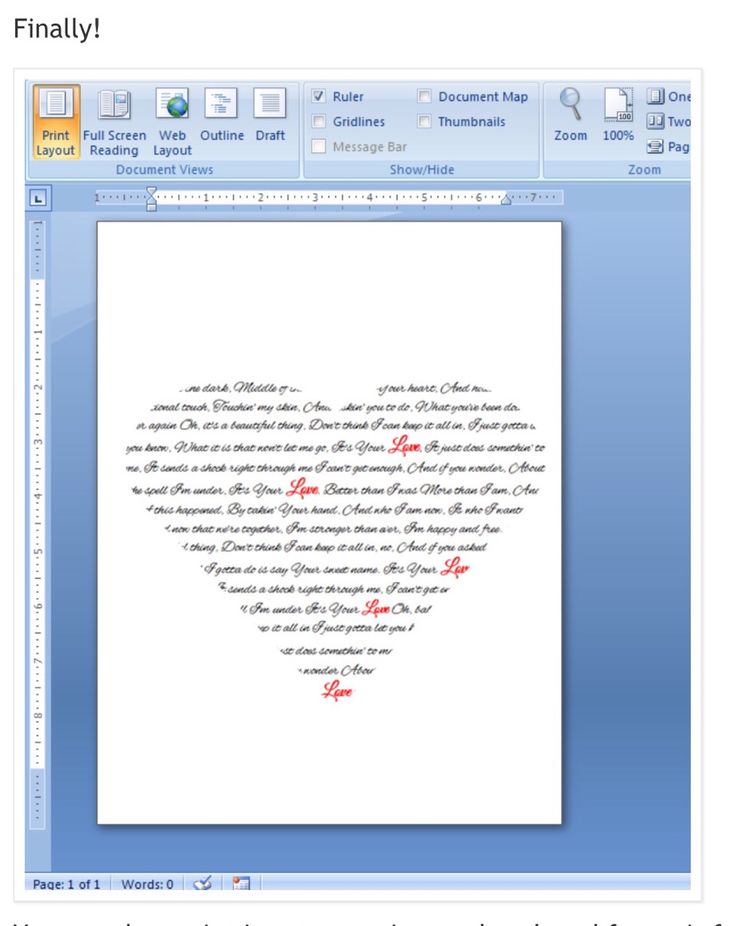
How to Type on a Picture in Microsoft Word
Are you tired of struggling to add text to an image in Microsoft Word? Look no further! This guide will walk you through the steps to type on a picture in Microsoft Word, both for desktop and online versions.
Why Can’t I Just Type on The Image?
You’re not alone in wondering why typing directly onto an image is such a challenge. The truth is that it’s simply not designed for this purpose. However, with a few simple steps, you can achieve the same result without too much hassle.
Getting Started With Microsoft Word
Before we dive into the specifics of adding text to an image, let’s make sure you have the right version of Microsoft Word installed on your computer or device. If you’re using the online version, simply sign in and follow along!
Adding Text to a Picture in Microsoft Word For Desktop
- Open Microsoft Word: Launch the program from your Start menu (Windows) or Launchpad (macOS).
- Create a New Document: Choose “Blank” as the document type.
- Insert an Image: Go to the Insert tab, click on “Image,” and select the picture you want to add text to.
- Position The Image: Resize the image if needed and position it where you’d like to have your text appear.
- Enable Text Editing: Click on the Image icon in the top-right corner of the screen and select “Edit Text.”
- Type Away!: Simply type your desired text into the box that appears over the image.
Alternative Methods For Adding Text to a Picture
If typing directly onto an image isn’t working out, you can try using other methods:
- Box Tool: Use this tool to create a box around your image and add text within it.
- Wordart: Create text in various styles and sizes to place next to or on top of your image.
Typing Beside an Image in Microsoft Word
If you want to type text beside an image, follow these steps:
- Insert The Image: Use the same process as before to insert your image into your document.
- Access The Box Tool: Click on the “Box” icon and select “Position” from the menu that appears.
- Choose Your Alignment: Select how you want your text to be aligned with the image (left, right, or centered).
Typing Beside an Image in Microsoft Word Online
If you’re using the online version of Microsoft Word:
- Insert The Image: Use the same process as before to insert your image into your document.
- Enable Text Editing: Click on the “Image” icon and select “Edit Text.”
- Type Your Text: Type your desired text next to the image.
Typing Beside an Image in Microsoft Word Mobile
If you’re using the mobile app:
- Open The App: Launch the Microsoft Word app from your device.
- Create a New Document: Choose “Blank” as the document type.
- Insert an Image: Tap on the “+” icon and select the image you want to add text to.
- Type Your Text: Type your desired text next to the image.
Conclusion
With these simple steps, you should now be able to add text to a picture in Microsoft Word with ease! Whether you’re using the desktop or online version, follow along and see how it goes.
Frequently Asked Questions
- Q: Can I Type Directly Onto an Image?
A: Unfortunately not – but these methods will get you close! - Q: Do I Need to Have Microsoft Word Installed on my Computer?
A: Yes, for the desktop version. - Q: Can I Use Other Software Besides Microsoft Word?
A: While this guide focuses on Word, similar functionality may be available in other programs.


