
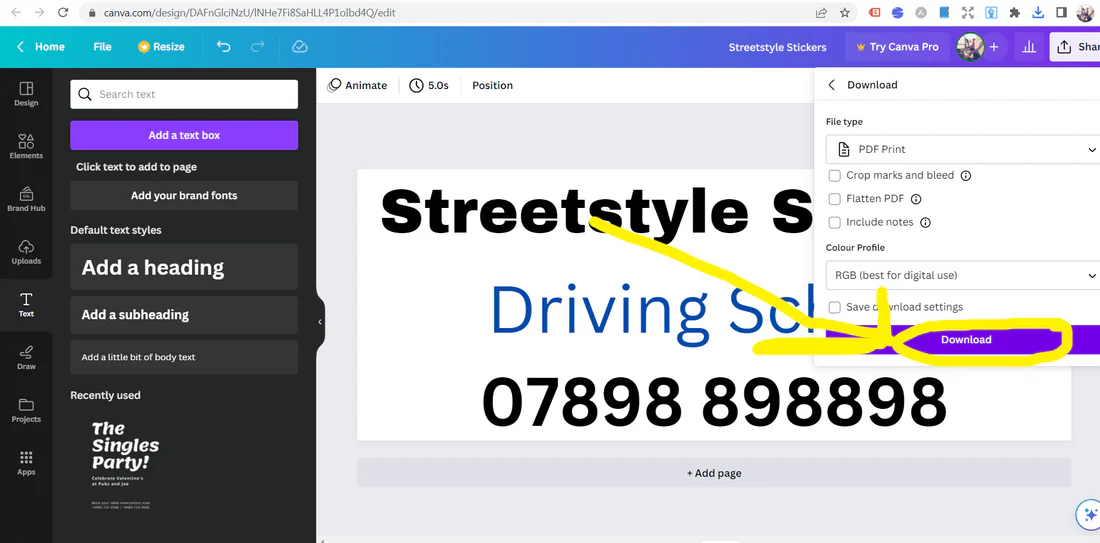
Are you looking to create a blueprint or design on Canva but need help typing text? Look no further! In this guide, we’ll walk you through the process of adding text to your Canva project.
Types of Blueprints in Canva
Canva offers various types of blueprints that you can use for different purposes. These include:
- Document
- Volantino (a type of flyer)
- Presentation
- Logotype (a custom logo design)
- Post Instagram (a social media post template)
- Video (a video editing template)
How to Add Text to a Blueprint on Canva
To add text to a blueprint on Canva, follow these steps:
- Log in to Your Canva Account: If you haven’t already done so, log in to your Canva account using your email address or Google, Facebook, or Apple credentials.
- Access The Project Section: Click on the “Projects” tab and select a recently created blueprint or initiate a new one by clicking on the “+” button.
- Choose The Type of Text: Select the type of text you want to add from the menu options (e.G., Text, Headline, Subtitle).
- Customize The Text: Use the toolbar to customize the font, color, size, and alignment of your text.
How to Type on Canva With a Smartphone or Tablet
If you’re using a smartphone or tablet to access Canva, follow these steps:
- Open The Canva App: Download and install the Canva app from the Google Play Store (for Android devices) or the Apple App Store (for iOS devices).
- Log in to Your Account: Log in to your Canva account using your email address or Google, Facebook, or Apple credentials.
- Select a Blueprint: Choose a recent blueprint or initiate a new one by clicking on the “+” button.
- Add Text: Tap on the “Text” option from the menu and customize the font, color, size, and alignment as needed.
How to Create a Book on Canva
If you want to create a book using Canva, follow these steps:
- Select The Document Type: Choose the “Document” blueprint type.
- Create a New Document: Click on the “+” button to initiate a new document.
- Type Your Content: Use the toolbar to customize the font, color, size, and alignment of your text.
How to Type Formulas on Canva
To type formulas on Canva, follow these steps:
- Access The App Section: Click on the “App” icon in the top menu bar.
- Search For Equations (beta): Type “Equations (beta)” in the search bar and select the app from the results.
- Insert Your Formula: Use the toolbar to insert a mathematical equation using the symbols, variables, and functions available.
Conclusion
In this guide, we’ve walked you through the process of adding text to a blueprint on Canva. Whether you’re using a computer or smartphone/tablet device, follow these steps to add text to your project. If you need help creating a book or typing formulas, use the relevant sections above for assistance.
Frequently Asked Questions (FAQs)
- What Types of Blueprints Can I Create on Canva?
- You can create various types of blueprints on Canva, including documents, volantinos, presentations, logotypes, post Instagram templates, and videos.
- How do I Add Text to a Blueprint on Canva?
- Select the “Text” option from the menu bar or toolbar and customize the font, color, size, and alignment as needed.
- Can I Type Formulas on Canva?
- Yes, you can use the Equations (beta) app to insert mathematical equations into your project.
- How do I Create a Book on Canva?
- Select the “Document” blueprint type and initiate a new document using the “+” button.
- Can I Use Canva to Design a Social Media Post?
- Yes, you can use Canva’s Post Instagram template to create a social media post.
- How do I Customize my Text on Canva?
- Use the toolbar to adjust font size, color, and alignment as needed.
- Can I Save my Project as an Image?
- Yes, you can export your project as an image by clicking on the “Download” button in the top menu bar.
I hope this guide has helped you understand how to type text on Canva! If you have any further questions or need assistance with a specific aspect of using Canva, don’t hesitate to ask.


