
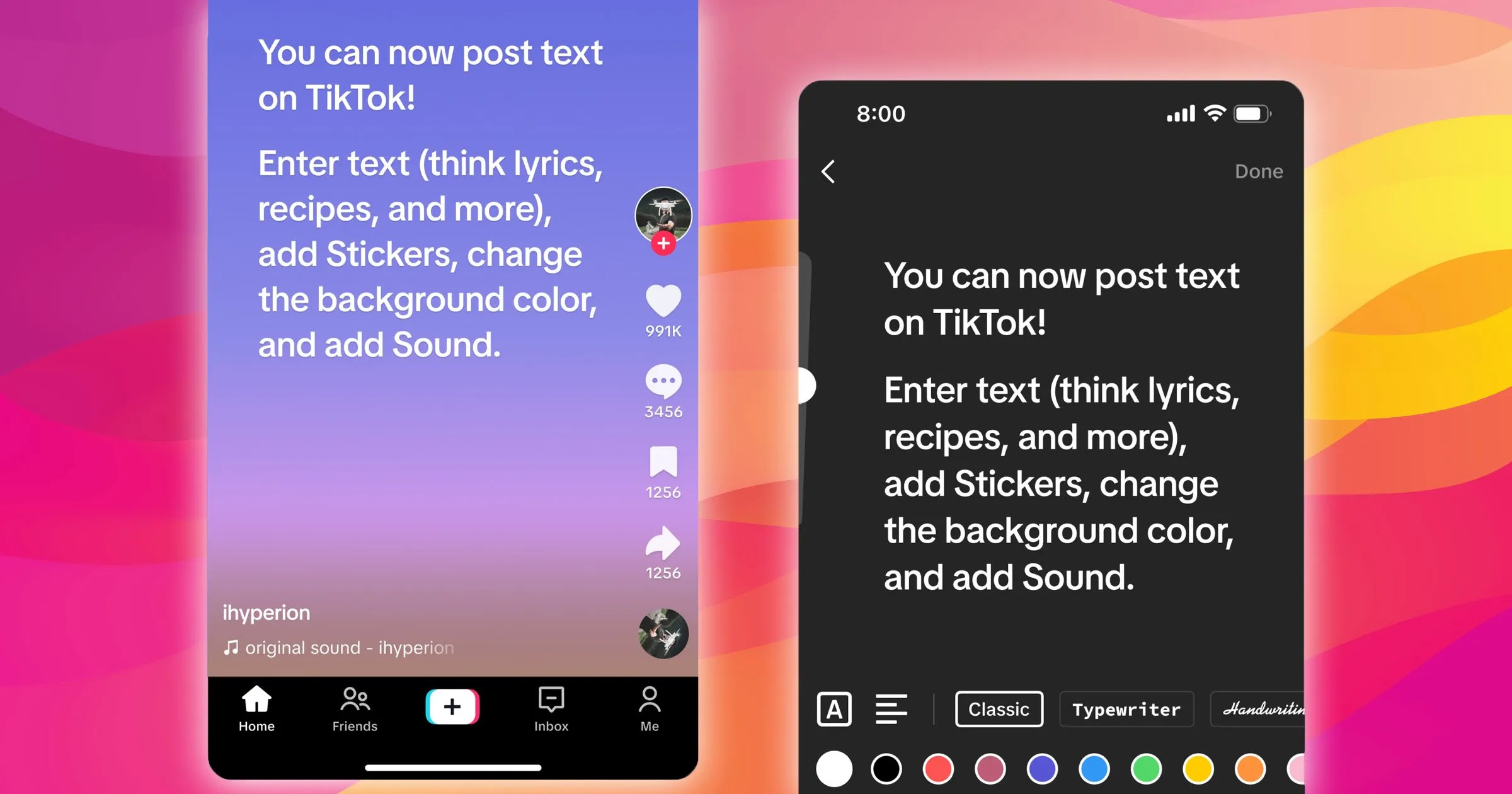
How to Type on a Video on Tiktok: A Step-by-step Guide
Are you tired of watching videos on TikTok without being able to add text or comments? Look no further! In this article, we will guide you through the process of typing on a video on TikTok, using both the app and third-party apps.
What You Need to Know Before Getting Started
Before we dive into the step-by-step guide, it’s essential to understand that typing on a video on TikTok is not possible natively. However, there are some workarounds that you can use to add text or comments to your videos.
Method 1: Using The App
To type on a video on TikTok using the app, follow these steps:
Accessing The Video Editing Feature
- Open the TikTok app and select the “+” button at the top-right corner of the screen.
- Tap on the “Record” option and choose the duration for your video.
- Select the camera mode (front-facing or rear-facing) and start recording.
Adding Text to Your Video
- Tap on the “Text” icon on the bottom-left corner of the screen.
- Type in the text you want to add, using one of the available fonts.
- Adjust the font size, color, and alignment as needed.
- Tap on the “Save” button to save your changes.
Adding Text to a Recorded Video
- Select the video you want to edit from your gallery or recorded videos.
- Tap on the “Edit” icon on the bottom-right corner of the screen.
- Select the “Text” option and add your text as described above.
Method 2: Using Third-party Apps
If you’re not satisfied with the built-in editing feature, there are some third-party apps that can help you add text to your TikTok videos. Here are a few options:
Capcut
- Download the CapCut app from the App Store or Google Play.
- Open the app and select the “Video” option.
- Choose the video you want to edit and tap on the “Text” icon.
- Type in the text you want to add, using one of the available fonts.
- Adjust the font size, color, and alignment as needed.
- Tap on the “Save” button to save your changes.
Tips And Tricks
Here are some additional tips and tricks that can help you use TikTok more effectively:
Hashtags are a great way to make your videos more discoverable. Use relevant hashtags in your captions to reach a wider audience.
Engaging With Your Audience
Interacting with your followers is crucial for building a loyal fan base. Respond to comments, answer questions, and engage in conversations to build relationships.
Experimenting With Different Formats
TikTok is all about experimentation and creativity. Try out different formats, such as dance videos, lip-syncs, or tutorial videos, to keep your content fresh and engaging.
Conclusion
Typing on a video on TikTok can be done using both the app and third-party apps. Remember to use hashtags, engage with your audience, and experiment with different formats to make your content more effective.
Frequently Asked Questions
Here are some frequently asked questions that can help you better understand how to type on a video on TikTok:
Q: Can I Add Text to a Recorded Video?
A: Yes, you can add text to a recorded video using the TikTok app or third-party apps like CapCut.
Q: How do I Add Text to a Video Using The Tiktok App?
A: To add text to a video using the TikTok app, tap on the “Text” icon on the bottom-left corner of the screen and type in your text.
Q: Can I Use Third-party Apps to Add Text to my Videos?
A: Yes, there are several third-party apps that can help you add text to your videos. Some popular options include CapCut and InShot.
Q: How do I Save my Edited Video Using Capcut?
A: To save your edited video using CapCut, tap on the “Save” button after making your changes. You can then share your edited video on TikTok or other social media platforms.
I hope this guide has been helpful in teaching you how to type on a video on TikTok. Happy creating!


