
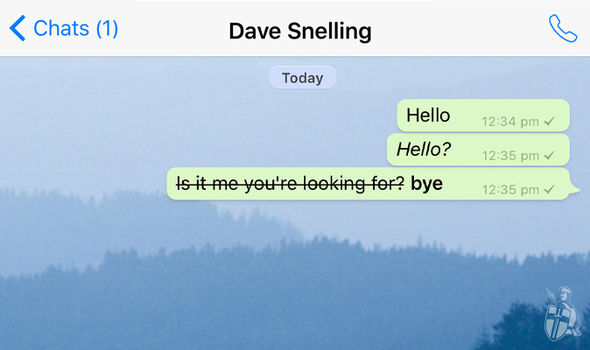
How to Type Text in Bold, Italic, And Strikethrough on Whatsapp
Are you tired of typing messages in plain text on WhatsApp? Do you want to add some flair to your conversations with friends and family? Look no further! In this article, we will guide you through the process of typing text in bold, italic, and strikethrough on WhatsApp, regardless of whether you are using an Android or iPhone device.
Getting Started
To type text in bold, italic, and strikethrough on WhatsApp, you need to have the latest version of the app installed on your device. If you don’t have it already, go ahead and update the app from the Google Play Store (for Android) or the App Store (for iPhone).
Using Bold, Italic, And Strikethrough on Android Devices
If you are using an Android device, follow these steps to type text in bold, italic, and strikethrough:
- Open WhatsApp and select the chat conversation where you want to send a message.
- Tap on the “Write” button at the top of the screen.
- Type your message as usual.
- To add bold text, type Your Text Here. For example, if you want to type “Hello World!” in bold, type Hello World!.
- To add italic text, type your text here. For example, if you want to type “This is a sample sentence” in italic, type This is a sample sentence.
- To add strikethrough text, type ~~your text here~~. For example, if you want to type “I’m not sure about this” with a strikethrough effect, type ~~I’m not sure about this~~.
Using Bold, Italic, And Strikethrough on Iphone Devices
If you are using an iPhone device, follow these steps to type text in bold, italic, and strikethrough:
- Open WhatsApp and select the chat conversation where you want to send a message.
- Type your message as usual.
- To add bold text, tap on the “123” button at the top of the screen, then tap on the “1=” symbol, followed by Your Text Here. For example, if you want to type “Hello World!” in bold, tap on the “123” button, then tap on the “” Symbols And TypeHello World!**.
- To add italic text, tap on the “123” button at the top of the screen, then tap on the “=” symbol, followed by your text here. For example, if you want to type “This is a sample sentence” in italic, tap on the “123” button, then tap on the “” symbols and type This is a sample sentence.
- To add strikethrough text, tap on the “123” button at the top of the screen, then tap on the “~=” symbol, followed by ~~your text here~~. For example, if you want to type “I’m not sure about this” with a strikethrough effect, tap on the “123” button, then tap on the “~” symbols and type ~~I’m not sure about this~~.
Using Bold, Italic, And Strikethrough on Computer
If you are using WhatsApp on your computer, follow these steps to type text in bold, italic, and strikethrough:
- Open WhatsApp on your computer.
- Type your message as usual.
- To add bold text, type Your Text Here. For example, if you want to type “Hello World!” in bold, type Hello World!.
- To add italic text, type your text here. For example, if you want to type “This is a sample sentence” in italic, type This is a sample sentence.
- To add strikethrough text, type ~~your text here~~. For example, if you want to type “I’m not sure about this” with a strikethrough effect, type ~~I’m not sure about this~~.
Additional Formatting Options
In addition to bold, italic, and strikethrough, WhatsApp also supports other formatting options such as:
- Lists: To create a numbered list, type 1. Or – followed by your text. For example, if you want to type “Here are some items on my shopping list,” type:
-
- Milk
-
- Bread
-
- Eggs
-
- Block quotes: To create a block quote, start typing your text and surround it with greater-than symbols (> ) followed by an empty space. For example, if you want to quote someone saying “I’m not sure about this,” type:
I’m not sure about this.
- Code formatting: To create code-formatted text, surround your text with backtick characters (
) on either side. For example, if you want to type some sample Python code, type:Print(“Hello World!”)`
We hope this article has been helpful in explaining how to use bold, italic, and strikethrough formatting options on WhatsApp. Happy typing!


