
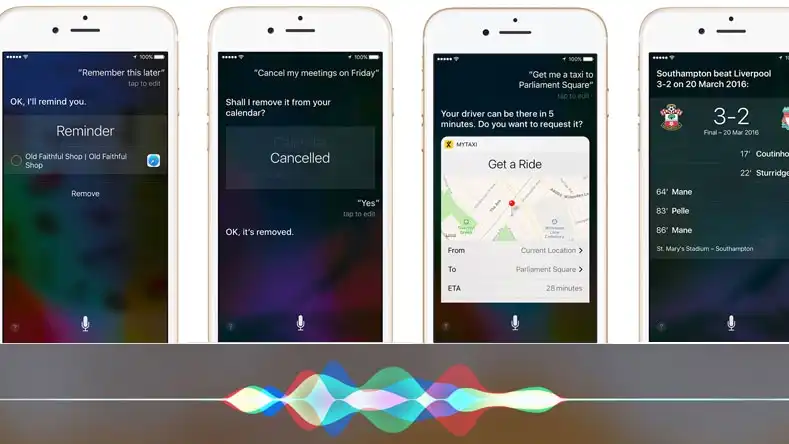
How to Type to Siri on Iphone, Ipad, Mac, And More
Are you tired of using voice commands to interact with Siri? Do you prefer typing your requests instead? Look no further! In this article, we will guide you through the process of enabling and using the “Type to Siri” feature on various Apple devices.
What is Type to Siri?
Type to Siri is a feature that allows you to type your requests to Siri instead of using voice commands. This means that you can use the virtual keyboard to input your queries, and Siri will respond accordingly.
How to Enable Type to Siri on Iphone And Ipad
To enable Type to Siri on your iPhone or iPad, follow these steps:
- Open the Settings app on your device.
- Tap on Accessibility.
- Select General.
- Scroll down and tap on Siri.
- Toggle the switch next to “Type to Siri” to turn it ON.
How to Use Type to Siri
Once you have enabled Type to Siri, you can use it in a variety of ways:
- To Activate Siri, say “Hey Siri” or press and hold the side button (or Home button on older devices) and say “Siri”.
- To Type to Siri, open the virtual keyboard by tapping on the text field where you would normally type.
- To Send Your Typed Request, tap on the blue arrow icon or press the Enter key.
How to Type to Siri on Mac
To enable Type to Siri on your Mac, follow these steps:
- Click on the Apple menu and select System Preferences.
- Click on Accessibility.
- Select General.
- Scroll down and toggle the switch next to “Siri” to turn it ON.
- Click on the settings icon next to Siri and select “Type to Siri”.
- Choose your preferred typing option from the dropdown menu.
How to Type to Siri on Mac And Use Siri
Once you have enabled Type to Siri on your Mac, you can use it in a variety of ways:
- To Activate Siri, say “Hey Siri” or press and hold the function (Fn) key.
- To Type to Siri, open the virtual keyboard by clicking on the text field where you would normally type.
- To Send Your Typed Request, click on the blue arrow icon or press Enter.
Tips And Tricks
Here are a few tips and tricks to keep in mind when using Type to Siri:
- You Can Use Siri Without Voice Commands: If you have enabled Type to Siri, you can use Siri without ever speaking to it.
- Siri Will Respond in Writing: When you type to Siri, it will respond in written form, rather than reading out loud.
- You Can Choose Your Preferred Typing Option: On Mac, you can choose between typing directly into the text field or using the virtual keyboard.
Frequently Asked Questions
Q: What is Type to Siri?
A: Type to Siri is a feature that allows you to type your requests to Siri instead of using voice commands.
Q: How do I enable Type to Siri on my iPhone and iPad?
A: To enable Type to Siri, go to Settings > Accessibility > General > Siri and toggle the switch next to “Type to Siri” to ON.
Q: Can I use Type to Siri without voice commands?
A: Yes! If you have enabled Type to Siri, you can use Siri without ever speaking to it.
Q: How do I activate Siri on my Mac?
A: To activate Siri on your Mac, say “Hey Siri” or press and hold the function (Fn) key.
Q: Can I choose between typing directly into the text field and using the virtual keyboard?
A: Yes! On Mac, you can choose between typing directly into the text field and using the virtual keyboard to input your requests.
Conclusion
In conclusion, Type to Siri is a feature that allows you to type your requests to Siri instead of using voice commands. Whether you’re on an iPhone, iPad, or Mac, you can use this feature to interact with Siri in a more comfortable and convenient way.


