
Compressing Files With Winrar: A Step-by-step Guide
Are you tired of dealing with bulky files that take up too much space on your computer? Do you wish there was a way to compress them without sacrificing their quality? Look no further than WinRAR, the ultimate file compression software!
In this article, we will explore the ins and outs of using WinRAR to compress files, including how to download and install the software, creating ZIP and RAR files, protecting files with passwords, and even splitting large files into smaller volumes. We’ll also touch on alternative software options available for different operating systems.
What is Winrar?
WinRAR is a powerful file compression software that allows you to compress files in various formats, including ZIP, RAR, 7Z, ACE, CAB, GZip, TAR, and many more. With WinRAR, you can create compressed files that are smaller in size without sacrificing their quality.
Why Use Winrar?
There are several reasons why you should use WinRAR to compress your files:
- Save Space: Compressed files take up less space on your computer, making it easier to store and manage large collections of files.
- Faster Sharing: Compressed files can be shared more quickly and easily over the internet, saving you time and bandwidth.
- Improved Security: WinRAR allows you to protect your compressed files with passwords, keeping them safe from unauthorized access.
Downloading And Installing Winrar
To get started with WinRAR, follow these simple steps:
- Visit the official WinRAR website and download the software for your operating system (Windows).
- Once downloaded, open the file and click on the “Yes” button to install the software.
- Follow the prompts to complete the installation process.
Creating Zip Files With Winrar
Now that you have WinRAR installed, let’s create a ZIP file! Here’s how:
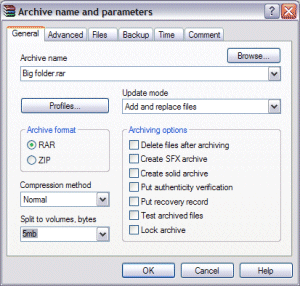
- Select the files you want to compress by clicking on them with your right mouse button and selecting “Add to archive”.
- In the “Archive” window, select the “ZIP” option and enter a name for your compressed file.
- Choose the compression level (Fastest, Normal, or Best) and click on the “OK” button.
Creating Rar Files With Winrar
To create a RAR file, follow these steps:
- Select the files you want to compress by clicking on them with your right mouse button and selecting “Add to archive”.
- In the “Archive” window, select the “RAR” option and enter a name for your compressed file.
- Choose the compression level (Fastest, Normal, or Best) and click on the “OK” button.
Protecting Files With Passwords
Want to add an extra layer of security to your compressed files? Here’s how:
- Create a ZIP or RAR file using the steps above.
- Before clicking on the “OK” button, select the “Encrypt” option and enter a password for your file.
- Re-enter the password to confirm.
Splitting Large Files Into Smaller Volumes
Need to split large files into smaller volumes? Here’s how:
- Select the files you want to compress by clicking on them with your right mouse button and selecting “Add to archive”.
- In the “Archive” window, select the “RAR” option and enter a name for your compressed file.
- Choose the compression level (Fastest, Normal, or Best) and click on the “OK” button.
- Select the “Split volumes” option and choose the size of each volume.
Alternative Software Options
While WinRAR is an excellent software, there are other options available depending on your operating system:
- 7-Zip: A free, open-source alternative for Windows that supports multiple compression formats.
- Keka: A free, open-source software for macOS that allows you to compress and extract files in various formats.
- Total Commander: A file manager for Android that includes a built-in compressor.
Conclusion
WinRAR is an excellent tool for compressing files, saving space, and improving security. With its simple interface and powerful features, it’s no wonder why millions of users rely on WinRAR to manage their files. Whether you’re a seasoned user or just starting out, this guide has shown you how to get the most out of WinRAR.
Faqs
- What is The Difference Between Zip And Rar Files?
ZIP files are compressed using the ZIP format, while RAR files use the RAR format. - Can I Compress Video Files With Winrar?
Yes, you can compress video files using WinRAR, but keep in mind that compression may affect video quality. - How do I Protect my Compressed Files With Passwords?
To add a password to your compressed file, select the “Encrypt” option before clicking on the “OK” button. - Can I Split Large Files Into Smaller Volumes?
Yes, you can split large files using WinRAR’s “Split volumes” feature. - What Are Some Alternative Software Options to Winrar?
Some alternatives include 7-Zip, Keka, and Total Commander, depending on your operating system. - How do I Download And Install Winrar?
Visit the official WinRAR website and follow the installation prompts. - Can I Compress Files on Android Using Winrar?
No, WinRAR is only available for Windows, but there are alternative software options available for Android, such as Total Commander.
I hope this article has provided you with a comprehensive guide to compressing files with WinRAR!


