
How to Compress a Folder on Windows, Mac, And More
Are you tired of dealing with large folders that take up too much space on your computer? Do you want to learn how to compress a folder on Windows, Mac, and other operating systems? Look no further! In this article, we will guide you through the steps to compress a folder on various platforms.
Understanding Compression
Before we dive into the step-by-step instructions, let’s briefly discuss what compression is. Compression is the process of reducing the size of a file or folder by replacing redundant data with shorter codes. This makes it easier to store and transfer files without sacrificing their quality.
Windows: Compressing a Folder Using Built-in Tools
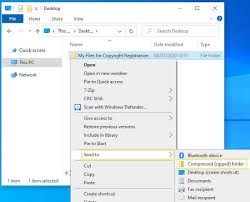
On Windows, you can compress a folder using the built-in tool called “Compressed (zipped) Folder”. Here’s how:
- Select The Folder: Choose the folder you want to compress.
- Right-click on The Folder: Click on the folder and select “Send to” > “Compressed (zipped) Folder”.
- Confirm The Compression: A new window will pop up asking if you want to create a zip file. Confirm by clicking “OK”.
That’s it! Your folder is now compressed into a zip file.
Windows: Using 7-Zip For Advanced Compression
If you need more advanced compression options, consider using 7-Zip. Here’s how:
- Download And Install 7-Zip: Get the free software from the official website.
- Select The Folder: Choose the folder you want to compress.
- Right-click on The Folder: Click on the folder and select “7-Zip” > “Add to archive”.
- Configure Compression Options: You can choose from various compression levels, password protection, and more.
Mac: Compressing a Folder Using Built-in Tools
On Mac, you can compress a folder using the built-in tool called “Compressed Archive”. Here’s how:
- Select The Folder: Choose the folder you want to compress.
- Right-click on The Folder: Click on the folder and select “Compress” > “Create Archive”.
- Confirm The Compression: A new window will pop up asking if you want to create a zip file. Confirm by clicking “OK”.
That’s it! Your folder is now compressed into a zip file.
Mac: Using Keka For Advanced Compression
If you need more advanced compression options, consider using Keka. Here’s how:
- Download And Install Keka: Get the free software from the official website.
- Select The Folder: Choose the folder you want to compress.
- Drag And Drop The Folder: Drag the folder into the Keka window and select “Compress”.
- Configure Compression Options: You can choose from various compression levels, password protection, and more.
Linux: Compressing a Folder Using Built-in Tools
On Linux, you can compress a folder using the built-in tool called “tar”. Here’s how:
- Select The Folder: Choose the folder you want to compress.
- Open The Terminal: Open the terminal and navigate to the folder.
- Type The Command: Type
tar -czf archived_folder.Tar.Gz original_folder(replace “archived_folder” with your desired name). - Confirm The Compression: Press Enter to create the compressed archive.
Online Services: Compressing a Folder
If you don’t have access to a computer or prefer online services, consider using cloud-based storage like Google Drive or Dropbox. However, please note that these services may not support folder compression directly.
Smartphones And Tablets: Compressing a Folder
On smartphones and tablets, you can use third-party apps to compress folders. Here’s how:
- Download And Install The App: Get the app from the App Store (for iOS) or Google Play Store (for Android).
- Select The Folder: Choose the folder you want to compress.
- Configure Compression Options: Follow the in-app instructions to configure compression settings.
Tips And Variations
- When compressing a large folder, consider breaking it down into smaller parts for easier transfer and storage.
- Use password protection when compressing sensitive files or folders.
- Experiment with different compression levels and algorithms to find the best balance between size reduction and quality preservation.
We hope this comprehensive guide has helped you learn how to compress a folder on various operating systems. Remember to always consider the trade-offs between compression level, file size, and data integrity when choosing the right compression tool for your needs.


