
How to Zoom a Video: A Step-by-step Guide
Are you tired of watching videos that are too small or blurry on your screen? Do you wish you could zoom in on specific parts of the video without affecting the rest of it? Look no further! In this article, we will guide you through the process of zooming a video using various software and online tools.
Why Zoom a Video?
Zooming a video can be useful in several situations:
- You want to focus on a specific part of the video that is too small or blurry.
- You need to highlight important information or details in the video.
- You want to create a tutorial or educational video that requires zooming in on specific parts.
Method 1: Using Vlc Media Player
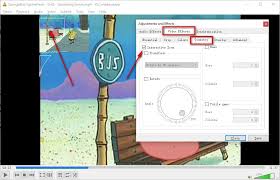
VLC (VideoLAN Client) is a free media player that can be downloaded on Windows, macOS, and Linux. It allows you to zoom in on videos without affecting the original file.
To zoom a video using VLC:
- Open VLC and select the video you want to zoom.
- Click on “Media” > “Open File” and select the video.
- Click on “Video” > “Zoom” and select the option that suits your needs.
- Adjust the zoom level as desired.
Method 2: Using Adobe Premiere
Adobe Premiere is a professional video editing software that can be used to zoom in on videos.
To zoom a video using Adobe Premiere:
- Open Adobe Premiere and create a new project.
- Import the video you want to zoom into the program.
- Click on “Edit” > “Zoom” and select the option that suits your needs.
- Adjust the zoom level as desired.
Method 3: Using Wevideo
WeVideo is an online video editing platform that allows you to edit videos directly from your browser.
To zoom a video using WeVideo:
- Open WeVideo and create a new project.
- Import the video you want to zoom into the program.
- Click on “Edit” > “Zoom” and select the option that suits your needs.
- Adjust the zoom level as desired.
Method 4: Using Instagram
Instagram is a popular social media platform that allows you to upload videos directly from your device.
To zoom a video using Instagram:
- Open Instagram and select the video you want to zoom.
- Tap on the “Edit” button and select the option that suits your needs.
- Adjust the zoom level as desired.
Method 5: Using Capcut
CapCut is a free video editing app for mobile devices that allows you to edit videos directly from your device.
To zoom a video using CapCut:
- Open CapCut and create a new project.
- Import the video you want to zoom into the program.
- Click on “Edit” > “Zoom” and select the option that suits your needs.
- Adjust the zoom level as desired.
Method 6: Using Videoshow
VideoShow is a free video editing app for mobile devices that allows you to edit videos directly from your device.
To zoom a video using VideoShow:
- Open VideoShow and create a new project.
- Import the video you want to zoom into the program.
- Click on “Edit” > “Zoom” and select the option that suits your needs.
- Adjust the zoom level as desired.
Method 7: Using Videoshop
Videoshop is a free video editing app for mobile devices that allows you to edit videos directly from your device.
To zoom a video using Videoshop:
- Open Videoshop and create a new project.
- Import the video you want to zoom into the program.
- Click on “Edit” > “Zoom” and select the option that suits your needs.
- Adjust the zoom level as desired.
Conclusion
In conclusion, there are several methods to zoom a video using various software and online tools. Each method has its own advantages and disadvantages, and the choice of method depends on the specific needs of the user. Whether you need to zoom in on a small part of a video or create a tutorial or educational video, these methods can help you achieve your goals.
Frequently Asked Questions
Q: What is the best method to zoom a video?
A: The best method to zoom a video depends on the specific needs of the user. Each method has its own advantages and disadvantages.
Q: Can I zoom a video using a free software or online tool?
A: Yes, there are several free software and online tools that allow you to zoom a video.
Q: How do I save a zoomed video?
A: The steps to save a zoomed video vary depending on the method used. However, in general, you can export the video from the software or online tool as a new file.
Q: Can I share a zoomed video on social media?
A: Yes, most of the methods listed above allow you to share the zoomed video directly on social media platforms.
Q: Is it possible to zoom a video in permanent mode?
A: Yes, some of the software and online tools listed above allow you to apply a permanent zoom effect to the video.
Q: Can I zoom a video using my smartphone or tablet?
A: Yes, most of the methods listed above can be used on mobile devices.


