
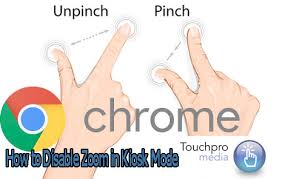
How to Zoom on Google
Are you tired of not being able to see the results of your searches clearly on Google due to tiny characters? Have you downloaded Chrome on your computer, but find it difficult to navigate through the web pages because the elements are too small? If so, don’t worry! I’m here to guide you through a simple process on how to zoom on Google, not just on your computer (Windows and macOS), but also on your smartphone and tablet (Android and iOS/iPadOS).
Zooming on Google: A Step-by-step Guide
Zooming on Windows
If you’re using Windows and want to zoom on Google, follow these instructions:
- Press Ctrl+(+) to increase the zoom level of the page.
- Press Ctrl+(-) to decrease the zoom level of the page.
- Press Ctrl+0 to reset the zoom level to 100%.
- Use the mouse wheel or pinch gesture on your touchpad to adjust the zoom level.
Zooming on Macos
If you’re using a Mac and want to zoom on Google, follow these instructions:
- Press Cmd+(+) to increase the zoom level of the page.
- Press Cmd+(-) to decrease the zoom level of the page.
- Press Cmd+0 to reset the zoom level to 100%.
- Use the mouse wheel or pinch gesture on your trackpad to adjust the zoom level.
Zooming on Android
If you’re using an Android device and want to zoom on Google, follow these instructions:
- Use the pinch-to-zoom gesture by pinching your fingers together or apart on the screen.
- Double-tap on a section of the page to increase or decrease the zoom level.
- Adjust the zoom level in Settings > Accessibility.
Zooming on Ios/ipados
If you’re using an iPhone or iPad and want to zoom on Google, follow these instructions:
- Use the pinch-to-zoom gesture by pinching your fingers together or apart on the screen.
- Double-tap on a section of the page to increase or decrease the zoom level.
Zooming on Chrome
If you want to use the zoom feature on Chrome, not just for Google searches but also for other websites, follow these instructions:
Zooming on Windows
To adjust the zoom level on Chrome on Windows, follow these steps:
- Click on the three dots in the top right corner of the browser window.
- Select Settings from the menu.
- Scroll down to the Appearance section and select the Zoom option.
- Choose the desired zoom level or select “Zoom out” to decrease the zoom level.
Zooming on Macos
To adjust the zoom level on Chrome on macOS, follow these steps:
- Click on the three dots in the top right corner of the browser window.
- Select Settings from the menu.
- Scroll down to the Appearance section and select the Zoom option.
- Choose the desired zoom level or select “Zoom out” to decrease the zoom level.
Zooming on Android
To adjust the zoom level on Chrome on Android, follow these steps:
- Open the Chrome app and tap the three dots in the top right corner of the screen.
- Select Settings from the menu.
- Scroll down to the Accessibility section and select the Text size option.
- Choose the desired text size or select “Reset” to return to the default zoom level.
Zooming on Ios/ipados
To adjust the zoom level on Chrome on iOS/iPadOS, follow these steps:
- Open the Chrome app and tap the three dots in the top right corner of the screen.
- Select Settings from the menu.
- Scroll down to the Zoom section and select the desired zoom level or select “Reset” to return to the default zoom level.
Conclusion
Zooming on Google and other websites has become an essential feature for many users. By following these simple steps, you can adjust the zoom level to suit your needs, whether you’re using Windows, macOS, Android, or iOS/iPadOS. Remember to also check out our tutorials on how to zoom in on your monitor, smartphone, and tablet screens.
Faqs
- Q: How do I Zoom on Google on my Computer?
A: To zoom on Google on your computer, press Ctrl+(+) to increase the zoom level or Ctrl+(-) to decrease the zoom level. - Q: Can I Zoom on Google on my Smartphone or Tablet?
A: Yes, you can zoom on Google on your smartphone or tablet by using the pinch-to-zoom gesture or double-tapping on a section of the page. - Q: How do I Adjust The Zoom Level on Chrome on Windows?
A: To adjust the zoom level on Chrome on Windows, click on the three dots in the top right corner of the browser window and select Settings > Appearance > Zoom. - Q: Can I Zoom on Google Using a Mac?
A: Yes, you can zoom on Google using a Mac by pressing Cmd+(+) to increase the zoom level or Cmd+(-) to decrease the zoom level. - Q: How do I Adjust The Zoom Level on Chrome on Android?
A: To adjust the zoom level on Chrome on Android, open the Chrome app and tap the three dots in the top right corner of the screen and select Settings > Accessibility > Text size. - Q: Can I Zoom on Google Using an Iphone or Ipad?
A: Yes, you can zoom on Google using an iPhone or iPad by using the pinch-to-zoom gesture or double-tapping on a section of the page.


