
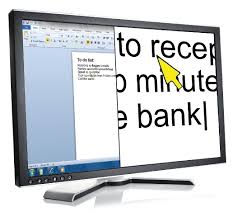
How to Zoom In on Your PC Monitor: A Step-by-step Guide
Are you tired of having a small monitor that can’t display all your windows at once? Do you wish you could zoom in on specific areas of the desktop without having to scroll around endlessly? Look no further! This article will guide you through the process of zooming in on your PC monitor, using both built-in Windows features and external software.
Why Zoom In On Your Monitor?
Zooming in on your monitor can be incredibly useful for a variety of tasks. For example:
- Public Presentations: If you’re presenting to an audience, you may want to highlight specific details on the screen without overwhelming them with too much information.
- Design Work: Graphic designers, web developers, and other creative professionals often need to zoom in on small areas of their design to make fine-tuned adjustments.
- Research: Researchers and students may need to analyze complex data or images that require a closer look.
Zooming In On Your PC Monitor: The Easy Way
One of the easiest ways to zoom in on your monitor is by using the built-in Windows feature called “Magnify”. Here’s how:
Using Magnify
- Access The Start Menu: Click on the Windows logo (usually located at the bottom left corner of the screen).
- Type “Magnify”: Type “Magnify” in the search bar, and select the result that appears.
- Adjust The Zoom Level: Use the slider to adjust the zoom level to your liking.
Zooming In On Your PC Monitor: The Advanced Way
If you prefer a more customizable experience, consider using external software like Virtual Magnifying Glass (VMG). Here’s how:
Using Virtual Magnifying Glass
- Download Vmg: Visit the VMG website and download the software to your computer.
- Install Vmg: Follow the installation instructions, and restart your computer if prompted.
- Launch Vmg: Open the program, and select the “Classic” mode from the menu.
Other Ways To Zoom In On Your Monitor
In addition to using Magnify or VMG, you can also zoom in on specific areas of the desktop by using keyboard shortcuts:
- Windows 10/11: Press
Win + (+)to zoom in, andWin + (-)to zoom out. - Mac OS: Use
Cmd + Opt + (=to zoom in, andCmd + Opt + -to zoom out.
Modifying The Resolution Of Your Monitor
If your monitor’s resolution is too low for comfortable viewing, consider adjusting it:
Modifying The Resolution On Windows 11
- Right-click on The Desktop: Select “Settings” from the menu.
- Adjust The Resolution: Click on the “Resolution” tab, and select a higher resolution if available.
Modifying The Resolution On Windows 10
- Right-click on The Desktop: Select “Display settings” from the menu.
- Adjust The Resolution: Click on the “Display adapter properties” button, and select a higher resolution if available.
Modifying The Resolution On Mac OS
- Click on The Apple Logo: Select “System Preferences” from the dropdown menu.
- Click on Displays: Select the display you want to adjust from the menu.
- Adjust The Resolution: Click on the “Resolution” tab, and select a higher resolution if available.
Conclusion
Zooming in on your monitor can greatly improve your productivity and make complex tasks easier to manage. By using either built-in Windows features or external software like Virtual Magnifying Glass, you can customize your zoom experience to suit your needs. Remember to also adjust the resolution of your monitor for optimal viewing comfort!
Frequently Asked Questions (FAQs)
-
Q: How do I Undo The Zoom Changes?
A: To undo zoom changes on Windows, pressWin + Esc. On Mac OS, simply close the VMG program. -
Q: Can I Customize The Zoom Level in Vmg?
A: Yes! In the VMG settings menu, you can adjust the zoom level to your liking. -
Q: How do I Save my Zoom Preferences on Windows?
A: To save your zoom preferences on Windows, go to the “Settings” app, and select “Magnify”. -
Q: Can I Use Vmg on Mac Os?
A: Yes! VMG is compatible with Mac OS. -
Q: How do I Reset my Monitor’s Resolution on Windows?
A: To reset your monitor’s resolution on Windows, go to the “Display settings” menu, and select the original resolution. -
Q: Can I Modify The Resolution of Multiple Monitors at Once?
A: Yes! On Windows 10/11, you can adjust the resolution for all connected monitors simultaneously. -
Q: How do I Zoom in on a Specific Area Using Vmg?
A: To zoom in on a specific area using VMG, simply click and hold the left mouse button while dragging the cursor over the desired area. -
Q: Can I Use Keyboard Shortcuts to Zoom In/out on my Mac?
A: Yes! UseCmd + Opt + (=to zoom in, andCmd + Opt + -to zoom out.


