
Unlocking The Power of Wps: A Comprehensive Guide
Are you tired of entering long passwords on each device every time you want to connect to your home network? Look no further! In this article, we’ll delve into the world of WPS (Wi-Fi Protected Setup), a technology that makes it easy to connect multiple devices to your modem without having to insert the password. We’ll explore what WPS is, how it works, and provide step-by-step guides on using WPS with different devices and operating systems.
What is Wps?
WPS stands for Wi-Fi Protected Setup, a standard that facilitates the connection among modems and devices. It’s designed to ensure a secure and easy-to-use connection process. With WPS, you can connect multiple devices to your modem without having to enter the password each time.
Types of Wps Connections
There are four types of WPS connections:
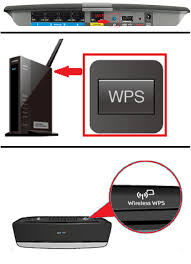
- Pulsante Wps: This method uses a physical button on the modem that needs to be pressed to initiate the connection process.
- Pin Wps: In this case, the modem has a constantly active WPS enquiry, and you need to enter the PIN code (usually 6-8 digits) on your device to establish the connection.
- Nfc: This method uses near-field communication technology to connect devices to the modem. It’s usually used for short-range connections.
- Usb: Although this method is no longer in use, it involved inserting a USB key into the modem and then into the device you want to connect.
How Wps Works on Fastweb Modems
If you have a Fastweb modem, here are some specific steps to follow:
- For Fastgate modems: You’ll need to access the modem’s settings and enable WPS. Then, press the WPS button on your device.
- For TECHNICOLOR TG788VN modems: Look for the physical WPS button on your modem, press it, and then press the WPS button on your device within 120 seconds.
- For Fastweb NeXXt modems: Press and hold the Fastweb and Volume On buttons simultaneously for around 3 seconds. You’ll see the LED light flashing, indicating that the modem is in WPS enquiry mode.
Using Wps on PC
To use WPS on your Windows computer:
- Ensure you’re connected to an available network.
- Go to Settings > Wi-Fi and select your network name.
- If prompted, enter the password or click “Can connect without entering the password” and press the WPS button on your modem.
Using Wps on Android Devices
If you have an Android device:
- For devices with Android 9 and below: Unfortunately, these versions no longer support WPS. You can use other methods to share your Wi-Fi password.
- For older Android devices (e.G., Samsung with Android 8 or inferior): Open Settings > Wi-Fi > three dots on the top-right corner > Pulsante WPS.
Using Wps on Iphone
Unfortunately, iPhones do not support WPS. However, you can use other methods to share your Wi-Fi password.
Important Considerations And Faqs
While WPS is a convenient feature, it’s essential to be aware of some limitations:
- Not all devices or operating systems support WPS.
- WPS connections are relatively insecure compared to traditional password-based authentication.
- Using WPS can make your network vulnerable to brute-force attacks.
Here are some frequently asked questions (FAQs) and answers:
-
Q: What is The Maximum Time I Have to Connect a Device Using Wps?
A: 120 Seconds (2 minutes). -
Q: Is Wps Compatible With All Devices And Operating Systems?
A: Unfortunately, no. Some devices or operating systems do not support WPS. -
Q: Can I Use Wps on my Router?
A: Yes, most routers have a physical WPS button that you can press to initiate the connection process. -
Q: Is Wps Secure?
A: While WPS is convenient, it’s relatively insecure compared to traditional password-based authentication. -
Q: Can I Use Wps With my Modem And Router From Different Manufacturers?
A: It’s generally recommended to use WPS with devices from the same manufacturer for optimal compatibility and security. -
Q: How do I Disable Wps on my Device or Network?
A: Check your device or network settings to see if there is an option to disable WPS. -
Q: Can I Share my Wi-fi Password Using Wps With Multiple Devices at Once?
A: Yes, you can use WPS to connect multiple devices simultaneously. -
Q: What Happens if I Lose Connection While Using Wps?
A: If the connection is lost during the WPS process, simply restart the process by pressing the WPS button on your modem and device again.
In conclusion, WPS is a convenient technology that makes it easy to connect multiple devices to your home network without having to enter passwords each time. However, it’s essential to be aware of its limitations and use it responsibly to ensure secure connections for all devices connected to your network.


