
Understanding In Family: A Service by Apple
In today’s digital age, sharing experiences and services with family members has become increasingly convenient. Apple’s “In Family” service is a fantastic way to create a shared cluster with up to 5 members of your family, allowing you to share subscriptions, shoppings, and other services seamlessly.
What is In Family?
In Family is an all-free service provided by Apple that enables you to create a shared cluster with other family members. This allows you to share subscriptions, such as Apple Music, Apple TV+, and Apple Arcade, as well as contents acquired on the App Store, iTunes Store, and Apple Books. You can also share storage space and other included services like iCloud.
How to Create an In Family Cluster
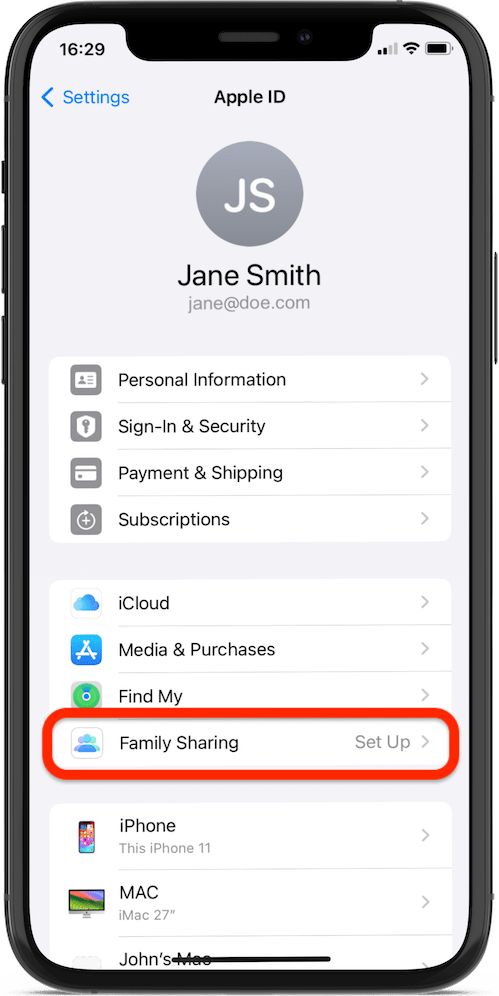
To create a new cluster in In Family:
- Open your iPhone’s Settings app.
- Tap on your name at the top of the screen.
- Select “Family” from the list of options.
- Tap on the “Continue” button to activate the service.
- Invite other family members by tapping on the “Invite Other” option and sharing the access link via AirDrop, SMS, or email.
Sharing Subscriptions
When you create a new cluster in In Family, all shared subscriptions are automatically enforced. If you haven’t already done so, go to Settings > [Your Name] > Subscriptions and toggle the switch next to “Share with Family” to ON. This will make your shared subscriptions visible in the Family section.
Sharing Shoppings
To share shoppings, follow these steps:
- Go to Settings > Family.
- Tap on the “Sharing Acquire” option.
- If necessary, add a payment method for shared purchases.
- Once you’ve done this, contents will be automatically shared among family members.
Sharing Position And Shoppings
To share your position with other family members:
- Go to Settings > Family.
- Tap on the “Share Position” option.
- Select the family member(s) you want to share your position with.
- You can also choose to share your position automatically, which will notify all family members.
Using In Family on Iphone
In Family is a convenient service that allows you to share subscriptions and shoppings seamlessly with up to 5 family members. To use In Family on iPhone:
- Open the Settings app.
- Tap on your name at the top of the screen.
- Select “Family” from the list of options.
What Can I Do in In Family?
With In Family, you can:
- Share subscriptions like Apple Music and Apple TV+
- Share contents acquired on the App Store, iTunes Store, and Apple Books
- Share storage space and other included services like iCloud
- Invite up to 5 family members to join your cluster
How to Cancel an Invitation or Remove a Member
To cancel an invitation or remove a member from your In Family cluster:
- Go to Settings > Family.
- Tap on the name of the person you want to remove.
- Select “Cancel” or “Remove Member.”
Using In Family on Ipad And Mac
In addition to iPhone, In Family can also be used on iPad and Mac devices associated with the same Apple account.
Understanding Parental Control in In Family
With In Family, parents can create a shared cluster for their children under 14 years old. This allows them to monitor their child’s activity, approve purchases, set limits on screen time, and more.
Creating an ID Apple For Minors
To create an ID Apple for minors:
- Go to Settings > Family.
- Tap on the “Create a New ID” option.
- Follow the prompts to create a new ID Apple for your child.
Managing Parental Control Options
To manage parental control options:
- Go to Settings > Family.
- Select the name of the minor you want to configure.
- Adjust settings as needed, such as limiting screen time or approving purchases.
Removing an In Family Member
If a family member leaves your cluster, they will receive a notification and email about their removal. To remove someone from your cluster:
- Go to Settings > Family.
- Tap on the name of the person you want to remove.
- Select “Remove Member.”
How to Stop Using In Family
To stop using In Family at any time:
- Go to Settings > Family.
- Tap on your name.
- Select “Not Using Anymore” from the list of options.
By following these steps and understanding how In Family works, you can create a shared cluster with up to 5 family members and enjoy seamless sharing of subscriptions and shoppings.
Frequently Asked Questions (FAQs)
- What is In Family?
In Family is an all-free service provided by Apple that enables you to create a shared cluster with other family members. - How Many Family Members Can Join my In Family Cluster?
Up to 5 family members can join your In Family cluster. - Can I Share Shoppings And Subscriptions With my In Family Cluster?
Yes, you can share shoppings and subscriptions among family members. - How do I Cancel an Invitation or Remove a Member From my In Family Cluster?
To cancel an invitation or remove a member, go to Settings > Family and select the name of the person you want to remove. - Can I Use In Family on Ipad And Mac Devices Associated With The Same Apple Account?
Yes, you can use In Family on iPad and Mac devices associated with the same Apple account. - What is Parental Control in In Family?
Parental control allows parents to monitor their child’s activity, approve purchases, set limits on screen time, and more. - How do I Create an ID Apple For Minors?
To create an ID Apple for minors, go to Settings > Family and follow the prompts. - Can I Stop Using In Family at Any Time?
Yes, you can stop using In Family at any time by going to Settings > Family and selecting “Not Using Anymore”.


