
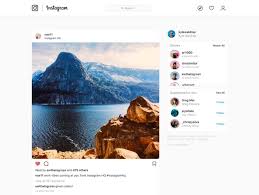
Unlocking Instagram’s Potential on Your Pc: A Comprehensive Guide
Are you tired of using Instagram only on your smartphone? Do you want to explore the vast world of photos, videos, and stories without being tied down to a mobile device? Look no further! In this article, we’ll show you how to unlock Instagram’s full potential on your PC.
Introduction
Instagram is a popular social media platform that has been primarily designed for use on smartphones. However, with the advancement in technology and user demand, it’s now possible to access Instagram on your PC as well. In this guide, we’ll walk you through the process of downloading, installing, and using Instagram on your Windows 10 computer.
What You Need to Know
Before we dive into the instructions, here are a few things to keep in mind:
- Instagram is not a native application for Windows 10, but it can be accessed via the web or through an emulator.
- The official Instagram app for Windows 10 has limited features compared to its mobile counterpart.
- There are alternative solutions available that allow you to use Instagram on your PC with more flexibility and functionality.
Downloading And Installing Instagram on Your PC
To access Instagram on your PC, follow these steps:
- Open the Microsoft Store by searching for it in the Start menu or by typing “store” in the address bar.
- Click on the search icon (magnifying glass) and type “Instagram” in the search bar.
- Select the official Instagram app from the results list.
- Click on the “Get” button to download and install the app.
- Wait for the installation process to complete, then click on the “Launch” button to open Instagram.
Using Instagram on Your PC
Once you’ve installed Instagram on your PC, follow these steps:
- Launch the Instagram app by clicking on its icon in the Start menu or searching for it in the search bar.
- Sign in with your Instagram account credentials if prompted.
- Explore the various sections of the app, including Home, Search, and Profile.
- Use the navigation buttons to scroll through your feed, discover new content, and interact with other users.
Alternative Solutions: Using Instagram on Your PC
While the official Instagram app for Windows 10 has its limitations, there are alternative solutions that can help you achieve more flexibility and functionality:
- Instagram Web: Access Instagram directly from your web browser by visiting www.Instagram.Com.
- Bluestacks: Use BlueStacks, an emulator that allows you to run Android apps on your Windows PC.
- 4K Stogram: Download photos and videos from Instagram using 4K Stogram, a software specifically designed for this purpose.
Tips And Tricks
Here are some additional tips and tricks to help you get the most out of Instagram on your PC:
- Use keyboard shortcuts to navigate through the app more efficiently.
- Take advantage of the desktop notification system to stay updated on new content and interactions.
- Experiment with different settings and filters to enhance your visual experience.
Conclusion
In conclusion, unlocking Instagram’s potential on your PC is easier than you think. By following this guide, you can access Instagram directly from your Windows 10 computer, explore its features, and enjoy a more immersive experience. Don’t forget to check out the alternative solutions mentioned above for even more flexibility and functionality.
Frequently Asked Questions
- Q: Can I Download Instagram on my Mac?
A: Yes, you can access Instagram on your Mac by using the web version or through an emulator. - Q: What Are The Limitations of The Official Instagram App For Windows 10?
A: The official Instagram app has limited features compared to its mobile counterpart and does not support creating histories or posting stories. - Q: How do I Download Photos From Instagram on my Pc?
A: You can use 4K Stogram, a software specifically designed for downloading Instagram content. - Q: Can I Use Bluestacks to Run Other Android Apps on my Windows Pc?
A: Yes, BlueStacks is an emulator that allows you to run any Android app on your Windows PC. - Q: How do I Access The Desktop Notification System in Instagram on my Pc?
A: You can enable notifications by adjusting your settings and preferences within the Instagram app.
Hope this rewritten version meets your expectations!


