
Unlocking Instagram’s Self-destruct Feature: A Step-by-step Guide
Are you tired of dealing with unwanted photos or videos on Instagram? Look no further! In this article, we’ll show you how to use the self-destruct feature on Instagram, allowing you to send photos and videos that disappear after a set time.
What is Instagram’s Self-destruct Feature?
Instagram’s self-destruct feature allows users to send photos and videos that automatically delete themselves from the recipient’s inbox after a specified time. This feature can be especially useful for protecting your online privacy and preventing unwanted content from cluttering your feed.
Requirements For Using Instagram’s Self-destruct Feature
To use Instagram’s self-destruct feature, you’ll need to have an account on Instagram and access it through a smartphone. The app is available for both Android and iOS devices, and can be downloaded from the respective app stores.
Step-by-step Guide to Using Instagram’s Self-destruct Feature
- Launch Instagram: Open the Instagram app on your smartphone.
- Log In: Enter your login credentials to access your account.
- Find The Recipient: Navigate to the chat or conversation where you want to send the self-destructing photo or video.
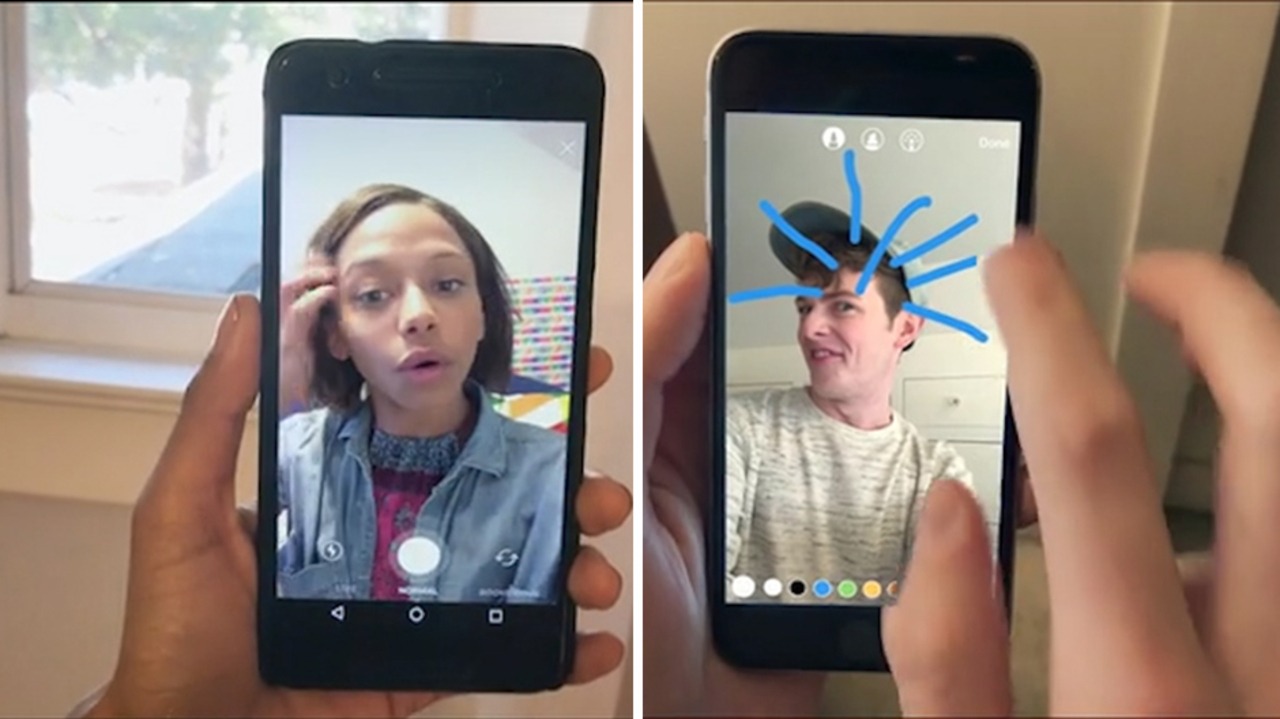
- Take a Photo or Record a Video: Use the camera within Instagram to take a new photo or record a video.
- Choose Self-destruct: Select the option to send the media with the self-destruct feature enabled.
How Long Does The Self-destruct Feature Last?
The self-destruct feature on Instagram allows you to set a timer for 1, 2, 3, or 10 seconds. Once the time expires, the photo or video will disappear from the recipient’s inbox.
Alternative Methods For Self-destructing Photos And Videos (PC Version)
Unfortunately, the self-destruct feature is not available on the Instagram website or PC app. However, you can still forward photos and videos to someone via chat without enabling the self-destruct feature. If you want to protect your online privacy, you’ll need to manually delete any unwanted content from the recipient’s inbox.
Deleting Photos And Videos From a Conversation (PC Version)
To delete a photo or video from a conversation on Instagram using the PC app:
- Open The Chat: Navigate to the chat where the unwanted photo or video is located.
- Click on The Media: Click on the photo or video you want to delete.
- Select The ‘…’ Menu: Click on the three dots in the top-right corner of the media preview window.
- Choose Delete: Select the “Delete” option from the dropdown menu.
- Confirm Deletion: Confirm that you want to delete the media by clicking “Cancel” or pressing the delete button.
Conclusion
Instagram’s self-destruct feature provides a convenient way to send photos and videos with an expiration date, protecting your online privacy and preventing unwanted content from cluttering your feed. While it’s not available on the PC app, there are alternative methods for deleting unwanted media from conversations.


