
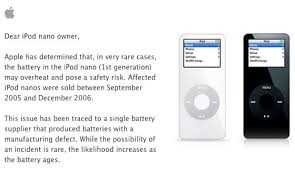
The Ultimate Guide to Reviving Your Old Ipod
Are you tired of having a drawer full of old gadgets collecting dust? If so, it’s time to revive your trusty old iPod! In this comprehensive guide, we’ll show you how to breathe new life into your outdated device and make the most out of its features.
What You Need to Know Before Starting
Before diving in, it’s essential to understand that not all programs are created equal. Some may work better than others on specific devices or operating systems. This guide will walk you through the best programs for managing your iPod, including those without iTunes and other alternatives.
Getting Started With Itunes (Windows)
If you’re using a Windows PC, follow these steps to download and install iTunes:
- Go to the official Apple website and click on the “Download” button.
- Select the correct version of iTunes for your operating system.
- Wait for the installation file to be downloaded and installed.
Using Itunes With Your Ipod
To use iTunes with your iPod, follow these steps:
- Connect your iPod to your PC using a USB cable.
- Open iTunes on your PC and select your iPod from the left-hand menu.
- Click on “Summary” and then click on “Options.”
- Select the option to use your iPod as an external disc.
The Best Programs For Managing Your Ipod
While iTunes is still the best program for managing your iPod, there are other alternatives that can help you achieve what you need:
- Sharepod: A free program available for Windows and macOS that allows you to copy music from your iPod to your computer and vice versa.
- Imazing: A complete program dedicated to managing Apple devices, including the iPod.
Other Alternatives
If iTunes or Sharepod isn’t doing it for you, consider these other alternatives:
- Yamipod: A free program for Windows that allows you to manage your music library and transfer files from your iPod to your PC.
- Explore Rows: A feature on Windows that allows you to access specific areas of your iPod’s memory, including the musical bookshop.
- Mediamonkey: A program similar to iTunes that allows you to manage your music collection and create playlists.
Using Sharepod
To use Sharepod with your iPod:
- Download and install Sharepod from its official website.
- Connect your iPod to your PC using a USB cable.
- Open Sharepod and select the option to export selected items (music, videos, etc.) To a folder on your computer.
Using Imazing
To use iMazing with your iPod:
- Download and install iMazing from its official website.
- Connect your iPod to your PC using a USB cable.
- Open iMazing and select the option to export selected items (music, videos, etc.) To a folder on your computer.
Conclusion
In conclusion, reviving your old iPod is easier than you think! By following this guide and exploring the best programs for managing your device, you’ll be able to breathe new life into it. Remember, there are other alternatives available if iTunes isn’t doing it for you.
Frequently Asked Questions (FAQs)
- Q: Can I use my old iPod with a new computer?
A: Yes! As long as you have the necessary software installed on your new PC, you can connect and sync your old iPod. - Q: How do I transfer music from my iPod to my computer?
A: You can use programs like Sharepod or iMazing to transfer music files directly to your computer. - Q: Can I still get music onto my iPod if iTunes isn’t installed?
A: Yes! While it’s always recommended to use iTunes for syncing and transferring music, there are other alternatives available that don’t require iTunes. - Q: How do I update the software on my iPod?
A: The best way to keep your iPod’s software up-to-date is to connect it to a PC with iTunes installed and follow the prompts to upgrade your device.
The Ultimate Guide to Reviving Your Old Ipod
Table 1:
| Program | Description |
|---|---|
| Sharepod | A free program that allows you to transfer music from your iPod to your computer. |
| IMazing | A complete program dedicated to managing Apple devices, including the iPod. |
The Ultimate Guide to Reviving Your Old Ipod
Table 2:
| Program | Description |
|---|---|
| Bolded Heading: Alternative Programs For Managing Your Ipod | |
| YamiPod | A free program for Windows that allows you to manage your music library and transfer files from your iPod to your PC. |
| Explore Rows | A feature on Windows that allows you to access specific areas of your iPod’s memory, including the musical bookshop. |
| MediaMonkey | A program similar to iTunes that allows you to manage your music collection and create playlists. |
The Ultimate Guide to Reviving Your Old Ipod
Table 3:
| Program | Description |
|---|---|
| Sharepod | Allows you to transfer music from your iPod to your computer and vice versa. |
| IMazing | A complete program dedicated to managing Apple devices, including the iPod. |
The Ultimate Guide to Reviving Your Old Ipod
Conclusion
In conclusion, reviving your old iPod is easier than you think! By following this guide and exploring the best programs for managing your device, you’ll be able to breathe new life into it. Remember, there are other alternatives available if iTunes isn’t doing it for you.
Frequently Asked Questions (FAQs)
- Q: Can I use my old iPod with a new computer?
A: Yes! As long as you have the necessary software installed on your new PC, you can connect and sync your old iPod. - Q: How do I transfer music from my iPod to my computer?
A: You can use programs like Sharepod or iMazing to transfer music files directly to your computer. - Q: Can I still get music onto my iPod if iTunes isn’t installed?
A: Yes! While it’s always recommended to use iTunes for syncing and transferring music, there are other alternatives available that don’t require iTunes. - Q: How do I update the software on my iPod?
A: The best way to keep your iPod’s software up-to-date is to connect it to a PC with iTunes installed and follow the prompts to upgrade your device.


