
How to See a Movie on Your Phone on Tv: A Comprehensive Guide
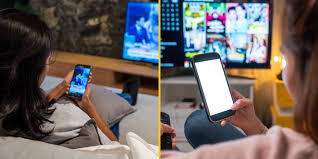
Are you tired of watching movies on your small phone screen? Do you want to experience the thrill of big-screen entertainment in the comfort of your own home? Look no further! In this article, we’ll show you how to see a movie on your phone on TV using various methods.
Table 1: Wireless Methods
| Method | Description |
|---|---|
| Google Cast | A wireless streaming technology that allows you to send video and audio from your Android or iOS device to your TV. |
| Miracast | A wireless display technology that allows you to mirror the screen of your Windows or Android device onto your TV. |
| AirPlay 2 | A wireless streaming technology that allows you to send video and audio from your Apple device to your TV or speaker system. |
Table 2: Cabled Methods
| Method | Description |
|---|---|
| Usb-c to Hdmi Adapter | A physical adapter that connects your phone’s USB-C port to the HDMI port on your TV, allowing you to stream video and audio from your phone to your TV. |
| MHL (Mobile High-Definition Link) | A technology that allows you to connect your phone’s microUSB port to the HDMI port on your TV, enabling high-definition video streaming. |
| Slimport | A technology that allows you to connect your phone’s microUSB port to the HDMI port on your TV, as well as other display ports like DVI and DisplayPort. |
How Google Cast Works
Google Cast is a wireless streaming technology developed by Google. It allows you to send video and audio from your Android or iOS device to your TV without the need for cables or adapters.
To use Google Cast, follow these steps:
- Ensure that your phone or tablet is connected to the same Wi-Fi network as your TV.
- Download and install the Google Home app on your device.
- Follow the in-app instructions to set up your Chromecast device (if you haven’t already).
- Open the app of your choice (e.G., Netflix, YouTube, etc.) And select the content you want to watch.
- Tap the Cast icon to send the video and audio to your TV.
How Miracast Works
Miracast is a wireless display technology developed by the Wi-Fi Alliance. It allows you to mirror the screen of your Windows or Android device onto your TV without the need for cables or adapters.
To use Miracast, follow these steps:
- Ensure that your phone or tablet is connected to the same Wi-Fi network as your TV.
- Download and install the Miracast app on your device (if it’s not already installed).
- Open the app and select the content you want to watch.
- Tap the Cast icon to send the video and audio to your TV.
How Airplay 2 Works
AirPlay 2 is a wireless streaming technology developed by Apple. It allows you to send video and audio from your Apple device to your TV or speaker system without the need for cables or adapters.
To use AirPlay 2, follow these steps:
- Ensure that your phone or tablet is connected to the same Wi-Fi network as your TV.
- Download and install the Apple TV app on your device (if it’s not already installed).
- Open the app and select the content you want to watch.
- Tap the AirPlay icon to send the video and audio to your TV.
Usb-c to Hdmi Adapter
If you prefer to use a physical adapter, you can connect your phone’s USB-C port to the HDMI port on your TV using an adapter. This method allows you to stream video and audio from your phone to your TV without the need for cables or adapters.
To use this method, follow these steps:
- Purchase a USB-C to HDMI adapter.
- Connect the adapter to your phone’s USB-C port and the HDMI port on your TV.
- Open the app of your choice (e.G., Netflix, YouTube, etc.) And select the content you want to watch.
- Tap the Cast icon to send the video and audio to your TV.
Mhl And Slimport
If you have a phone with a microUSB port, you can use MHL or Slimport technology to connect it to the HDMI port on your TV.
To use MHL, follow these steps:
- Purchase an MHL adapter.
- Connect the adapter to your phone’s microUSB port and the HDMI port on your TV.
- Open the app of your choice (e.G., Netflix, YouTube, etc.) And select the content you want to watch.
- Tap the Cast icon to send the video and audio to your TV.
To use Slimport, follow these steps:
- Purchase a Slimport adapter.
- Connect the adapter to your phone’s microUSB port and the HDMI port on your TV (or other display ports like DVI and DisplayPort).
- Open the app of your choice (e.G., Netflix, YouTube, etc.) And select the content you want to watch.
- Tap the Cast icon to send the video and audio to your TV.
Conclusion
In conclusion, there are several ways to see a movie on your phone on TV without the need for cables or adapters. Google Cast, Miracast, AirPlay 2, USB-C to HDMI adapters, MHL, and Slimport are all viable options. Each method has its own advantages and disadvantages, so be sure to choose the one that best suits your needs.
Faqs
- Q: What is The Difference Between Google Cast And Miracast?
A: Google Cast is a wireless streaming technology developed by Google, while Miracast is a wireless display technology developed by the Wi-Fi Alliance. - Q: Can I Use Airplay 2 With my Android Device?
A: No, AirPlay 2 is exclusive to Apple devices. - Q: Do I Need an Adapter to Connect my Phone’s Usb-c Port to The Hdmi Port on my Tv?
A: Yes, you’ll need a USB-C to HDMI adapter or MHL/Slimport technology. - Q: Can I Use Google Cast With Any Type of Content?
A: No, some apps (e.G., Netflix) have restrictions on streaming content using Google Cast. - Q: Is Miracast Compatible With All Tvs?
A: No, not all TVs are compatible with Miracast technology. -
Q: Can I Use Airplay 2 to Stream Video And Audio From my Phone to Any Type of Speaker System?
A: Yes, but only if the speaker system is compatible with AirPlay 2 technology. -
What devices can be used for wireless display?
Answer-
Google Cast (Android and iOS), Miracast (Windows and Android), Apple TV(All), -
What are the different formats of Video that MHL supports?
Answer-
MHL support various video format like 1080P,4K etc


