
Editing Videos on Mac: A Comprehensive Guide
Are you a video enthusiast looking to edit videos on your Mac? Look no further! In this article, we will guide you through the best programs available for editing videos on Mac, including free and paid options.
Programs For Editing Video on Mac (Free)
If you’re new to video editing or just want to try out a program before investing in a paid version, here are some excellent free options:
Imovie
IMovie is a popular video editing software that comes pre-installed with every Mac. It’s easy to use and offers a range of advanced features for editing and mounting videos.
How to Use Imovie
- Launch iMovie on your Mac.
- Click the “Create” button to start a new project.
- Choose between Film or Trailer mode.
- Import video, photo, and audio files into the timeline.
- Edit your video by trimming clips, adding transitions, and applying effects.
- Export your final video in various formats.
Movavi Video Editor
Movavi Video Editor is another free option that offers a range of advanced features for editing videos on Mac. It’s available in Italian and has a user-friendly interface.
How to Use Movavi Video Editor
- Download and install Movavi Video Editor from the official website.
- Launch the program and follow the initial tutorial.
- Import video, photo, and audio files into the editor.
- Trim clips, add transitions, and apply effects using the intuitive menu.
- Export your final video in various formats.
Avidemux
Avidemux is a free and open-source video editing software that’s available for Mac, Windows, and Linux. It offers a range of advanced features for modifying videos, including color correction and audio filters.
How to Use Avidemux
- Download and install Avidemux from the official website.
- Launch the program and import a video file into the editor.
- Trim clips and add effects using the menu.
- Export your final video in various formats.
Other Free Programs For Editing Video on Mac
- QuickTime Player: A built-in player that offers basic editing features like cutting, joining, and rotating videos.
- OpenShot: A free and open-source video editor that’s available for Mac, Windows, and Linux. It offers a range of advanced features for editing videos.
Paid Programs For Editing Video on Mac
If you’re serious about video editing or need more advanced features, here are some excellent paid options:
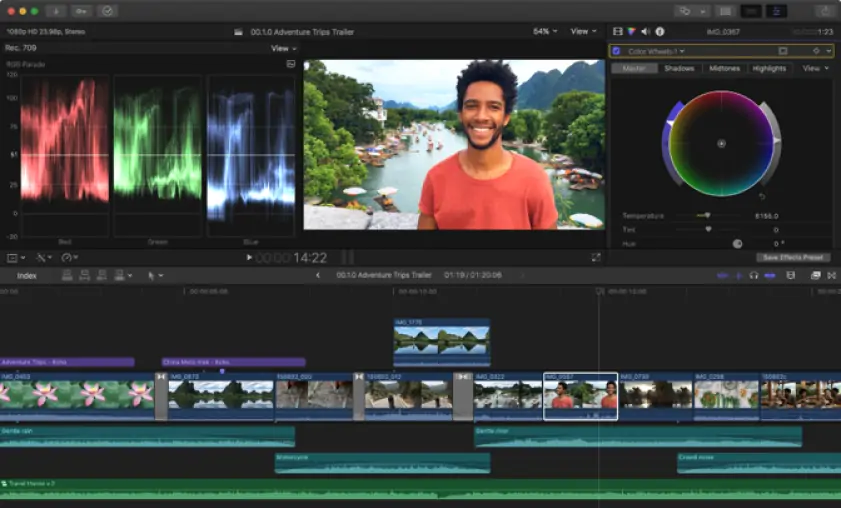
Final Cut Pro X
Final Cut Pro X is a professional video editing software that’s exclusive to Mac. It offers advanced features like 8K video editing and color grading.
How to Use Final Cut Pro X
- Download the free trial version from the official Apple website.
- Install the program on your Mac.
- Launch the program and import a video file into the editor.
- Trim clips, add transitions, and apply effects using the intuitive menu.
- Export your final video in various formats.
Adobe Premiere Pro
Adobe Premiere Pro is a professional video editing software that’s available for both Mac and Windows. It offers advanced features like color grading and audio filters.
How to Use Adobe Premiere Pro
- Download the free trial version from the official Adobe website.
- Install the program on your Mac or Windows computer.
- Launch the program and import a video file into the editor.
- Trim clips, add transitions, and apply effects using the intuitive menu.
- Export your final video in various formats.
Other Paid Programs For Editing Video on Mac
- Filmora: A professional video editing software that’s available for both Mac and Windows.
- VideoPad: A user-friendly video editing software that’s designed for beginners and advanced users alike.
In conclusion, there are many excellent programs available for editing videos on Mac, ranging from free to paid options. Whether you’re a beginner or an experienced editor, there’s a program out there that suits your needs.
Frequently Asked Questions (FAQs)
- What is The Best Video Editing Software For Mac?
The best video editing software for Mac depends on your specific needs and preferences. IMovie is great for beginners, while Final Cut Pro X and Adobe Premiere Pro offer advanced features for professionals. - Can I Edit Videos on my Mac For Free?
Yes, there are many excellent free programs available for editing videos on Mac, including iMovie, Movavi Video Editor, and Avidemux. - How do I Import Video Files Into a Video Editor?
The process of importing video files varies depending on the program you’re using. In general, you’ll need to click the “Import” or “Add Media” button and select the file you want to edit. - Can I Export my Edited Video in Various Formats?
Yes, most video editing programs allow you to export your final video in various formats, including MP4, AVI, and MOV. - How do I Add Transitions And Effects to my Video?
The process of adding transitions and effects varies depending on the program you’re using. In general, you’ll need to click the “Transitions” or “Effects” button and select the effect you want to apply. - Can I Color Grade And Audio Filter my Video?
Yes, most professional video editing programs offer advanced features like color grading and audio filtering. Final Cut Pro X and Adobe Premiere Pro are excellent options for professionals.
We hope this article has helped you find the best program for editing videos on Mac!


