
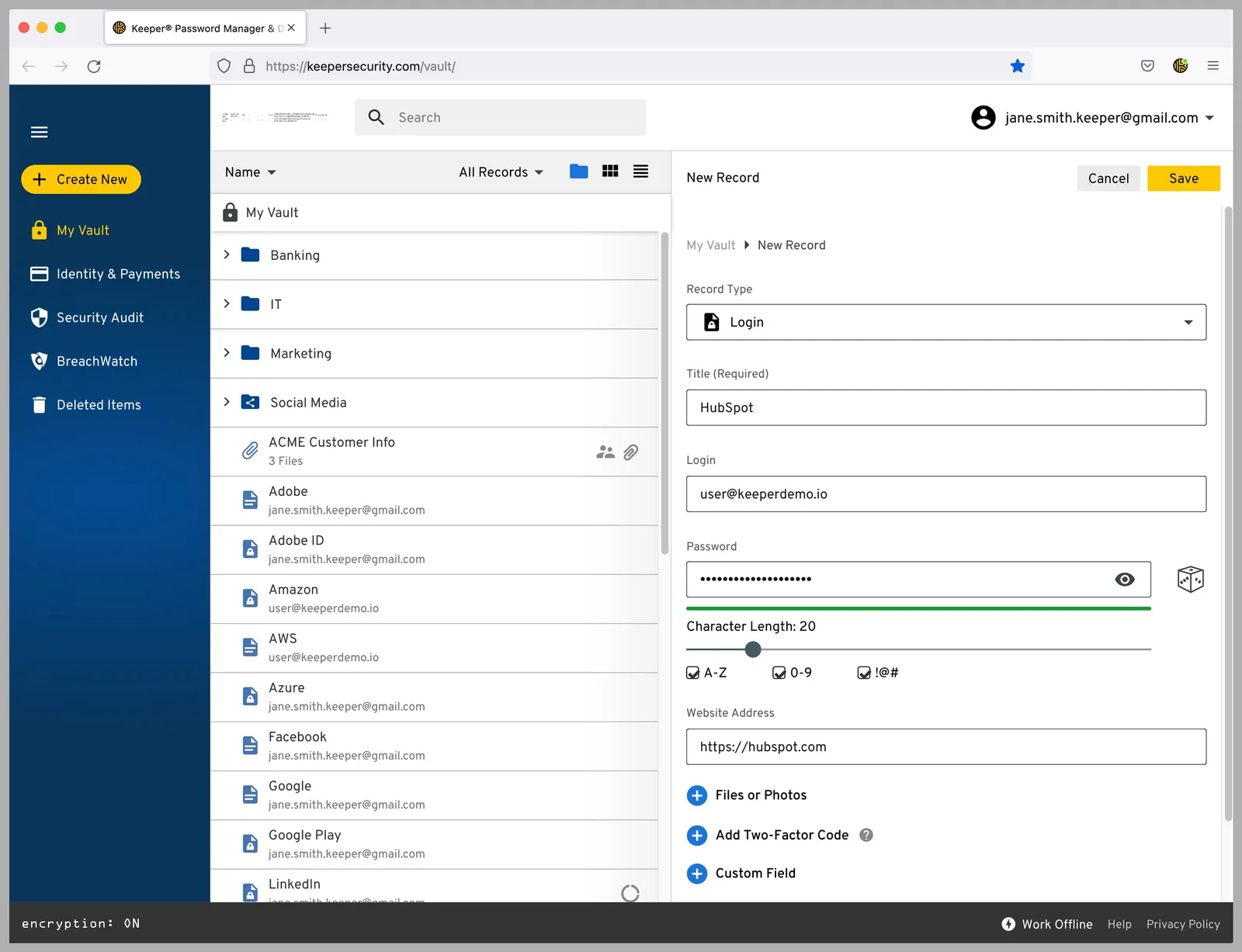
In today’s digital world, managing multiple online accounts can be a daunting task. We rely on passwords to protect our sensitive data, but remembering all of them can become overwhelming. Luckily, password manager programs are here to save the day, allowing us to store and organize our passwords securely. In this article, we will explore the best password manager programs to help you keep your online presence safe. Whether you’re using Windows, macOS, or Linux, we’ve got you covered!
Why Use a Password Manager?
Security and Convenience
A password manager allows you to store all your login credentials in one secure vault. With just one master password, you can access a plethora of usernames and passwords without having to remember each one individually. They also generate strong, complex passwords, further enhancing your online security.
Cross-Platform Compatibility
These programs are typically compatible with different operating systems, including Windows, macOS, Linux, and mobile platforms like iOS and Android. This means you can access your vault from any device, ensuring convenience without compromising security.
Top Password Manager Programs
1. NordPass (Windows/macOS)
NordPass is developed by the team behind NordVPN, making it a reliable choice. It allows users to store passwords, credit card details, and secure notes in an encrypted digital vault. The encryption is military-grade, ensuring your sensitive data stays protected.
Key Features:
- Free version available with no limits on stored data.
- Automatic form filling for logins via browser extensions for Chrome, Firefox, Edge, Opera, and Safari.
- Cross-device synchronization on multiple devices via cloud storage.
- Password generation and organization in folders.
- Premium version for extra features like weak password detection and dark web scanning.
NordPass also offers a family plan, ideal for those looking to share the service with up to six users. This plan comes at an affordable price of €2.79/month for the first two years.
2. Bitwarden (Windows/macOS/Linux)
Bitwarden is a popular open-source password manager that provides both free and paid versions. Its key selling point is its cost-effectiveness and the ability to store passwords locally or in the cloud.
Key Features:
- Free version available with essential features.
- Two-factor authentication support.
- Compatible with Windows, macOS, Linux, Android, and iOS.
- Browser extensions for auto-filling login details.
- Allows storage of notes and credit card information.
Bitwarden’s paid version, priced at $10 per year, adds extra features like emergency access, file storage, and an authenticator tool.
3. 1Password (Windows/macOS/Linux)
1Password is known for its user-friendly interface and all-in-one features. It allows you to securely store not only passwords but also software licenses, Wi-Fi keys, and more.
Key Features:
- Password generation for strong, secure passwords.
- Cloud-based synchronization across multiple devices.
- Compatible with Windows, macOS, Android, and iOS.
- Provides a 30-day free trial, after which users can subscribe to personal or family plans starting at $2.99/month.
One unique feature of 1Password is its ability to create multiple vaults for different purposes, such as personal use, work, or shared accounts with family members.
Other Notable Password Managers
4. Proton Pass
Proton Pass is developed by ProtonMail, a company focused on privacy. It’s completely free, ad-free, and open-source, making it an attractive option for users who value privacy and security.
5. iCloud Keychain
iCloud Keychain is Apple’s native password manager, designed for seamless integration across iPhones, iPads, and Macs. It supports OTP generation for two-factor authentication and syncs automatically across all devices using iCloud.
6. Password Managers in Browsers
While not as secure as third-party managers, many browsers like Google Chrome and Mozilla Firefox have built-in password managers. Although convenient, these are less secure as they’re tied to a single browser and are more accessible to hackers.
Additional Tools for Securing Your Digital Life
Password Protection for Folders
Sometimes you may want to protect specific folders on your computer. If you’re looking to add an extra layer of security to your files, there are tools that let you password-protect folders on your system. You can learn more in this comprehensive tutorial on how to protect folders with passwords.
Recover Wi-Fi Passwords
Forgot your Wi-Fi password? Don’t worry! There are various methods to retrieve your Wi-Fi passwords, and we have an in-depth guide on recovering lost Wi-Fi passwords.
Bypass Windows Password
For those who have lost access to their Windows account password, there’s no need to panic. We offer solutions on how to bypass this issue. Check out our tutorial on how to bypass Windows passwords.
USB Flash Drive Protection
Need to protect your USB flash drive with a password? No problem! Various solutions are available to ensure your USB data is secure. Here’s a detailed guide on how to password-protect USB drives.
Outlook Password Recovery
Losing access to your Outlook account can be stressful. If you can’t remember your password, follow our guide on how to recover your Outlook password for a hassle-free solution.
RAR File Password Removal
Do you have a RAR file locked with a password and can’t remember the key? Don’t worry! We provide methods to bypass password protection on WinRAR files.
Conclusion
Using a password manager is no longer a luxury but a necessity in today’s digital age. From NordPass to Bitwarden, there are numerous solutions available, each catering to different needs and budgets. By adopting one of these programs, you ensure your digital identity remains safe from hackers and data breaches.
Ultimately, password managers not only provide security but also convenience, saving you the hassle of remembering every password for every account. Protect your online world today with one of these highly recommended programs!
Frequently Asked Questions (FAQs)
1. What is the safest password manager?
While all password managers listed in this article are safe, 1Password and Bitwarden offer some of the best security features, including strong encryption and two-factor authentication.
2. Are free password managers reliable?
Yes, free versions of password managers like NordPass and Bitwarden offer strong security. However, premium versions include additional features that enhance security and convenience.
3. Can I trust browser-based password managers?
Browser-based managers like those in Chrome and Firefox are convenient, but they are less secure than dedicated password manager programs.
4. How does a password manager generate secure passwords?
Password managers use random combinations of letters, numbers, and symbols to create strong passwords that are nearly impossible to guess or crack.
5. Can I share my password manager with my family?
Yes, many password managers like NordPass and 1Password offer family plans, allowing multiple users to store and share passwords securely.
6. Is cloud storage safe for password managers?
Yes, most password managers use encrypted cloud storage, ensuring that even if the data is accessed, it remains unreadable without the master password.
7. Can I use a password manager on my phone?
Yes, most password managers offer apps for iOS and Android, allowing you to access your passwords on the go.
8. What happens if I forget my master password?
Some password managers offer account recovery options, but in many cases, if you forget your master password, you may lose access to your stored passwords.


