
The Ultimate Guide to Using Powerpoint on Your Smartphone or Tablet
Are you tired of carrying around your laptop just to review a presentation? Do you want to access your PowerPoint files on-the-go without needing a computer? Look no further! In this article, we’ll explore the best apps for using PowerPoint on your smartphone or tablet.
Introduction
With the rise of mobile devices, it’s become increasingly easy to access and edit documents on-the-go. However, when it comes to presentations, many people are stuck with cumbersome laptops or desktops. But what if you could use a mobile app to open and review your PowerPoint files? Sounds like a dream come true, right?
Top Apps For Using Powerpoint on Your Smartphone or Tablet
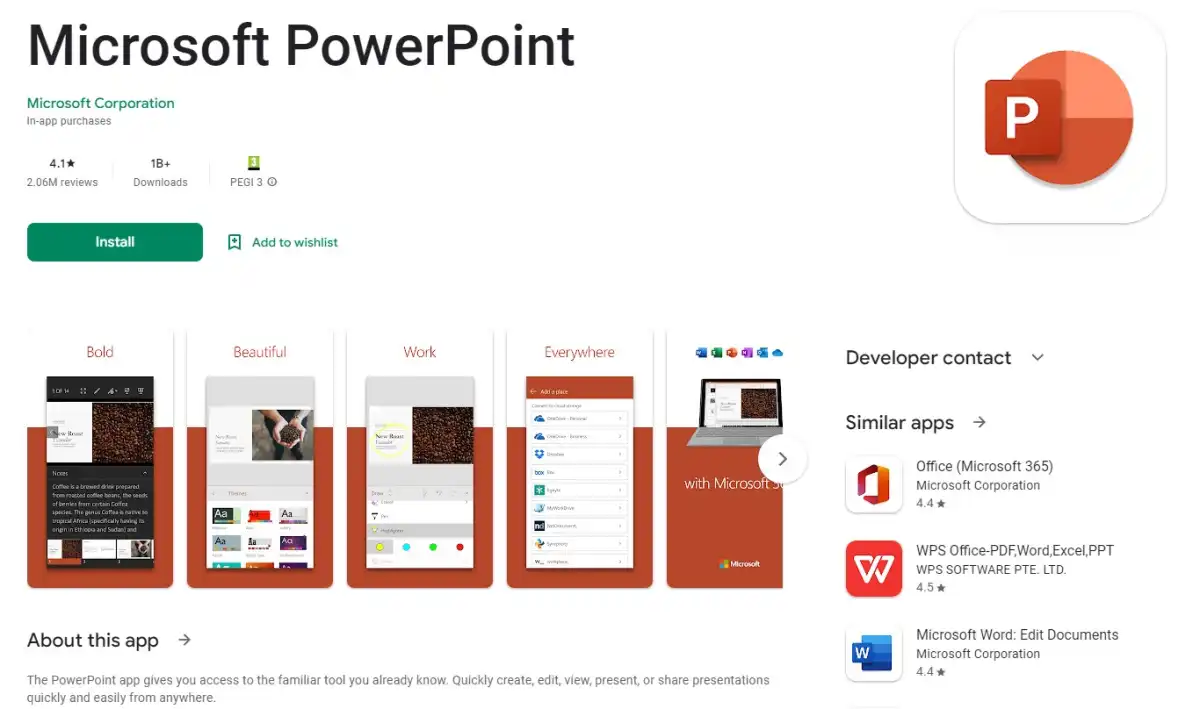
- Microsoft Powerpoint (Android/iOS/iPadOS)
The first app we’ll discuss is the official Microsoft PowerPoint app. This app is available for both Android and iOS devices and allows you to open, edit, and create new presentations directly from your mobile device.
Pros: The app is free, has a user-friendly interface, and integrates well with other Microsoft apps.
Cons: You need an Office 365 subscription to unlock advanced features.
How to Use Microsoft Powerpoint on Your Mobile Device
To use the Microsoft PowerPoint app, simply download it from the Google Play Store or App Store. Once installed, follow these steps:
- Open the app and sign in with your Microsoft account.
- Tap on the “Open” button to access your presentation files.
-
Select the file you want to open and wait for it to load.
-
Keynote (iOS/iPadOS)
If you’re an iPhone or iPad user, you may already have Keynote installed on your device. This app is a native PowerPoint alternative that comes pre-installed on Apple devices.
Pros: The app is free, has a clean interface, and integrates well with other Apple apps.
Cons: You can’t edit existing PowerPoint files; only create new ones from scratch.
How to Use Keynote on Your Mobile Device
To use Keynote, follow these steps:
- Open the app and tap on the “Open” button to access your presentation files.
- Select the file you want to open and wait for it to load.
-
Tap on the “File” menu and select the presentation you want to edit.
-
Presentations Google (Android/iOS/iPadOS)
This app is a free, ad-free alternative to Microsoft PowerPoint that allows you to open, edit, and create new presentations directly from your mobile device.
Pros: The app is free, has a user-friendly interface, and integrates well with other Google apps.
Cons: Limited editing capabilities compared to Microsoft PowerPoint.
How to Use Presentations Google on Your Mobile Device
To use Presentations Google, follow these steps:
- Open the app and sign in with your Google account.
- Tap on the “Open” button to access your presentation files.
-
Select the file you want to open and wait for it to load.
-
Collaborate Office (Android/iOS)
This app is a free, cloud-based alternative to Microsoft Office that allows you to edit documents, spreadsheets, and presentations directly from your mobile device.
Pros: The app is free, has a user-friendly interface, and integrates well with other Google apps.
Cons: Limited editing capabilities compared to Microsoft PowerPoint.
How to Use Collaborate Office on Your Mobile Device
To use Collaborate Office, follow these steps:
- Open the app and sign in with your Google account.
- Tap on the “Open” button to access your presentation files.
- Select the file you want to open and wait for it to load.
Best Apps For Using Powerpoint on Your PC
While we’ve focused on mobile apps so far, we also want to explore the best options for using PowerPoint on your desktop computer.
- Microsoft Powerpoint (Windows/macOS)
The official Microsoft PowerPoint app is available for both Windows and macOS devices. This app allows you to open, edit, and create new presentations directly from your PC.
Pros: The app is free, has a user-friendly interface, and integrates well with other Microsoft apps.
Cons: You need an Office 365 subscription to unlock advanced features.
- Libreoffice (Windows/macOS/Linux)
This app is a free, open-source alternative to Microsoft Office that allows you to edit documents, spreadsheets, and presentations directly from your PC.
Pros: The app is free, has a user-friendly interface, and integrates well with other Google apps.
Cons: Limited editing capabilities compared to Microsoft PowerPoint.
- Keynote (macOS)
The Keynote app is available for macOS devices only and allows you to open, edit, and create new presentations directly from your Mac.
Pros: The app is free, has a clean interface, and integrates well with other Apple apps.
Cons: Limited editing capabilities compared to Microsoft PowerPoint.
Conclusion
In this article, we’ve explored the best apps for using PowerPoint on both mobile devices and desktop computers. Whether you’re an iPhone user or prefer Android, there’s an option for everyone. By using these apps, you can access and edit your PowerPoint files anywhere, anytime.
So go ahead, download one of these amazing apps, and take your presentation game to the next level!


