
Instagram Problems: What to Do
Are you experiencing problems with Instagram? Don’t worry, we’ve got you covered! In this article, we’ll guide you through the steps to troubleshoot and resolve common issues with Instagram.
Problems With Instagram Today
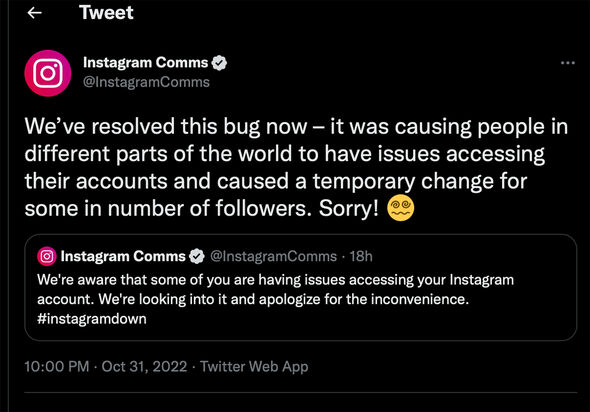
If you’re experiencing problems with Instagram today, it’s possible that there are server-side issues. In this case, you don’t need to do anything except wait for Facebook to resolve the issue. However, if the problem is due to a local issue, such as a connection problem or an outdated app version, you can try troubleshooting steps outlined below.
Verifying Server Status
To verify the server status, visit Facebook’s developer platform. If it says “No known issues” with a green checkmark, then there are no reported problems with Instagram servers. You can also use DownDetector, a website that aggregates user reports of service outages.
Checking Internet Connection
If you’re experiencing connection problems, make sure your device is connected to Wi-Fi or mobile data. On Android, go to Settings > Network and Internet, and ensure that Wi-Fi is enabled. If using mobile data, tap on “Data usage” and toggle the switch to enable it. On iOS, go to Settings > Wi-Fi and toggle the switch to enable it.
Updating The Instagram App
If you’re experiencing problems with the app, try updating it to the latest version. On Android, open the Play Store, tap on the three horizontal lines in the top left corner, select “My apps & games,” and look for an update for Instagram. If there is one, tap “Update.” On iOS, go to the App Store, tap on your profile picture in the top right corner, scroll down, and check if there are any updates available.
Reinstalling The Instagram App
If updating the app doesn’t resolve the issue, try reinstalling it. On Android, long-press on the Instagram icon, select “Uninstall,” and then go to the Play Store to reinstall it. On iOS, hold down the Instagram icon until it starts shaking, tap on the X in the top left corner, confirm the uninstallation, and then reinstall the app from the App Store.
Troubleshooting Tips
If none of the above steps resolve your issue, try checking your internet connection again or restarting your device. You can also try clearing the cache and data for the Instagram app (on Android) or deleting and reinstalling it (on iOS).
Instagram Problems: How to Solve Them
- Unable to Update Feed: Try updating the app or reinstalling it.
- Problems With Instagram Stories: Check if there are any issues with your account settings or try clearing the cache and data for the app.
- Problems With Instagram Direct: Block or limit annoying users, report them to Instagram, or use the “report” feature within the app.
Who to Contact
If you’re still experiencing problems, contact Instagram’s support team. You can visit their help center for answers to common questions or reach out to them directly through one of their contact methods outlined in our dedicated guide.
Conclusion
Instagram is a powerful social media platform that enables users to share their experiences and connect with others worldwide. However, sometimes issues arise that can disrupt your experience. In this article, we’ve provided step-by-step guidance on how to troubleshoot and resolve common problems with Instagram. By following these tips, you should be able to get back to enjoying the app.
Frequently Asked Questions (FAQs)
- Why is my Instagram Feed Not Updating?
- Try updating the app or reinstalling it.
- I’m Experiencing Problems With Instagram Stories. What Can I Do?
- Check your account settings, try clearing the cache and data for the app, or report any issues to Instagram.
- How do I Block Someone on Instagram?
- Go to their profile, tap on the three horizontal lines in the top right corner, select “Report,” and choose “Block.”
- Why am I Unable to Update my Instagram Feed?
- Try updating the app or reinstalling it.
- What Should I do if I’m Experiencing Problems With Instagram Direct?
- Block or limit annoying users, report them to Instagram, or use the “report” feature within the app.
- How Can I Report a Problem With Instagram?
- Visit their help center for answers to common questions or reach out to them directly through one of their contact methods.
- Why is my Internet Connection Affecting my Instagram Experience?
- Make sure your device is connected to Wi-Fi or mobile data, and try restarting your device if necessary.
- How do I Clear The Cache And Data For The Instagram App on Android?
- Go to Settings > Apps > Instagram, tap on “Clear cache” and then “Clear storage.”


