
How to Extract Files Compressed in Zip, Rar, Iso, And Other Formats
Are you tired of trying to extract files compressed in various formats without success? Do you want to know which software to use to make the process easier? Look no further! In this article, we will guide you through the best programs to extract files compressed in ZIP, RAR, ISO, and other formats for Windows and macOS.
The Importance of File Compression
File compression is a technique used to reduce the size of files, making them easier to share and store. Compressed files are often encrypted with passwords or encryption keys to prevent unauthorized access. With so many file formats available, it can be challenging to determine which software to use for extraction.
Best Programs to Extract Zip Files
For Windows:
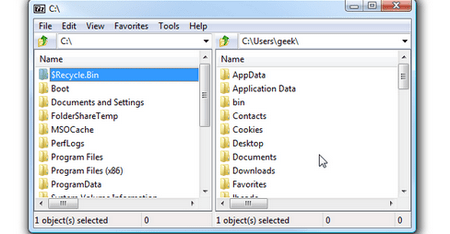
- 7-Zip: A free, open-source software that supports various file formats, including ZIP, RAR, and ISO.
- Winrar: An official program for extracting RAR files, also supporting ZIP and other formats.
- Windows Built-in Zip Extractor: A pre-installed feature in Windows that can extract ZIP files without the need for additional software.
Best Programs to Extract Rar Files
For Windows:
- 7-Zip: Supports RAR file extraction, along with other formats like ZIP and ISO.
- Winrar: The official program for extracting RAR files, also supporting ZIP and other formats.
For macOS:
- Keka: A free software that supports various file formats, including RAR, ZIP, and ISO.
Best Programs to Extract Iso Files
For Windows:
- 7-Zip: Supports ISO file extraction, along with other formats like ZIP and RAR.
- Iso File Mounter: A built-in feature in Windows 10 that allows mounting ISO files as virtual drives.
For macOS:
- Diskimagemounter: A utility for mounting ISO files as virtual drives.
- Keka: Supports ISO file extraction, along with other formats like RAR and ZIP.
How to Use The Best Programs to Extract Compressed Files
Using these programs is relatively straightforward. Here’s a step-by-step guide:
- Download and install the desired software from its official website.
- Locate the compressed file you want to extract.
- Right-click on the file and select the software you’ve installed (e.G., 7-Zip or WinRAR).
- Follow the prompts to specify the output location for the extracted files.
Tips And Variations
- If you’re using a password-protected ZIP or RAR file, you’ll be prompted to enter the password before extraction.
- For ISO files, you can mount them as virtual drives using DiskImageMounter (macOS) or ISO File Mounter (Windows).
- Some programs allow you to extract only specific files from a compressed archive.
Conclusion
Extracting compressed files doesn’t have to be a daunting task. With the right software and guidance, you can easily access the contents of ZIP, RAR, ISO, and other formats. By following this guide, you’ll be well on your way to becoming a pro at file extraction!
Frequently Asked Questions (FAQs)
- What is The Best Program For Extracting Zip Files?
For Windows, 7-Zip or WinRAR are excellent choices. For macOS, Keka is a great option.
- How do I Extract Rar Files?
Use 7-Zip or WinRAR on Windows, and Keka on macOS.
- Can I Extract Iso Files Without Software?
Yes, use the built-in feature in Windows 10 (ISO File Mounter) or DiskImageMounter on macOS.
- What if my Compressed File is Password-protected?
Enter the password when prompted by the extraction software.
- Can I Extract Only Specific Files From a Compressed Archive?
Some programs allow this, but it depends on the software you’re using.
- Are There Any Free Software Options For Extracting Compressed Files?
Yes, 7-Zip and Keka are both free and open-source.
- What if I’m Not Sure Which Software to Use?
Refer to this guide or check online resources for specific guidance on your operating system and file format.
- Can I Extract Compressed Files Without Installing Additional Software?
For some file formats like ZIP, you can use the built-in feature in Windows or macOS.


