
How to Watch Video on Your Pc: A Step-by-step Guide
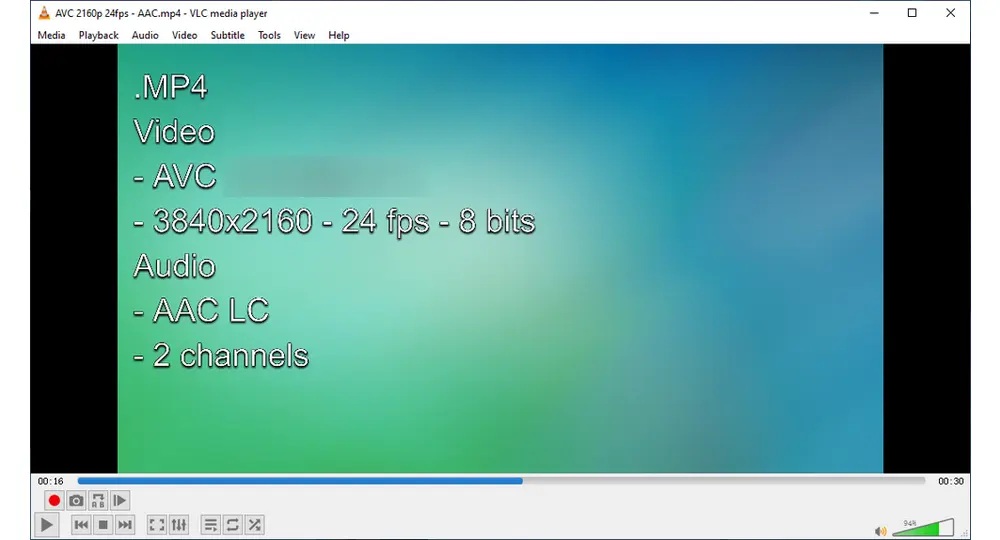
Are you looking for a way to watch video on your PC without any hassle? Look no further! In this article, we’ll guide you through the process of watching video on your computer using various software programs.
Table 1: Programs to Read Video (Free)
| Program | Description |
|---|---|
| VLC (Windows/macOS/Linux) | A free and open-source media player that supports a wide range of formats |
| IINA (macOS) | A free, open-source media player with an intuitive interface |
What You Need to Know
Before we dive into the nitty-gritty details, let’s quickly cover what you need to know:
- If you’re using Windows 11 or earlier versions, you can use Windows Media Player (WMP) to play videos.
- For macOS users, QuickTime Player is a great option.
Using Programs Predefined by Your PC
If your computer has programs predefined for video playback, it’s the easiest way to start. Here’s how:
- For Windows Users:
- Press the Start button and type “Windows Media Player” in the search bar.
- Click on the result to open WMP.
- Drag and drop the video file into the WMP window.
- Click the play button (▶) at the center of the screen to start playback.
- For Mac Users:
- Open QuickTime Player.
- Go to File > Open Rows…
- Select the video file you want to play.
- Click the play button (▶) at the center of the screen to start playback.
Other Programs to Read Video (Free)
If WMP or QuickTime Player aren’t available on your PC, don’t worry! There are other free programs that can help:
- Vlc Media Player:
- Download and install VLC from their official website.
- Open VLC and drag and drop the video file into the program window.
- Click the play button (▶) at the center of the screen to start playback.
- Iina (for Mac):
- Download and install IINA from their official website.
- Open IINA and click on the “Open” button.
- Select the video file you want to play.
Other Programs to Read Video (Free)
If you’re looking for more options, here are some other free programs that can help:
- Mpv (Windows/macOS/Linux):
- Download and install mpv from their official website.
- Open mpv and drag and drop the video file into the program window.
- Click the play button (▶) at the center of the screen to start playback.
- Potplayer (Windows):
- Download and install PotPlayer from their official website.
- Open PotPlayer and click on the “Open” button.
- Select the video file you want to play.
Apps to Read Video on Your Smartphone or Tablet
If you’re looking for a mobile app, here are some options:
- Vlc (Android/iOS/iPadOS):
- Download and install VLC from the App Store or Google Play Store.
- Open VLC and click on the “Open” button.
- Select the video file you want to play.
Conclusion
Watching video on your PC is easier than ever! With these programs, you can enjoy your favorite videos without any hassle. Remember to always download software from reputable sources to avoid malware or viruses.
Frequently Asked Questions (FAQs)
- Q: What if I Don’t Have Windows Media Player or Quicktime Player on my Pc?
A: Don’t worry! You can use other free programs like VLC, mpv, or PotPlayer. - Q: Can I Watch Video on my Smartphone or Tablet?
A: Yes! You can download mobile apps like VLC (Android/iOS/iPadOS) to watch videos on your device. - Q: What if The Video Doesn’t Play Correctly in One of These Programs?
A: Try adjusting the program settings or updating the software to the latest version.
Table 2: Programs to Read Video (Free)
| Program | Description |
|---|---|
| Vlc Media Player | A free and open-source media player that supports a wide range of formats |
| Iina (for Mac) | A free, open-source media player with an intuitive interface |
| Mpv (Windows/macOS/Linux) | A free program to play videos without the need for codecs |
| Potplayer (Windows) | A free program to play videos with a wide range of formats and features |


