
How to Straighten Photos on Your Computer or Mobile Device
Are you tired of dealing with distorted photos on your computer or mobile device? Look no further! In this article, we will explore various methods to straighten photos using different software and apps.
Why Do Photos Get Distorted?
Photos can get distorted due to various reasons such as camera movement, incorrect photo editing, or improper formatting. This can lead to an unprofessional look in your photos, especially if you’re a photographer, graphic designer, or social media influencer.
Straightening Photos on Windows 10/11
If you’re using a Windows 10 or 11 computer, you can use the built-in Photo app to straighten your photos. Here’s how:
- Open the Photo app and select the photo you want to edit.
- Click on the “Modify Image” button (represented by a pencil icon) in the top toolbar.
- Select the “Straighten” option from the drop-down menu.
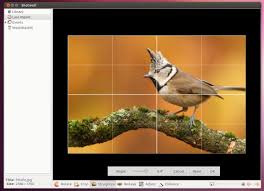
- Use the grid overlay to adjust the image to your desired angle.
- Save the changes to create a new copy of the photo.
Straightening Photos on Macos
If you’re using a Mac, you can use the built-in Preview app to straighten your photos. Here’s how:
- Open the Preview app and select the photo you want to edit.
- Click on the “Tools” menu and select “Adjust Size”.
- Select the “Rotate” option from the drop-down menu.
- Use the grid overlay to adjust the image to your desired angle.
- Save the changes to create a new copy of the photo.
Other Free Programs For Straightening Photos
If you’re not satisfied with the built-in Photo app or Preview app, there are several other free programs available that can help straighten your photos. Some popular options include:
- GIMP (Windows, macOS, Linux): A free and open-source image editing software that offers a wide range of features for editing and retouching images.
- Photoshop (Windows, macOS): A professional-grade photo editing software that’s widely used in the industry. While it’s not free, you can try out a 7-day trial version to see if it suits your needs.
Online Photo Straightening Tools
If you don’t want to download any software or apps, there are several online tools available that can help straighten your photos. Some popular options include:
- Photopea: A web-based photo editing tool that offers a range of features for editing and retouching images.
- Polarr: A web-based image editing tool that offers a wide range of filters and effects to enhance your photos.
Mobile Apps For Straightening Photos
If you’re on the go, there are several mobile apps available that can help straighten your photos. Some popular options include:
- Google Photos (Android, iOS): A photo management app that offers a range of features for editing and retouching images.
- Snapseed (Android, iOS): A professional-grade photo editing app that’s widely used in the industry.
Conclusion
In conclusion, there are several methods to straighten photos on your computer or mobile device. Whether you use the built-in Photo app or Preview app, or opt for a third-party software or app, the process is relatively straightforward and easy to follow. By using these tools, you can ensure that your photos look professional and well-edited.
Frequently Asked Questions
Here are some frequently asked questions about straightening photos:
Q: How do I straighten a photo?
A: You can use the built-in Photo app or Preview app on Windows 10/11 or macOS to straighten a photo. Alternatively, you can use third-party software like GIMP or Photoshop.
Q: What is the best program for straightening photos?
A: The best program for straightening photos depends on your needs and preferences. If you’re looking for a free option, GIMP or Photopea are good choices. If you’re willing to pay, Photoshop is a professional-grade option.
Q: Can I straighten a photo online?
A: Yes, there are several online tools available that can help straighten photos. Some popular options include Photopea and Polarr.
Q: How do I straighten a photo on my mobile device?
A: You can use the Google Photos app or Snapseed app to straighten a photo on your Android or iOS device.
Bonus Tips
Here are some bonus tips for straightening photos:
- Always save a copy of the original photo before making any changes.
- Use a grid overlay to help you adjust the image to your desired angle.
- Experiment with different editing software and apps to find what works best for you.


