
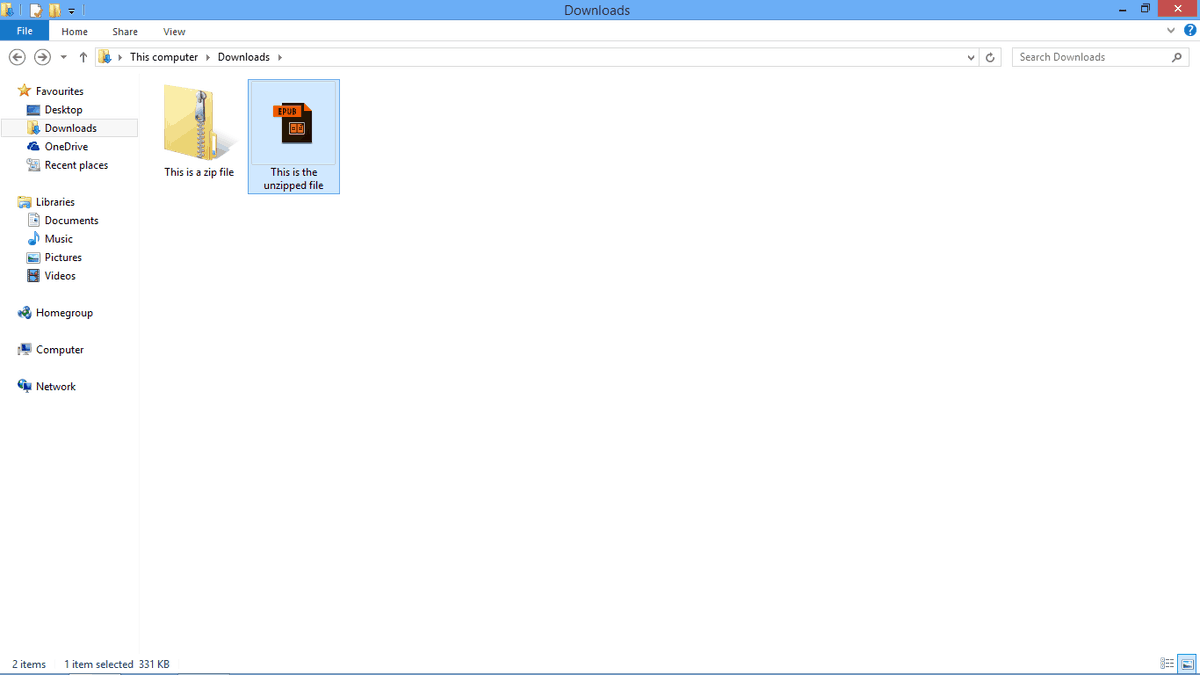
Unzip Files Like a Pro: A Step-by-step Guide
Are you tired of struggling with zipped files? Do you wish there was an easy way to extract their contents without having to install complicated software? Look no further! In this article, we’ll show you how to unzip files like a pro, using various methods and tools that will make your life easier.
What is Unzipping And Why Do I Need It?
Unzipping is the process of extracting the contents of a zipped file (also known as a compressed or archive file) onto your computer. This can be useful for a variety of reasons, such as:
- Extracting files from a program installation package
- Accessing files that were previously compressed for storage purposes
- Sharing large files with others by compressing them first
Methods For Unzipping Files
There are several ways to unzip files, depending on your operating system and personal preferences. Here are some of the most common methods:
Using Built-in Tools (Windows/Mac)
Both Windows and Mac have built-in tools that can help you unzip files.
Windows:
- Right-click on the zipped file and select “Extract” or “Unzip”
- Choose a destination folder to extract the files to
- Follow the prompts to complete the extraction process
Mac:
- Double-click on the zipped file to open it in the Archive Utility app
- Select the “Extract” button to unzip the file
- Choose a destination folder to extract the files to
Using Third-party Software (Windows/Mac)
There are many third-party software tools available that can help you unzip files, even if your operating system doesn’t have built-in support.
7-Zip (Windows):
- Download and install 7-Zip from the official website
- Right-click on the zipped file and select “7-Zip” > “Extract”
- Choose a destination folder to extract the files to
Keka (Mac):
- Download and install Keka from the official website
- Double-click on the zipped file to open it in Keka
- Select the “Extract” button to unzip the file
- Choose a destination folder to extract the files to
Other Programs For Unzipping Files (Free)
If you’re looking for alternative programs to use for unzipping files, here are some options:
Winrar:
- Download and install WinRAR from the official website
- Right-click on the zipped file and select “Extract” or “Unzip”
- Choose a destination folder to extract the files to
Peazip:
- Download and install PeaZip from the official website
- Right-click on the zipped file and select “Extract” or “Unzip”
- Choose a destination folder to extract the files to
Unzipping Files Online
If you don’t want to download and install software, there are also online tools that can help you unzip files.
Ezyzip:
- Visit the ezyZip website
- Click on the “Select File” button to choose a zipped file from your computer
- Select the destination folder to extract the files to
Apps For Unzipping Files (Mobile)
If you need to unzip files on-the-go, there are also mobile apps available.
Files by Google:
- Download and install Files by Google from the Play Store or App Store
- Open the app and select the zipped file to unzip
- Choose a destination folder to extract the files to
Conclusion
Unzipping files is an essential skill that can save you time and frustration. Whether you use built-in tools, third-party software, or online services, there are many options available to make unzipping easy and hassle-free.
Faqs:
- What is Unzipping And Why do I Need It?
- Unzipping is the process of extracting the contents of a zipped file onto your computer.
- How do I Unzip Files on Windows/mac?
- You can use built-in tools or third-party software like 7-Zip (Windows) or Keka (Mac).
- What Are Some Alternative Programs For Unzipping Files?
- WinRAR, PeaZip, and The Unarchiver are popular options.
- Can I Unzip Files Online?
- Yes, services like ezyZip can help you unzip files without downloading software.
- Are There Mobile Apps For Unzipping Files?
- Yes, apps like Files by Google (Android) and Rows (iOS/iPadOS) can help you unzip files on-the-go.
We hope this guide has been helpful in teaching you how to unzip files like a pro!


