
Creating a Bootable Usb Drive: A Comprehensive Guide
Are you tired of dealing with cumbersome installation processes or wanting to carry your favorite programs with you? Look no further! In this article, we’ll delve into the world of creating bootable USB drives and portable software solutions.
What is a Bootable Usb Drive?
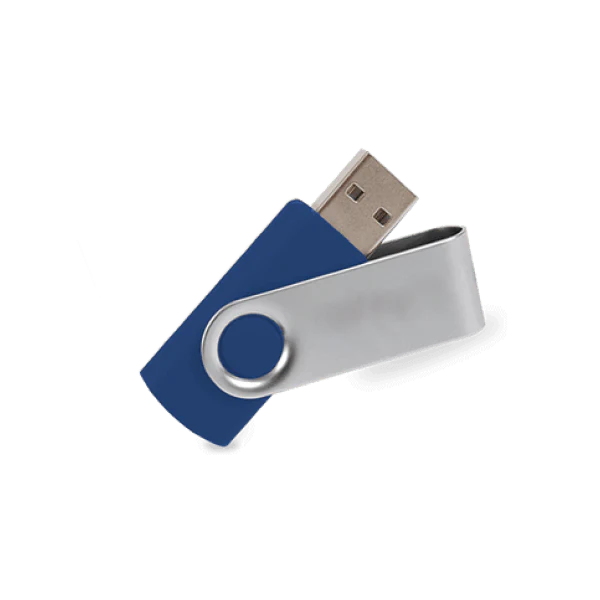
A bootable USB drive is a flash drive that contains an operating system or a set of tools that can be used to boot up a computer. This means you can use it to install an OS, troubleshoot problems, or even create a live USB version of your favorite Linux distribution.
Benefits of Bootable Usb Drives
- Convenience: Carry your favorite programs and operating systems with you, without the need for a physical hard drive.
- Flexibility: Use bootable USB drives to install an OS on a computer that doesn’t have a CD/DVD drive or is experiencing issues with its existing installation.
- Portability: Take your software solutions with you wherever you go, making it easy to work on different computers.
Programs For Creating Bootable Usb Drives
- Rufus (Windows): A free and open-source tool that allows you to create bootable USB drives from ISO files.
- Unetbootin (Windows/MacOS): Another popular tool that creates live USB versions of Linux distributions, as well as bootable USB drives.
How to Create a Bootable Usb Drive With Rufus
- Download and install Rufus on your Windows computer.
- Open Rufus and select the ISO file you want to create a bootable USB drive from.
- Choose the correct device (your USB drive) and select the options you need (such as creating a live USB version of Linux).
- Click “Start” to begin the process.
How to Create a Bootable Usb Drive With Unetbootin
- Download and install Unetbootin on your Windows or MacOS computer.
- Open Unetbootin and select the ISO file you want to create a bootable USB drive from.
- Choose the correct device (your USB drive) and select the options you need (such as creating a live USB version of Linux).
- Click “OK” to begin the process.
Other Programs For Creating Bootable Usb Drives
- Media Creation Tool (Microsoft): A tool that creates bootable USB drives from ISO files.
- Createinstallmedia (Apple): A tool that creates bootable USB drives for MacOS installations.
- Creator Discs of Start (Linux): A tool that creates live USB versions of Linux distributions.
Programs For Portable Software Solutions
- Portableapps (Windows): A collection of portable software solutions that can be installed on a USB drive.
- Liberkey (Windows): Another popular solution for creating portable software collections.
- Zero Install (MacOS): A tool that creates portable software collections and installs them directly on your USB drive.
Protecting Your Bootable Usb Drive
- Use an antivirus program to scan your bootable USB drive for malware and viruses.
- Disabling AutoPlay on your computer can prevent malicious programs from running automatically when you insert the USB drive.
- Always use a secure password and authentication methods when working with sensitive data.
Formattating Your Bootable Usb Drive
- Use the built-in formatting tools in Windows or MacOS to format your bootable USB drive.
- Choose the correct file system for your needs (such as FAT32, NTFS, or HFS+).
- Assign a name and label to your formatted USB drive.
Conclusion
Creating a bootable USB drive can be a game-changer for anyone who wants to carry their favorite programs with them or troubleshoot problems on the go. With these comprehensive guides, you’ll be able to create a bootable USB drive using Rufus, Unetbootin, and other tools, as well as explore portable software solutions and protect your drive from malware and viruses.
Frequently Asked Questions (FAQs)
- What is a Bootable Usb Drive?
A bootable USB drive is a flash drive that contains an operating system or a set of tools that can be used to boot up a computer. - Why Would I Want a Bootable Usb Drive?
You may want a bootable USB drive for convenience, flexibility, and portability. - How do I Create a Bootable Usb Drive With Rufus?
Download and install Rufus on your Windows computer, open Rufus, select the ISO file you want to create a bootable USB drive from, choose the correct device, and click “Start” to begin the process. - Can I Use Unetbootin to Create a Live Usb Version of Linux?
Yes, Unetbootin can be used to create live USB versions of Linux distributions, as well as bootable USB drives. - How do I Protect my Bootable Usb Drive From Malware And Viruses?
Use an antivirus program to scan your bootable USB drive for malware and viruses, disable AutoPlay on your computer, and use secure password and authentication methods when working with sensitive data. - What is The Difference Between a Portable Software Solution And a Bootable Usb Drive?
A portable software solution is a collection of software that can be installed on a USB drive, while a bootable USB drive contains an operating system or tools that can be used to boot up a computer.
I hope this comprehensive guide has provided you with the knowledge and resources needed to create a bootable USB drive using Rufus, Unetbootin, and other tools.


