
How to Clone a Hard Disk: A Comprehensive Guide
Are you looking for ways to create a backup of your computer’s entire hard drive, including all its files, programs, and operating system? Cloning a hard disk is an excellent way to ensure that your data is safe in case of a hardware failure or other issues. In this article, we’ll explore the best software options for cloning a hard disk, both on Windows and Mac.
What is Hard Disk Cloning?
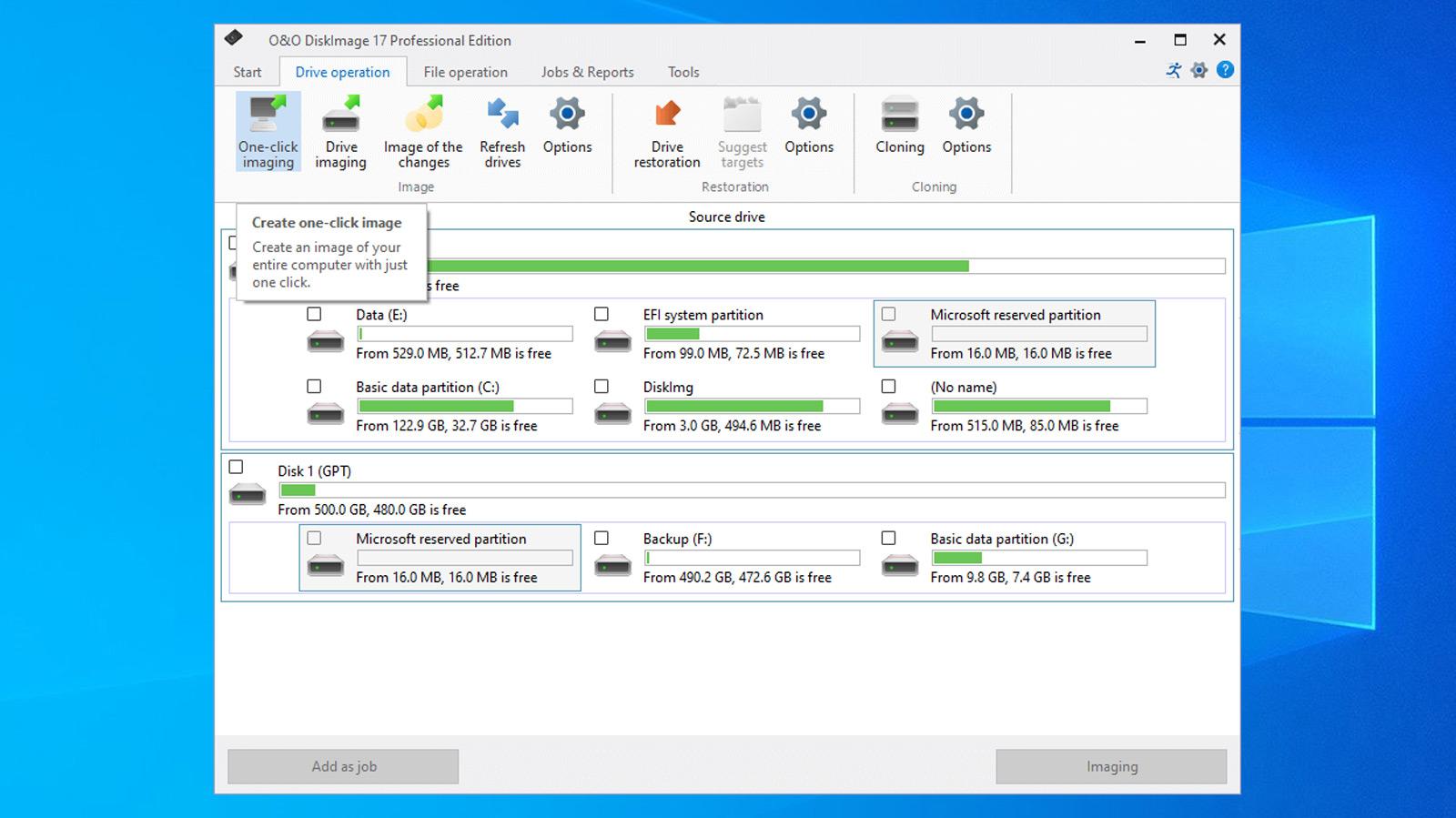
Hard disk cloning involves creating an exact copy of a computer’s hard drive, including all its files, programs, and operating system. This process can be done using specialized software that creates an image of the hard drive, which can then be restored onto another device or used to create a backup.
Why Clone a Hard Disk?
Cloning a hard disk provides several benefits:
- Data Backup: Cloning your hard disk creates a complete backup of your computer’s data, ensuring that you have a copy in case the original is lost or damaged.
- System Recovery: If your computer experiences a hardware failure or other issues, cloning your hard disk allows you to restore your system to its previous state.
- Upgrade And Repair: Cloning your hard disk can also help when upgrading or repairing your computer’s operating system or hardware components.
Best Software For Hard Disk Cloning on Windows
Here are some top-rated software options for cloning a hard disk on Windows:
- Clonezilla: Clonezilla is a free, open-source software that allows you to clone an entire hard drive, including the operating system and all files.
- Macrium Reflect Home: Macrium Reflect Home is another popular option for hard disk cloning on Windows. It’s user-friendly and offers features like automatic backup scheduling and incremental backups.
Best Software For Hard Disk Cloning on Mac
If you’re using a Mac, here are some top-rated software options for cloning a hard disk:
- Time Machine: Time Machine is Apple’s built-in backup system that allows you to create a complete copy of your Mac’s hard drive.
- Carbon Copy Cloner (CCC): CCC is a popular third-party software that enables you to clone your Mac’s hard drive, including the operating system and all files.
How to Clone a Hard Disk on Windows With Clonezilla
Here are some step-by-step instructions for cloning a hard disk using Clonezilla:
- Download Clonezilla: Download the Clonezilla ISO file from the official website.
- Create a Bootable Usb Drive: Use Tuxboot software to create a bootable USB drive containing the Clonezilla image.
- Run Clonezilla: Run Clonezilla from the bootable USB drive and select the source hard drive and destination hard drive.
- Clone The Hard Disk: Let Clonezilla clone your hard disk, which may take several hours depending on the size of your data.
How to Clone a Hard Disk on Mac With Time Machine
Here are some step-by-step instructions for cloning a hard disk using Time Machine:
- Enable Time Machine: Enable Time Machine by going to System Preferences > Time Machine.
- Select a Backup Disk: Select the backup disk where you want to store your clone.
- Start The Clone Process: Start the clone process, which will create an exact copy of your hard drive.
Conclusion
Cloning a hard disk is an essential step in data protection and system recovery. By using specialized software like Clonezilla on Windows or Time Machine on Mac, you can create a complete backup of your computer’s hard drive, ensuring that you have a copy in case the original is lost or damaged.
Faqs
- Q: What is The Difference Between Cloning a Hard Disk And Making a Backup?
A: Cloning a hard disk creates an exact copy of the entire hard drive, while making a backup only saves specific files and folders. - Q: Can I Clone a Hard Disk to Another Device With a Different Operating System?
A: Yes, you can clone a hard disk to another device with a different operating system using software like Clonezilla or Macrium Reflect Home. - Q: How Long Does The Cloning Process Take?
A: The cloning process time depends on the size of your data and the speed of your computer. It may take several hours or even days for large hard drives.
Additional Tips
- Always ensure that both the source hard drive and destination hard drive are connected to your computer.
- Make sure you have enough space on your backup disk to store the clone.
- If you’re using a Mac, make sure Time Machine is enabled before starting the cloning process.


