
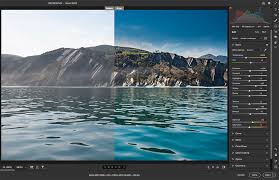
How to Manage Raw Files: A Guide to The Best Programs
Are you a photographer looking for the best way to manage your RAW files? Look no further! In this article, we will explore the top programs for managing RAW files, including free and paid options, as well as some hidden gems.
What is a Raw File?
A RAW file is an unprocessed image file that contains all the data captured by a digital camera’s sensor. Unlike JPEG files, which are processed and compressed, RAW files retain all the detail and information of the original image. This makes them ideal for editing and post-processing.
Why Do I Need to Manage My Raw Files?
Managing your RAW files is essential if you want to edit and enhance your images. Without proper management, your files can become disorganized and difficult to find. A good RAW file manager will allow you to import, organize, and edit your images with ease.
The Best Programs For Managing Raw Files
Here are some of the best programs for managing RAW files:
Photo (Windows/Mac)
If you’re using a Windows 10 or Windows 11 computer, you don’t need to look any further than Photo. This built-in application allows you to import, organize, and edit your images with ease.
- To use Photo, simply double-click on the miniature of the file RAW in the Bookshop section.
- If the file is not in the Bookshop, you can import it directly from an external device connected to your computer.
- To manage multiple RAW files simultaneously, select them all and click on the (…) Icon in the top-right corner.
Photo (macOS)
If you’re using a Mac, Photo is the go-to application for managing RAW files.
- Simply double-click on the miniature of the file RAW in the Bookshop section.
- If the file is not in the Bookshop, you can import it directly from an external device connected to your computer.
- To manage multiple RAW files simultaneously, select them all and click on the cmd key on your keyboard.
Xnview MP (Windows/macOS/Linux)
XnView MP is a powerful digital photo viewer that supports over 500 image formats, including RAW files from various cameras. This program offers advanced features like EXIF data management, Web gallery creation, and side-by-side comparison of images.
- XnView MP can be integrated into the Explorer folders on Microsoft operating systems.
- It is also available in a portable version for easy use.
Faststone Image Viewer (Windows)
This popular image viewer offers advanced features like EXIF data management and automatic presentation creation with over 150 transition effects. FastStone Image Viewer supports RAW files and can be used as a simple image editor.
Trailer (macOS)
The default application on macOS for opening photo and images in various formats, including RAW files, is Trailer. This program offers advanced features like editing, visualizing, and exporting images.
How to Edit Raw Files
Editing RAW files requires specialized software that can handle the unprocessed image data. Here are some of the best programs for editing RAW files:
Photoshop (Windows/Mac)
The industry-standard software for photo editing is Photoshop. This program offers advanced features like layers, filters, and retouching.
- To use Photoshop, you need to subscribe to Adobe Creative Cloud.
- You can download and install Photoshop on your computer from the official website.
Lightroom (Windows/Mac)
Another powerful software for photo editing is Lightroom. This program offers advanced features like non-destructive editing, presets, and batch processing.
- To use Lightroom, you need to subscribe to Adobe Creative Cloud.
- You can download and install Lightroom on your computer from the official website.
Gimp (Windows/Mac/Linux)
This free software offers a wide range of features like layers, filters, and retouching. GIMP is compatible with Windows, Mac, and Linux operating systems.
Coreldraw Graphics Suite (Windows/Mac)
A professional suite for graphic design and photo editing that includes instruments dedicated to the management and modification of images.
- You can try CorelDRAW free for a limited period.
- It is available in payment version with costs split per month.
Affinity Photo (Windows/Mac)
A program of professional cast that integrates advanced instruments and allows the complete modification of the file in format RAW.
Frequently Asked Questions
- What is the best software for managing RAW files?
- The best software for managing RAW files depends on your specific needs and preferences. Some popular options include Photo, XnView MP, FastStone Image Viewer, Trailer, Photoshop, Lightroom, GIMP, CorelDRAW Graphics Suite, and Affinity Photo.
- How do I edit RAW files?
- To edit RAW files, you’ll need specialized software that can handle the unprocessed image data. Some popular options include Photoshop, Lightroom, GIMP, and CorelDRAW Graphics Suite.
- Can I use a free version of any of these programs?
- Yes, some of these programs offer free versions or trials. For example, you can try FastStone Image Viewer, XnView MP, and Affinity Photo for free before deciding to purchase.
Conclusion
Managing RAW files is essential for photographers who want to edit and enhance their images. By using the best software for managing RAW files, you can import, organize, and edit your images with ease. Whether you’re looking for a free or paid option, there’s a program out there that suits your needs.


