
How to Join Multiple Pdf Files Into One: A Step-by-step Guide
Are you tired of dealing with multiple PDF files that need to be combined into one? Look no further! In this article, we’ll show you the best programs to join PDF files on Windows, macOS, and Linux, as well as online services that can help you achieve your goal.
Why Join Multiple Pdf Files?
Joining multiple PDF files into one can save you time and effort when it comes to sharing documents or preparing presentations. Instead of having to open each file separately, you can combine them into a single document that’s easy to access and share.
Best Programs to Join Pdf Files on Windows, Macos, And Linux
Adobe Acrobat Pro DC (Windows/macOS)
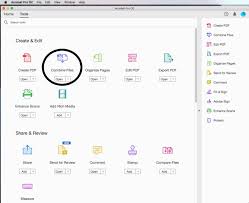
The first program we recommend is Adobe Acrobat Pro DC, which is available for both Windows and macOS. This powerful tool not only allows you to join multiple PDF files but also edit and manage your documents with ease.
To use Adobe Acrobat Pro DC, follow these steps:
- Download and install the software on your computer.
- Open the program and click on “File” > “Open” to select the first PDF file you want to join.
- Click on “Edit” > “Combine Files” and select the other PDF files you want to add.
- Rearrange the pages as needed and click on “Save” to combine the files into a single document.
Pdfill Pdf Tools (Windows)
If you’re using Windows, another great option is PDFill PDF Tools. This free utility allows you to join multiple PDF files, as well as edit and manage your documents with ease.
To use PDFill PDF Tools, follow these steps:
- Download and install the software on your computer.
- Open the program and click on “Merge” > “PDF Merge” to select the first PDF file you want to join.
- Add the other PDF files you want to merge by clicking on “Add” and selecting the files from your computer.
- Rearrange the pages as needed and click on “Save” to combine the files into a single document.
Trailer (macOS)
If you’re using macOS, Trailer is another excellent option for joining multiple PDF files. This built-in application allows you to open and edit your documents with ease.
To use Trailer, follow these steps:
- Open the first PDF file you want to join by clicking on its icon.
- Right-click (or control-click) on the document’s icon and select “Open with” > “Trailer”.
- Add the other PDF files you want to merge by dragging them into the trailer window.
- Rearrange the pages as needed and click on “Save” to combine the files into a single document.
Other Programs to Join Pdf Files
There are many other programs available that can help you join multiple PDF files, including:
- Pdf Merge Tool (Windows): A free utility that allows you to join multiple PDF files.
- Pdf Toolkit+ (macOS): A paid application that offers advanced features for joining and editing PDF files.
- Pdf Shuffler (Linux): A free utility that allows you to join multiple PDF files.
Online Services to Join Pdf Files
If you don’t have the time or technical expertise to download and install software on your computer, there are many online services available that can help you join multiple PDF files. Some popular options include:
- Online2pdf: A free service that allows you to upload and combine multiple PDF files into a single document.
- Ilovepdf: A paid service that offers advanced features for joining and editing PDF files.
- Pdf Candy: Another online service that allows you to join multiple PDF files, as well as edit and manage your documents with ease.
Faqs
Q: What are the best programs to join PDF files on Windows?
A: Adobe Acrobat Pro DC and PDFill PDF Tools are two excellent options for joining multiple PDF files on Windows.
Q: Can I use a Mac to join multiple PDF files?
A: Yes, you can use Trailer, which is a built-in application on macOS, or other third-party software like PDF Toolkit+.
Q: Are there any online services that can help me join multiple PDF files?
A: Yes, there are many online services available, including Online2PDF and iLovePDF.
Conclusion
Joining multiple PDF files into one can save you time and effort when it comes to sharing documents or preparing presentations. With the best programs and online services at your fingertips, you can achieve this goal with ease. Whether you’re using Windows, macOS, or Linux, or prefer an online service, we’ve got you covered.
Frequently Asked Questions
- Q: What is the best program to join multiple PDF files?
A: Adobe Acrobat Pro DC and PDFill PDF Tools are two excellent options for joining multiple PDF files. - Q: Can I use a Mac to join multiple PDF files?
A: Yes, you can use Trailer or other third-party software like PDF Toolkit+. - Q: Are there any online services that can help me join multiple PDF files?
A: Yes, there are many online services available, including Online2PDF and iLovePDF. - Q: What is the cost of using these programs and online services?
A: Some programs and online services may require a payment or subscription to access advanced features. - Q: Can I use these programs and online services on my mobile device?
A: Yes, some programs and online services have mobile apps that allow you to join multiple PDF files on the go.
I hope this article has provided you with the information and solutions you need to join multiple PDF files into one. If you have any further questions or need more assistance, please don’t hesitate to ask!


