
How to Mount Iso Files on Your Computer: A Step-by-step Guide
Are you curious about what’s inside an ISO file? Do you want to access the contents of an ISO image without having to burn it onto a CD or DVD? Look no further! In this article, we’ll show you how to mount ISO files on your computer using various methods.
What is an Iso File?
An ISO file, also known as an ISO image, is a type of file that contains the exact contents of a CD, DVD, or Blu-ray disc. It’s essentially a digital copy of the physical media, and it can be used to install software, play games, or access other types of data.
Why Mount an Iso File?
Mounting an ISO file allows you to treat its contents as if they were on a physical CD or DVD. This means you can access the files and folders inside without having to burn the image onto a disc. You can also use this method to create a virtual drive, which is handy for testing software or accessing data without modifying your actual hard drives.
Mounting Iso Files on Windows 10 And Later
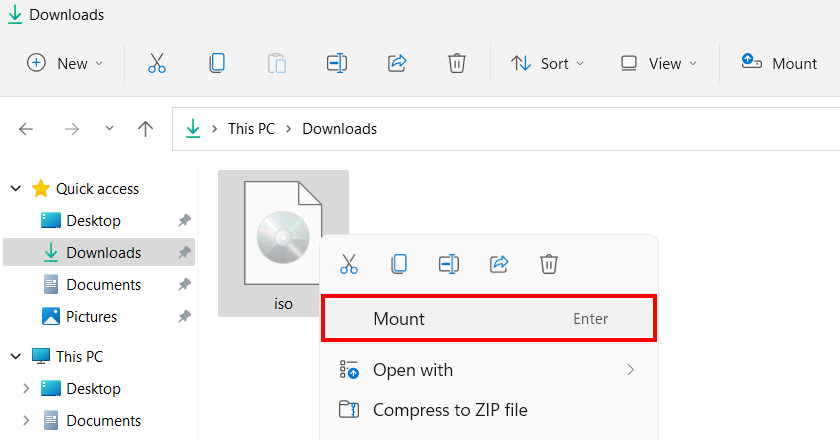
If you’re running Windows 8.1, Windows 10, Windows 11, or later versions of the operating system, you can mount an ISO file using a built-in feature called “Disc Image Mounter.” Here’s how:
- Navigate to the folder containing the ISO file.
- Right-click on the ISO file and select “Mount” from the context menu.
The image should now be mounted as a virtual optical disc, which you can access by navigating to the “This PC” section of File Explorer.
Using Wincdemu
WinCDEmu is a free and open-source software that allows you to mount multiple ISO images at once. Here’s how to use it:
- Download and install WinCDEmu from the official GitHub page.
- Configure the software by opening the menu “Settings” and selecting the language as Italian (if necessary).
- Ensure that the option “Ask before mounting an image” is enabled.
- Place your ISO file in a folder, right-click on it, and select “Mount” to associate it with WinCDEmu.
Using Virtual Clonedrive
Virtual CloneDrive is another alternative for Windows users. It’s free and can mount multiple ISO images at once. Here’s how to use it:
- Download and install Virtual CloneDrive from the official website.
- Follow the installation prompts, ensuring that the correct language is selected (if necessary).
- Mount your ISO file by right-clicking on it and selecting “Mount” from the context menu.
Mounting Iso Files on Mac
If you’re using a Mac, you can mount an ISO file using the built-in utility DiskImageMounter. Here’s how:
- Navigate to the folder containing the ISO file.
- Right-click on the ISO file and select “Open with” > “DiskImageMounter.”
This should open a window in the Finder, displaying the contents of the ISO image.
Mounting Iso Files on Usb
If you want to mount an ISO file directly onto a USB drive, there are several options available:
- Unetbootin: This free software allows you to create a bootable USB drive from an ISO image.
- Rufus: Another popular option for creating bootable USB drives.
- Media Creation Tool (Windows): Use this tool to create a bootable USB drive with the Windows operating system.
- Terminal (Mac): You can use Terminal to create a bootable USB drive.
For more information on how to masterize ISO files onto USB, check out our tutorial on the subject.
Conclusion
Mounting an ISO file is a straightforward process that allows you to access its contents without having to burn it onto physical media. We’ve shown you several methods for doing so on Windows and Mac, as well as how to create bootable USB drives using various software options.
FAQs:
- Q: What is an Iso File?
A: An ISO file, also known as an ISO image, contains the exact contents of a CD, DVD, or Blu-ray disc. - Q: Why Mount an Iso File?
A: Mounting an ISO file allows you to access its contents without having to burn it onto physical media, making it handy for testing software or accessing data. - Q: Can I Use Multiple Iso Images at Once?
A: Yes! WinCDEmu and Virtual CloneDrive are two popular options that allow you to mount multiple ISO images simultaneously. - Q: How do I Create a Bootable Usb Drive From an Iso Image?
A: There are several software options available, including Unetbootin and Rufus. - Q: Can I Use This Method on my Mac?
A: Yes! You can mount an ISO file using the built-in utility DiskImageMounter. - Q: What if I Have Trouble Mounting my Iso Image?
A: If you encounter any issues, try checking the software’s documentation or seeking help from online forums. - Q: Can I Use This Method to Access System Files?
A: We advise against accessing system files using this method; instead, use the official installation media provided by your operating system.


