
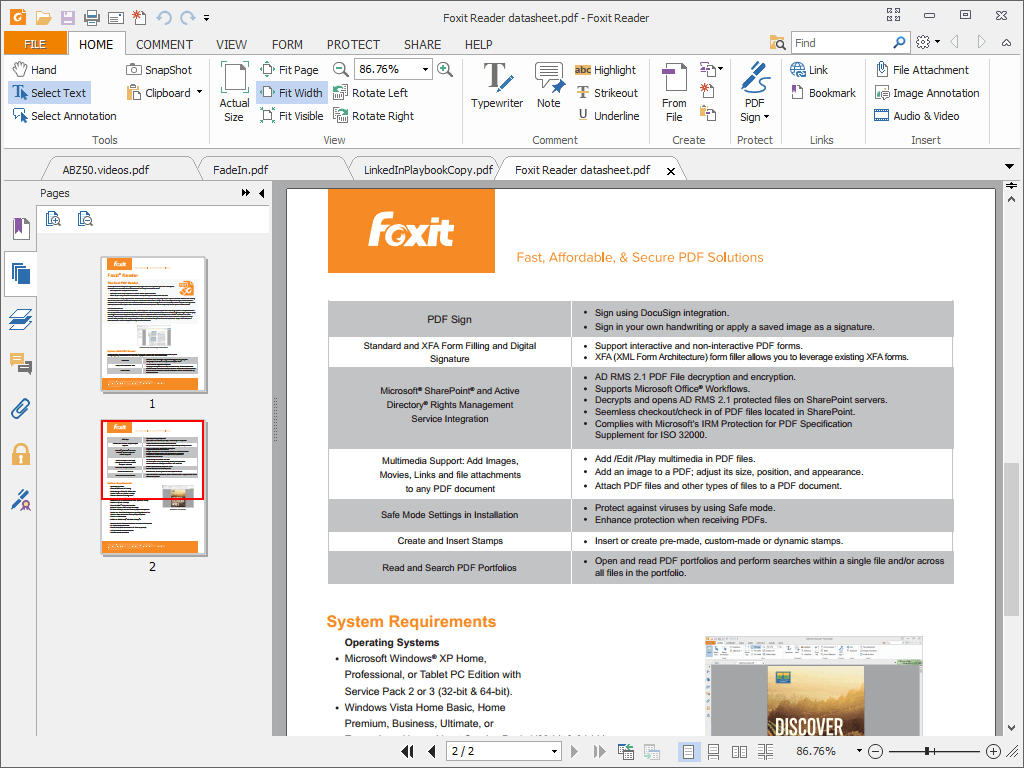
How to Open a Pdf File: A Comprehensive Guide
Are you tired of struggling to open PDF files on your computer? Do you want to add annotations or make modifications to your documents, but the software you’re using doesn’t allow it? Look no further! In this article, we’ll show you how to open and edit PDF files with ease.
The Problem With Traditional Pdf Software
We’ve all been there – trying to open a PDF file, only to have our computer freeze for a second or two. It’s frustrating, especially when you need to make changes to the document. But what if we told you that there are better ways to open and edit PDF files?
Microsoft Edge: A Free Pdf Editor
One of the best free PDF editors on the market is Microsoft Edge. Not only can it open and display PDF files, but it also allows you to annotate and modify them with ease. With Microsoft Edge, you can:
- Open and view PDF files
- Add annotations and comments
- Highlight text and add sticky notes
- Sign documents electronically
Adobe Acrobat Reader: A Powerful Pdf Editor
If you’re looking for a more advanced PDF editor, Adobe Acrobat Reader is the way to go. This software allows you to open, edit, and convert PDF files with ease. With Adobe Acrobat Reader, you can:
- Open and view PDF files
- Edit text and images
- Add comments and annotations
- Convert PDF files to other formats
Sumatra Pdf: A Lightweight Pdf Viewer
If you’re looking for a lightweight PDF viewer that’s easy to use, Sumatra PDF is the way to go. This software allows you to open and view PDF files with ease, without any of the clutter or complexity of other editors.
Other Free Pdf Editors
There are many other free PDF editors available on the market, including:
- Slimpdf Reader: A free and easy-to-use PDF reader that also allows you to add comments and annotations.
- Pdf-xchange Editor: A free and feature-rich PDF editor that allows you to open, edit, and convert PDF files with ease.
Online Pdf Editors
If you don’t have a computer or prefer to use online tools, there are many online PDF editors available. Some of the best include:
- Pdf Candy: A free online PDF editor that allows you to open, edit, and convert PDF files with ease.
- Pdf Buddy: An online PDF editor that allows you to add comments, annotations, and even sign documents electronically.
- Dochub: A free online PDF editor that also allows you to act on other types of documents.
Conclusion
Opening and editing PDF files doesn’t have to be a hassle. With the right software or online tool, you can easily open, annotate, and modify your documents without breaking the bank. Whether you’re a student, business owner, or simply someone who needs to make changes to PDF files, we hope this article has been helpful.
Frequently Asked Questions
- What is The Best Free Pdf Editor?
Microsoft Edge and Adobe Acrobat Reader are two of the best free PDF editors on the market. - Can I Use a Smartphone App to Open And Edit Pdf Files?
Yes, there are many smartphone apps available that allow you to open and edit PDF files on-the-go. - What is The Difference Between a Pdf Viewer And a Pdf Editor?
A PDF viewer allows you to view and read PDF files, while a PDF editor allows you to make changes and modifications to the document. - Can I Convert a Pdf File to Another Format?
Yes, many PDF editors allow you to convert PDF files to other formats, such as Word or Excel. - Is it Safe to Download Free Software From The Internet?
Always be cautious when downloading software from the internet, and make sure to read reviews and check for viruses before installing.
H2: Microsoft Edge
Microsoft Edge is a free PDF editor that allows you to open, view, annotate, and modify PDF files with ease.
H3: Features of Microsoft Edge
- Open and view PDF files
- Add annotations and comments
- Highlight text and add sticky notes
- Sign documents electronically
H4: How to Use Microsoft Edge
- Download And Install Microsoft Edge: Go to the Microsoft website and download the software.
- Open a Pdf File: Click on the PDF file you want to open, or drag it into the Microsoft Edge window.
- Add Annotations And Comments: Click on the “Annotations” button in the top-right corner of the screen to add notes and comments.
H2: Adobe Acrobat Reader
Adobe Acrobat Reader is a powerful PDF editor that allows you to open, edit, and convert PDF files with ease.
H3: Features of Adobe Acrobat Reader
- Open and view PDF files
- Edit text and images
- Add comments and annotations
- Convert PDF files to other formats
H4: How to Use Adobe Acrobat Reader
- Download And Install Adobe Acrobat Reader: Go to the Adobe website and download the software.
- Open a Pdf File: Click on the PDF file you want to open, or drag it into the Adobe Acrobat Reader window.
- Edit Text And Images: Select the “Edit” tab in the top-left corner of the screen to make changes to the document.
H2: Sumatra Pdf
Sumatra PDF is a lightweight PDF viewer that allows you to open and view PDF files with ease.
H3: Features of Sumatra Pdf
- Open and view PDF files
- Add comments and annotations
H4: How to Use Sumatra Pdf
- Download And Install Sumatra Pdf: Go to the Sumatra website and download the software.
- Open a Pdf File: Click on the PDF file you want to open, or drag it into the Sumatra PDF window.
- Add Comments And Annotations: Select the “Annotations” button in the top-right corner of the screen to add notes and comments.
H2: Online Pdf Editors
Online PDF editors allow you to open, edit, and convert PDF files from anywhere.
H3: Features of Online Pdf Editors
- Open and view PDF files
- Edit text and images
- Add comments and annotations
- Convert PDF files to other formats
H4: How to Use Online Pdf Editors
- Go to The Online Pdf Editor Website: Select a reliable online PDF editor, such as PDF Candy or PDF Buddy.
- Upload Your Pdf File: Click on the “Upload” button to upload your PDF file.
- Make Changes And Save: Make changes to the document, and then click on the “Save” button to save the revised document.
H2: Smartphone Apps
Smartphone apps allow you to open and edit PDF files on-the-go.
H3: Features of Smartphone Apps
- Open and view PDF files
- Edit text and images
- Add comments and annotations
H4: How to Use Smartphone Apps
- Download And Install a Smartphone App: Go to the app store and download a reliable smartphone app, such as Xodo or PDF Viewer & Reader.
- Open a Pdf File: Click on the PDF file you want to open, or drag it into the app window.
- Make Changes And Save: Make changes to the document, and then click on the “Save” button to save the revised document.
H2: Conclusion
Opening and editing PDF files doesn’t have to be a hassle. With the right software or online tool, you can easily open, annotate, and modify your documents without breaking the bank.


